The gap between a "chatbot" and an "agent" is the difference between a FAQ and a colleague. A chatbot pattern-matches on your docs and hopes. A FlowFn agent runs a reason-act loop: it thinks, calls a tool, reads the result, thinks again, pauses for a human when the stakes are high, and keeps going until the job is done — leaving a full, auditable trail of every step.
In this guide we'll build Acme Support: a customer-support agent that answers order and billing questions, looks up orders in a CRM, follows a refund policy, escalates to a human before issuing a refund over $50, and lives as a chat widget on Acme's site. It reuses the pieces from the rest of this series — the workflow and the CRM Data Sheet — as tools it can call.
First, the thing that makes agents click. Here's a finished run:
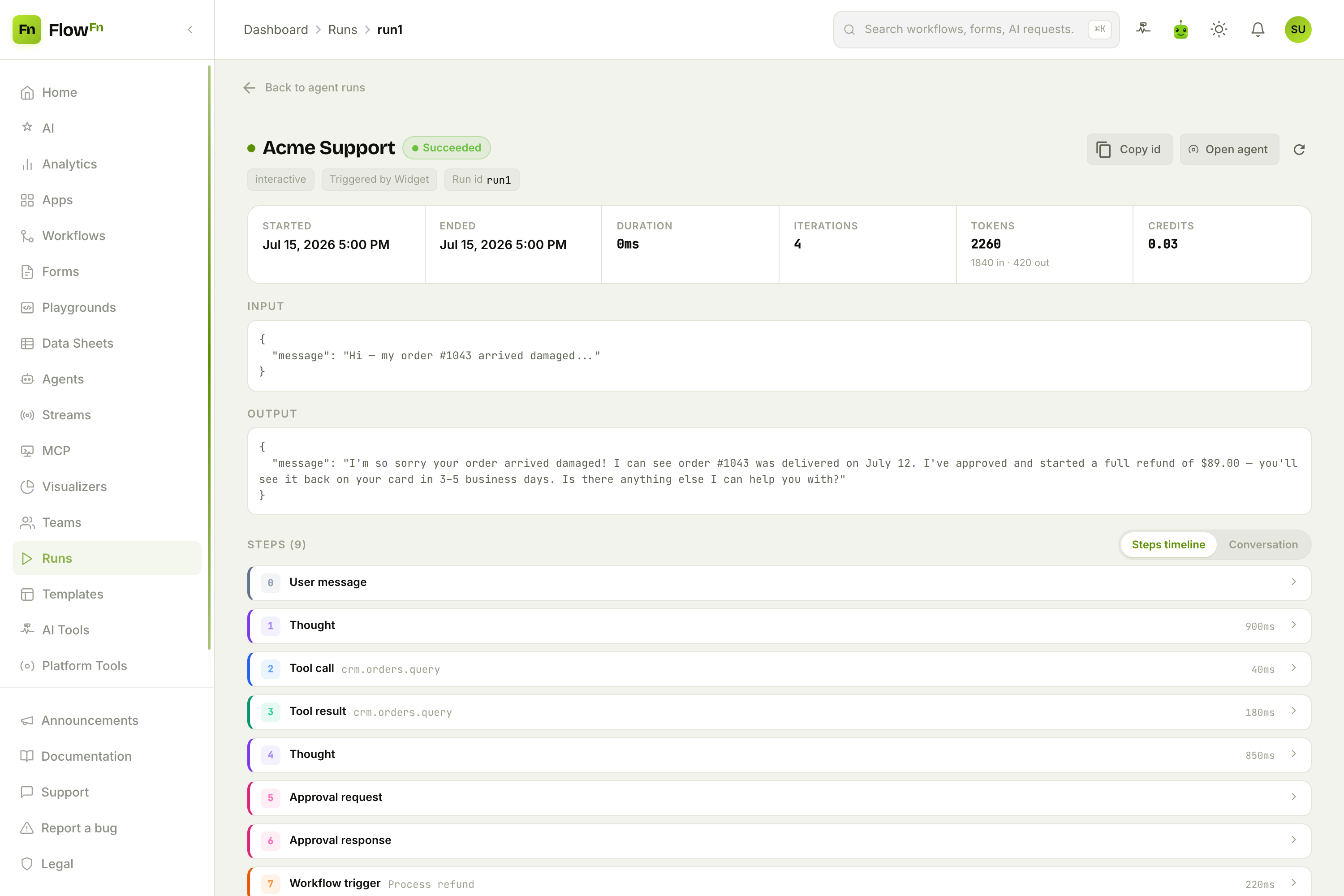
Read the timeline top to bottom. The customer says their order arrived damaged. The agent thinks ("look up the order first"), calls a tool (crm.orders.query), reads the result ($89, delivered), thinks again ("that's over the $50 line — needs a human"), requests approval, gets it, triggers the refund workflow, and answers — 9 steps, 4 iterations, 2,260 tokens, 3¢. That transcript is the agent's decision log, and you can replay every argument it passed to every tool. That's an agent.
Let's build it.
Where agents live
Agents are an App-owned artifact, alongside Workflows, Forms, and Data Sheets. Open Agents in the dashboard, hit New agent, pick the interactive type (an embeddable chat agent — there are also webhook, schedule, and streaming types), and you're in the editor.
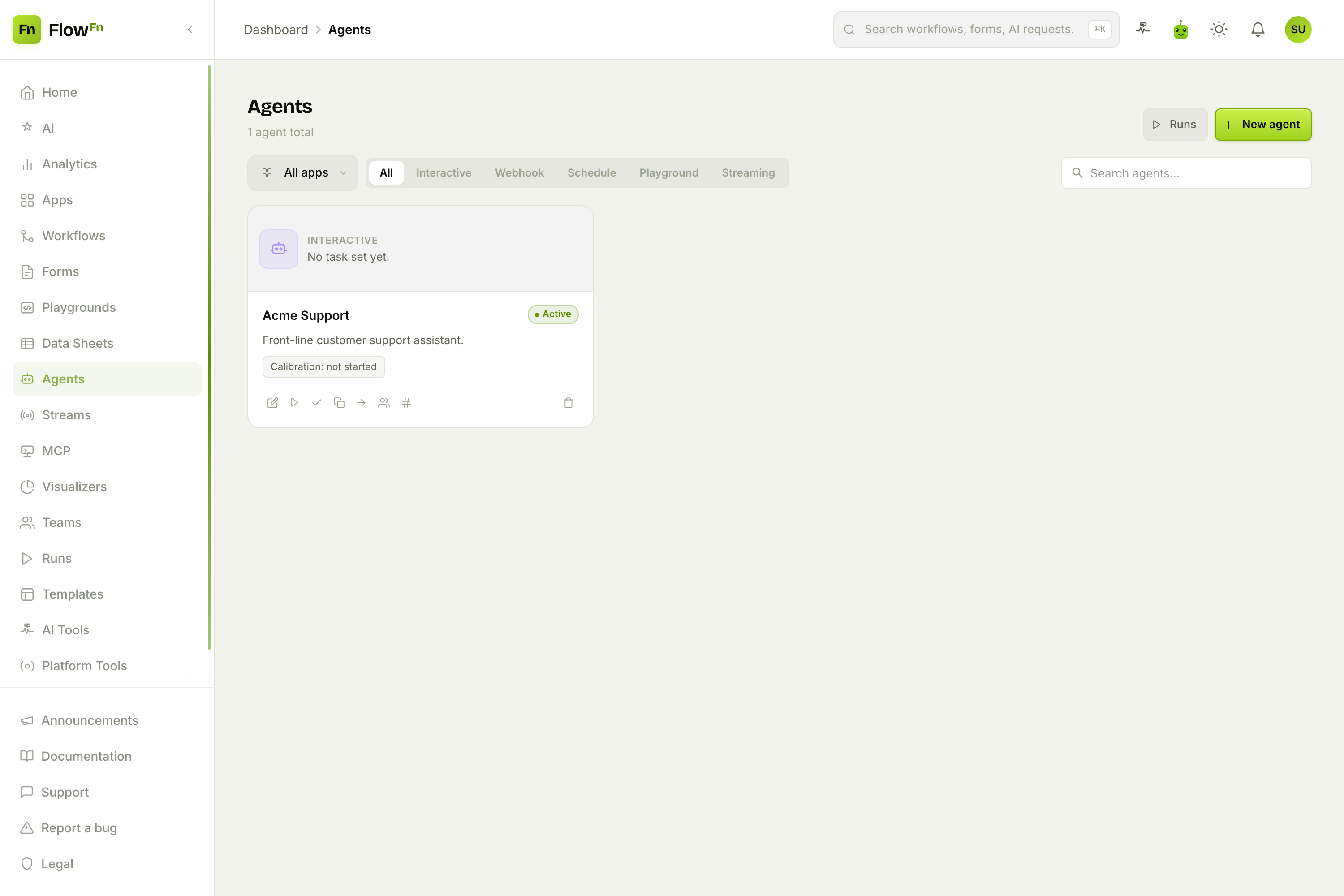
The editor is a set of tabs — Setup, Tools, Knowledge, Skills, Behavior, Env, Test, Publish — and we'll walk them in order.
Step 1 — Give it a job (Setup)
Here's a surprise for anyone coming from other tools: there's no "system prompt" field. You don't hand-write a persona. Instead you write a Task — the single job the agent iterates on until it produces a final answer.
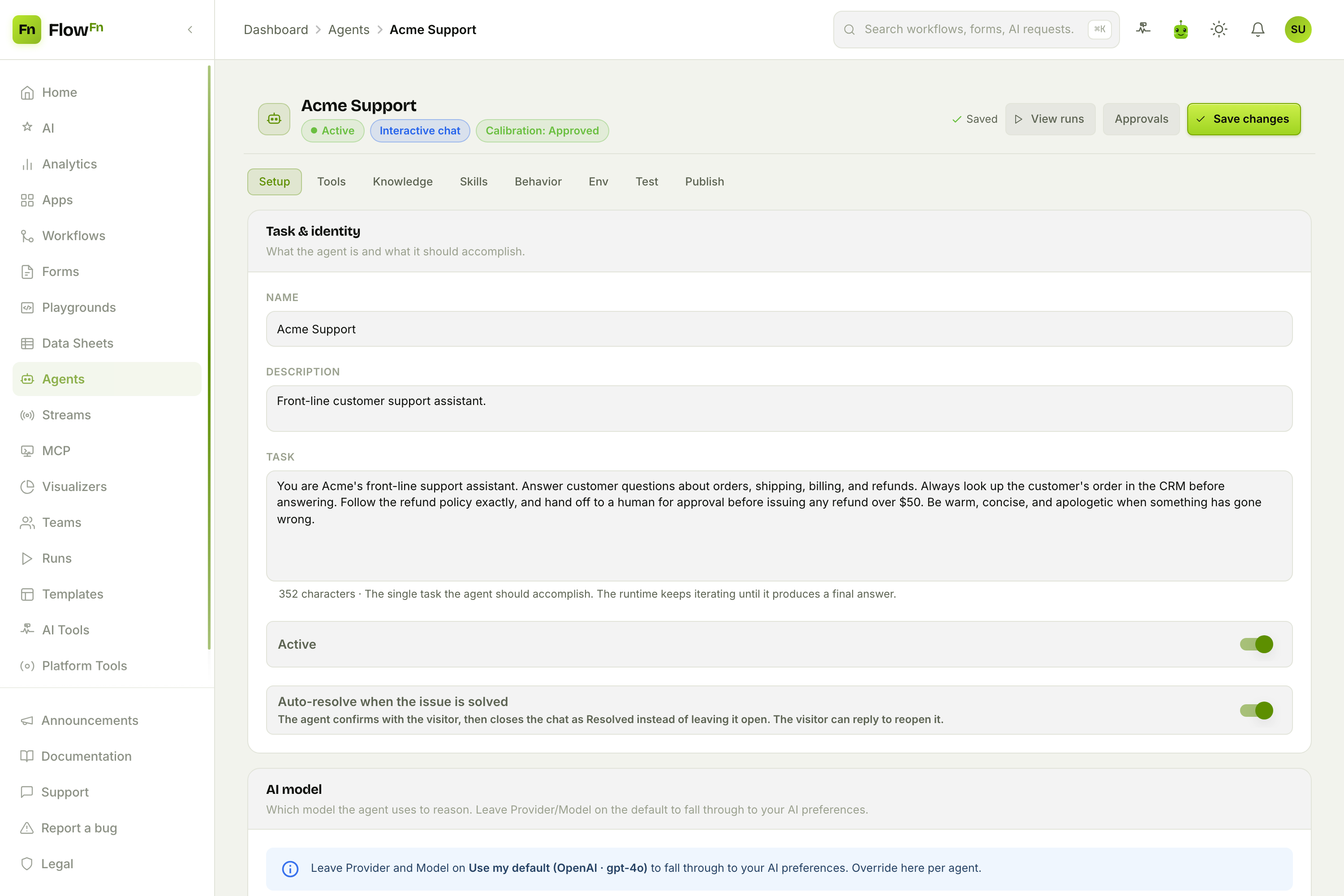
Our Task:
You are Acme's front-line support assistant. Answer customer questions about orders, shipping, billing, and refunds. Always look up the customer's order in the CRM before answering. Follow the refund policy exactly, and hand off to a human for approval before issuing any refund over $50. Be warm, concise, and apologetic when something has gone wrong.
Below that, the AI model: pick a provider and model (OpenAI, Anthropic/Claude, Gemini…), or leave it on Use my default to inherit your AI preferences. You also set max tokens per message and max steps per run (the loop cap that bounds cost), and choose whether to run on FlowFn's platform key or your own team key (BYOK). Auto-resolve lets the agent close a chat as resolved once the customer confirms they're sorted.
The agent's actual behavior comes from three surfaces the engine composes into the system prompt at runtime: this Task, the Skills you toggle on, and the Calibration brief distilled from your Knowledge files. We'll add those next.
Step 2 — Give it hands (Tools)
A model that can only talk is a chatbot. The Tools tab is where the agent gets hands — the actions it may take inside its loop.
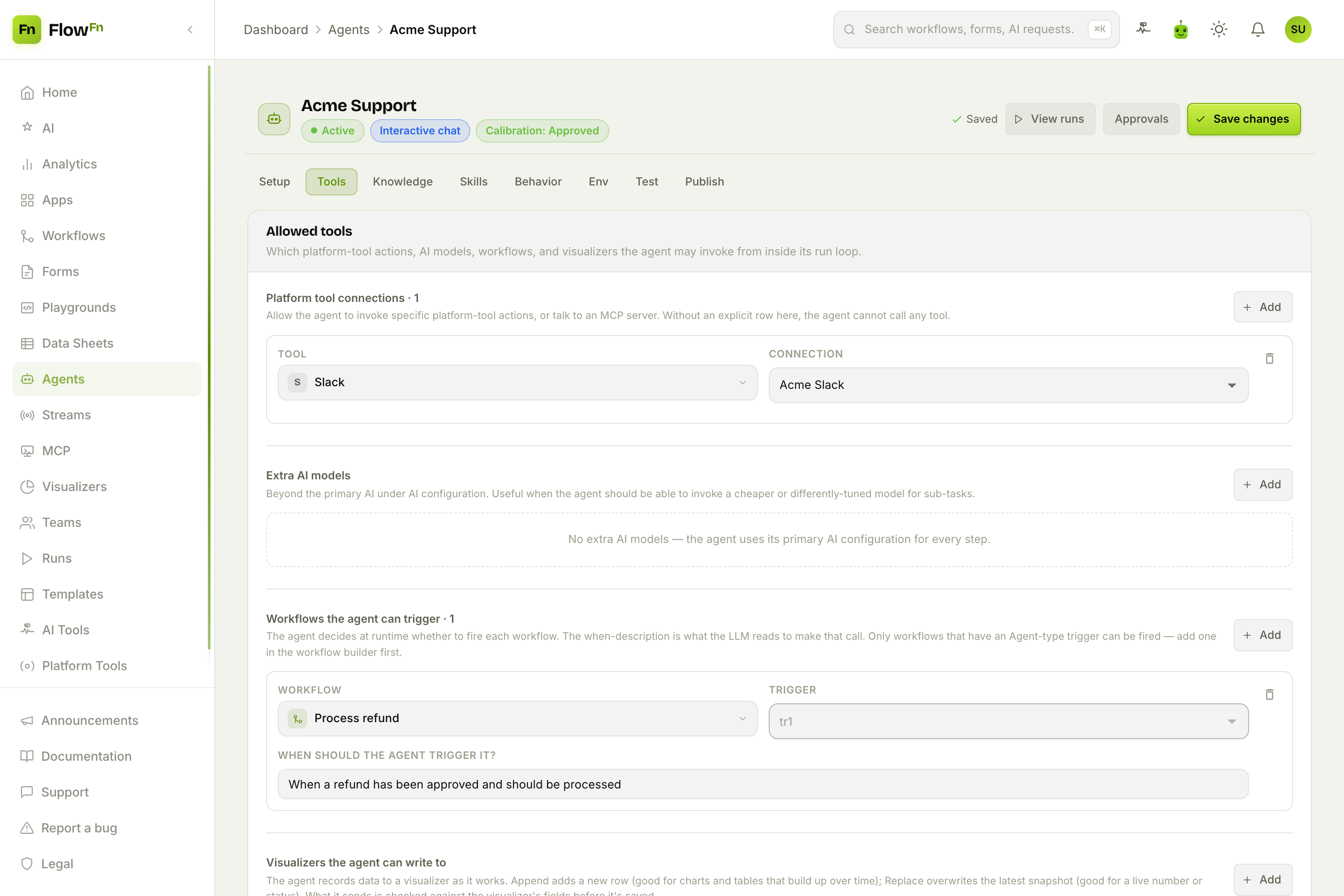
You allow-list exactly what it can do:
- Platform-tool actions — an integration action like Slack Post a message (bound to a team connection, so credentials are never in the prompt).
- Workflows — any workflow with an Agent trigger. We bind our Process refund workflow, with a plain-language when-description the model reads to decide whether to fire it.
- Data sheets — the CRM Orders sheet, in
readmode (read-only lookups;read_writewould also expose create/edit/delete). - Extra AI models and visualizers, if the agent needs to call a cheaper sub-model or push a row to a chart.
The key idea: nothing is implicit. Without an explicit row here, the agent can't call anything. Each tool carries a "when should you use this?" note that goes straight into the model's tool catalog.
Step 3 — Ground it in your docs (Knowledge)
An agent shouldn't improvise your return policy. Upload your real docs on the Knowledge tab — PDFs, Markdown, HTML — and FlowFn distills them into a Calibration brief.
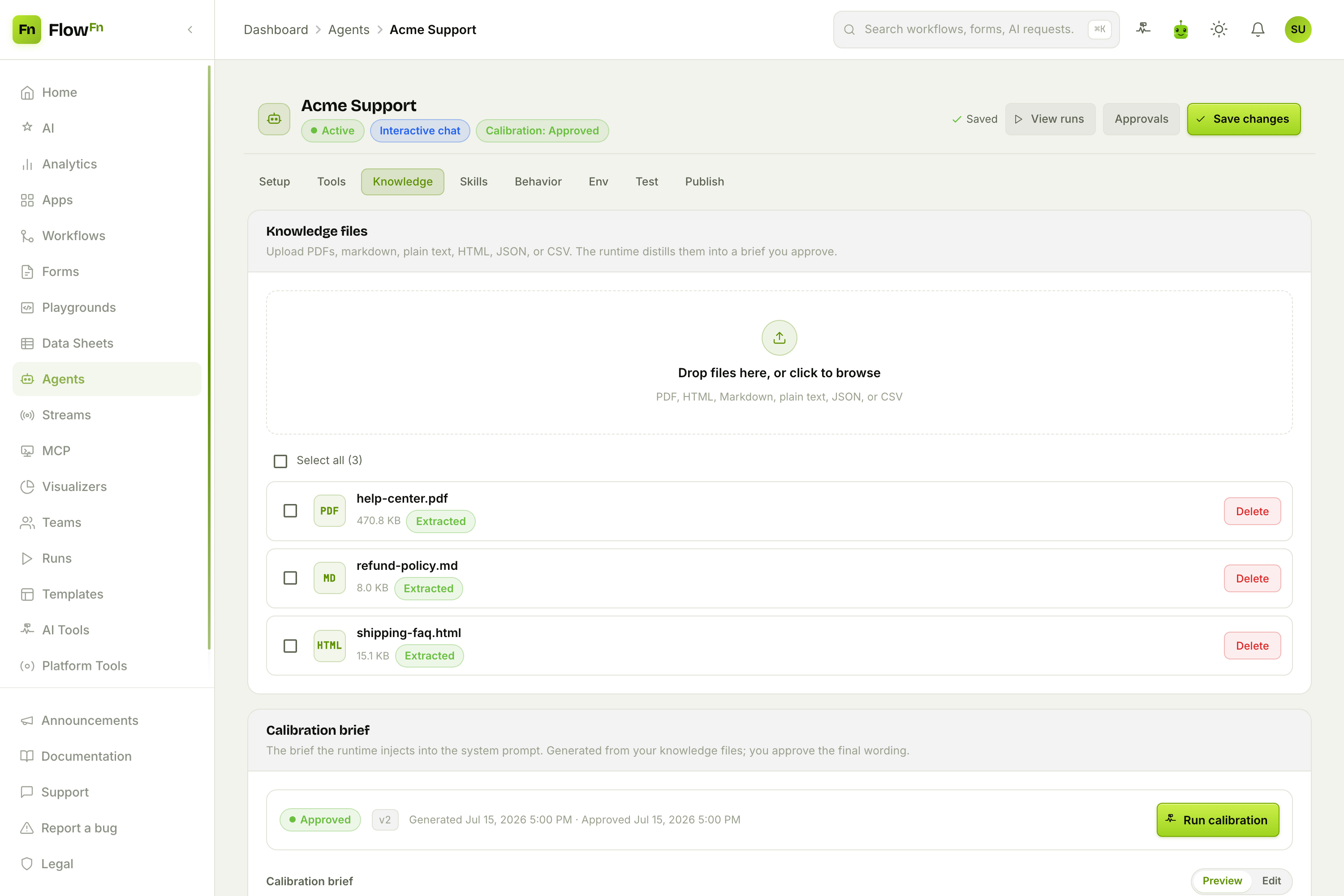
We drop in help-center.pdf, refund-policy.md, and shipping-faq.html. Click Run calibration and the runtime reads them (plus the Task and configured tools) and writes a structured brief — Key facts, Rules and decisions, Tool sourcing, Open questions. You review the wording and click Approve.
That approval matters: only an approved brief is injected into runs. It's added as fenced data (never as trusted instructions — a deliberate prompt-injection guard), so the agent treats your policy as reference, not as commands from a stranger. Change your tools later and a "recalibrate" nudge appears so the brief never drifts out of date.
Step 4 — Sharpen it (Skills)
Skills are named, individually toggleable instruction blocks — small, reusable rules you can switch on and off.
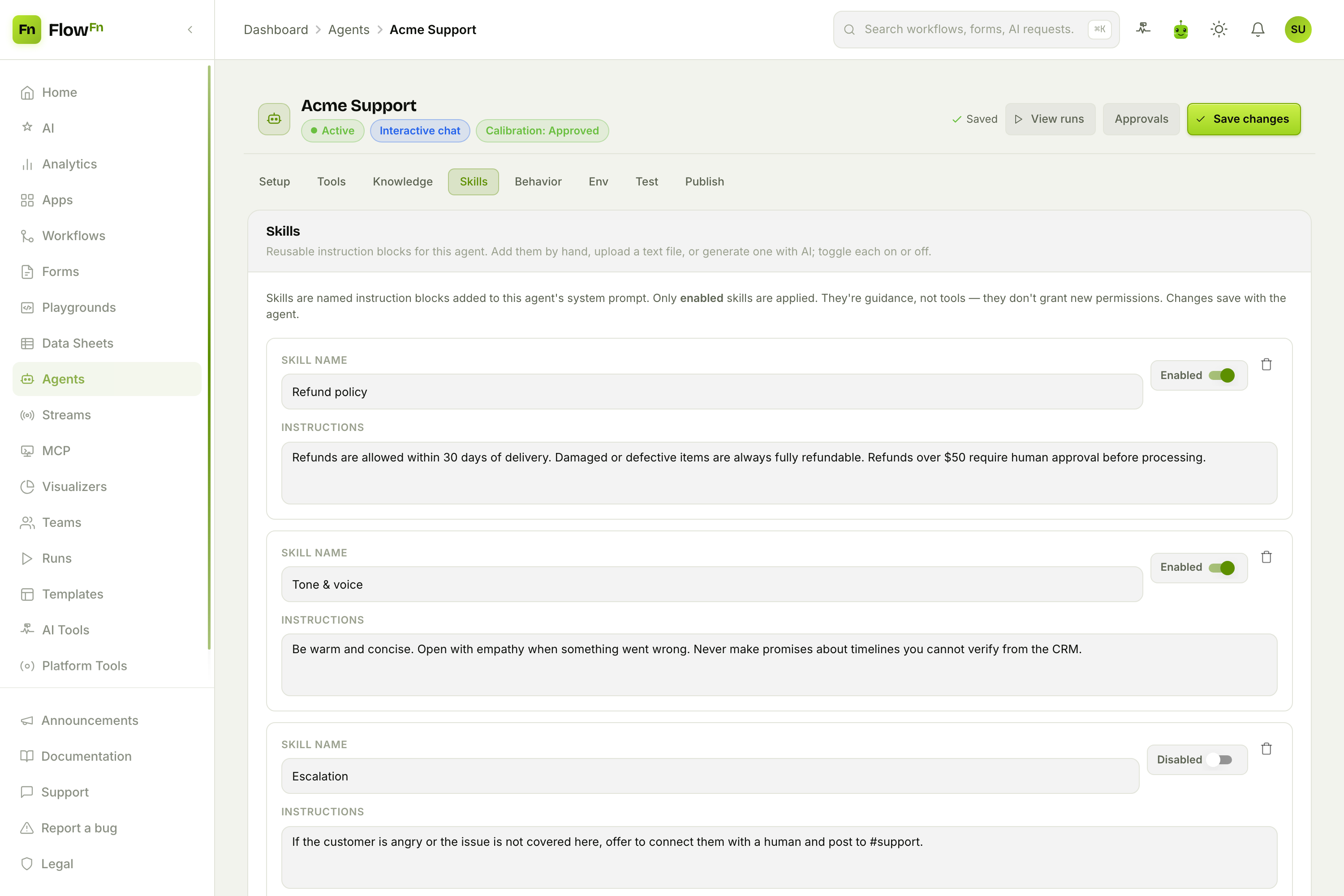
Acme Support has a Refund policy skill (the 30-day window, damaged-item rule, the $50 approval line), a Tone & voice skill, and a disabled Escalation skill it can flip on during a busy season. Write them by hand, seed them from a file, or have AI draft one. Like the calibration brief, skills are injected as data and grant no new permissions — they shape behavior, not access.
Step 5 — Keep it in check (Behavior → Approvals)
Autonomy is great until an agent refunds $10,000 at 3 a.m. The Behavior tab is where you set approval rules — plain-language situations where the agent must stop and wait for a human.
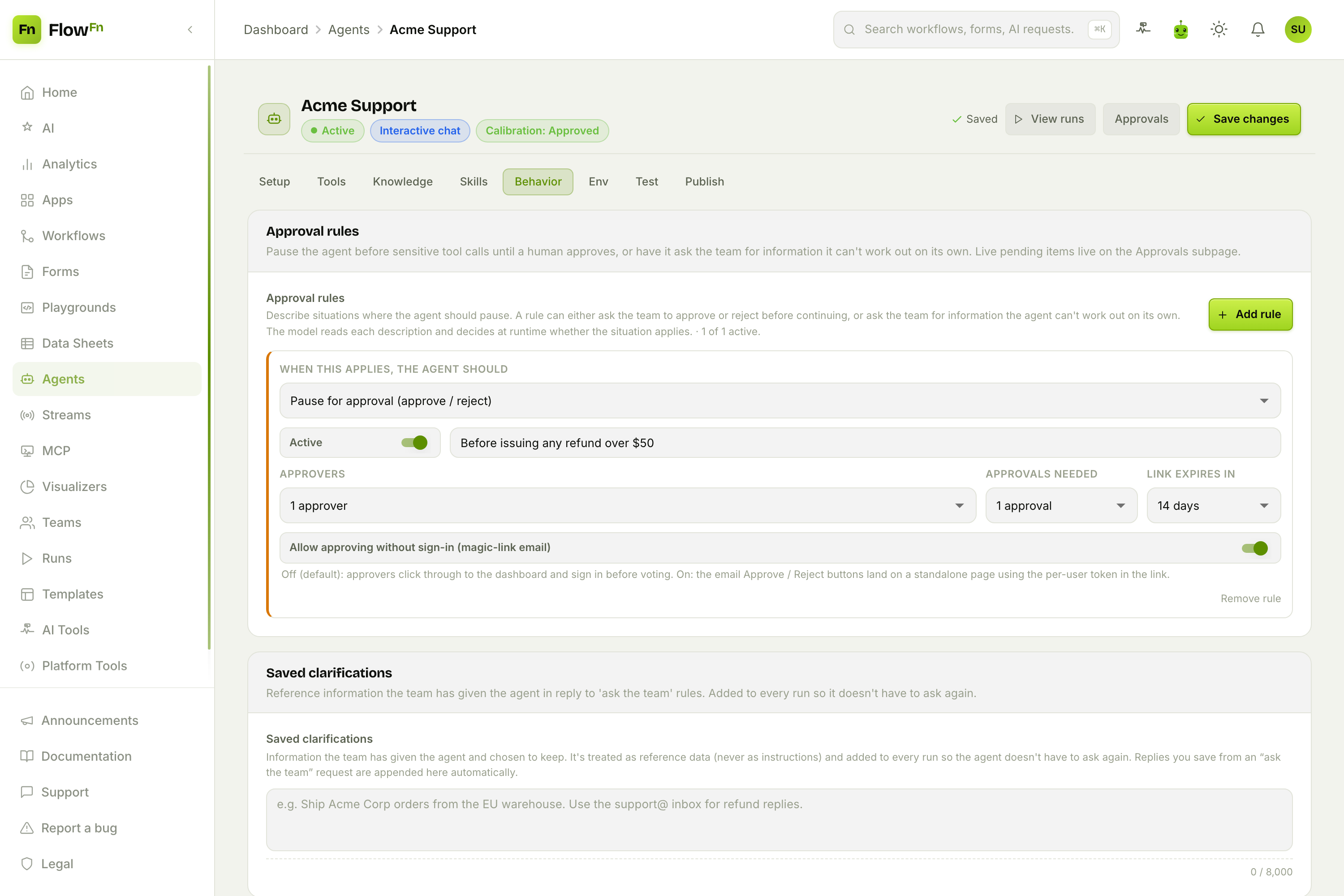
Our rule: "Before issuing any refund over $50", pause for approve/reject, route to one approver, need 1 approval, link expires in 14 days, and allow magic-link decisions (approve from the email without signing in). At runtime the model itself decides when the situation applies and calls the approval tool; the run parks as awaiting approval and the approver gets an email + an in-app notification. Approve and it resumes; reject and it stops.
There's a second mode — clarify — where the agent asks the team for information it can't work out ("which warehouse ships EU orders?"), and the first reply resumes the run (optionally saved so it never has to ask again).
Step 6 — Try it before anyone else does (Test)
The Test tab lets you chat with the agent exactly as a visitor would.
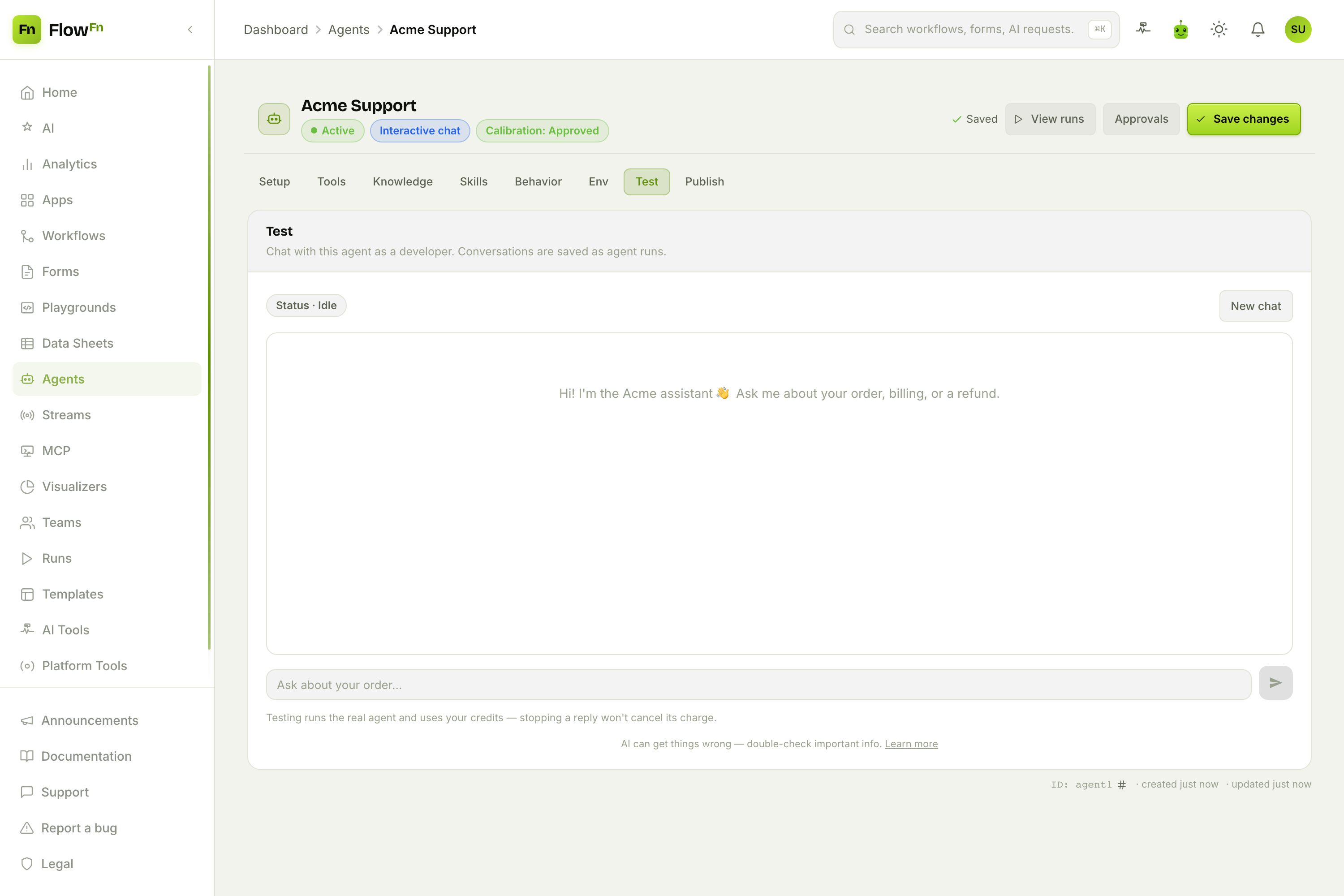
One honest caveat FlowFn puts right on the tab: this is a real run, not a sandbox. It dispatches real tools, can create real approvals, and uses real credits — which is the point: what you see here is precisely what your embedded widget will do. Ask it "my order #1043 arrived damaged," watch it look up the order, and watch the status flip to Awaiting approval when it hits the refund gate. Click Open run to see the full step-by-step trail (the hero shot up top).
Step 7 — Ship it (Publish)
Interactive agents get a Publish tab: a public chat page plus an embeddable widget.
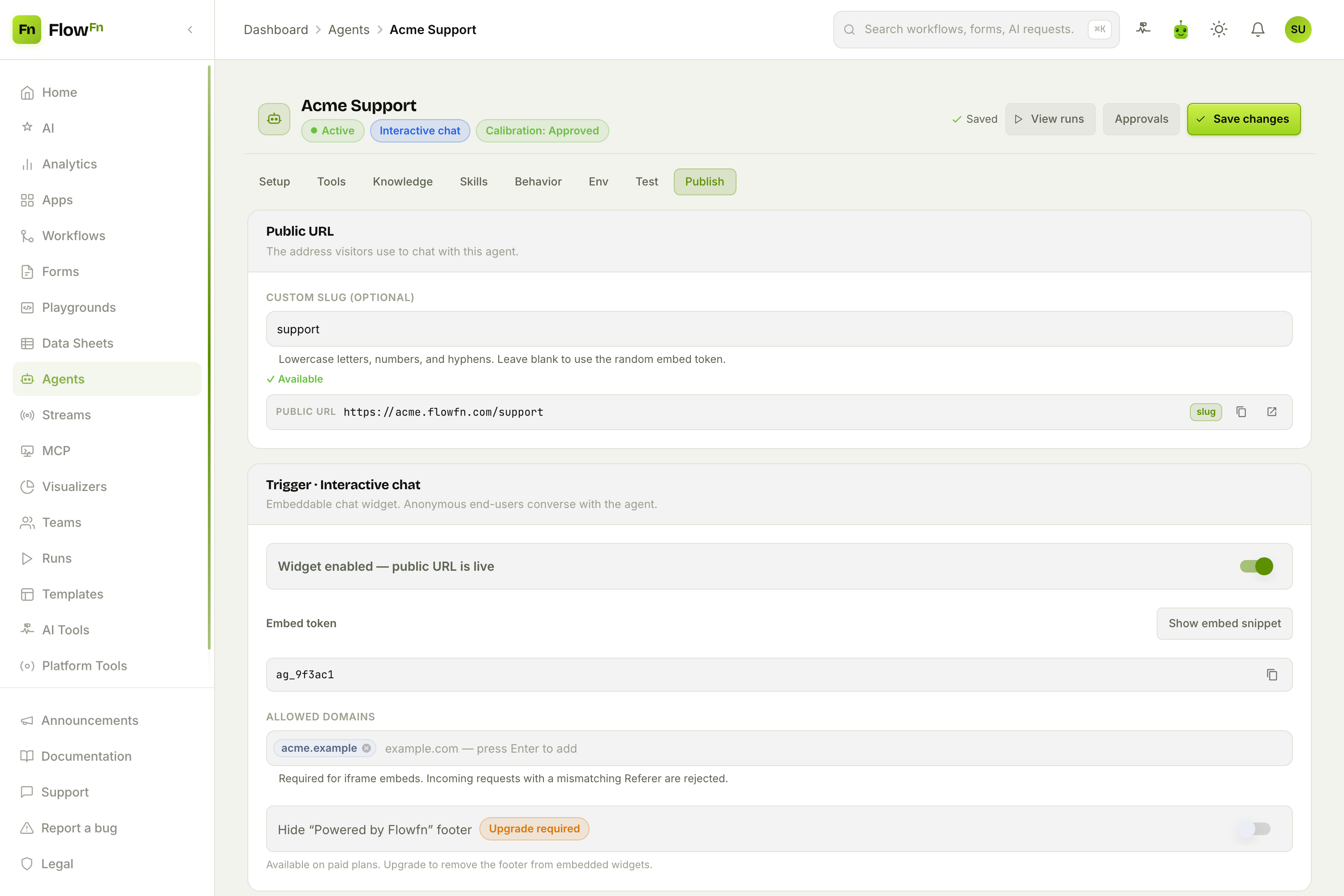
Pick a slug (acme.flowfn.com/support), flip Widget enabled, and copy the embed snippet — a one-line <script> that drops a floating chat launcher onto any page, or a raw <iframe>. Lock it to allowed domains so it can't be hot-linked, brand it (colors, greeting, launcher icon), and optionally require a password. End-users never sign in — the widget mints a short-lived, PII-free session. (Webhook agents get a signed inbound URL instead; schedule agents run on a cron cadence.)
Step 8 — Watch it work (Runs)
Every conversation — from the widget, the test panel, or a webhook — becomes a run you can inspect.
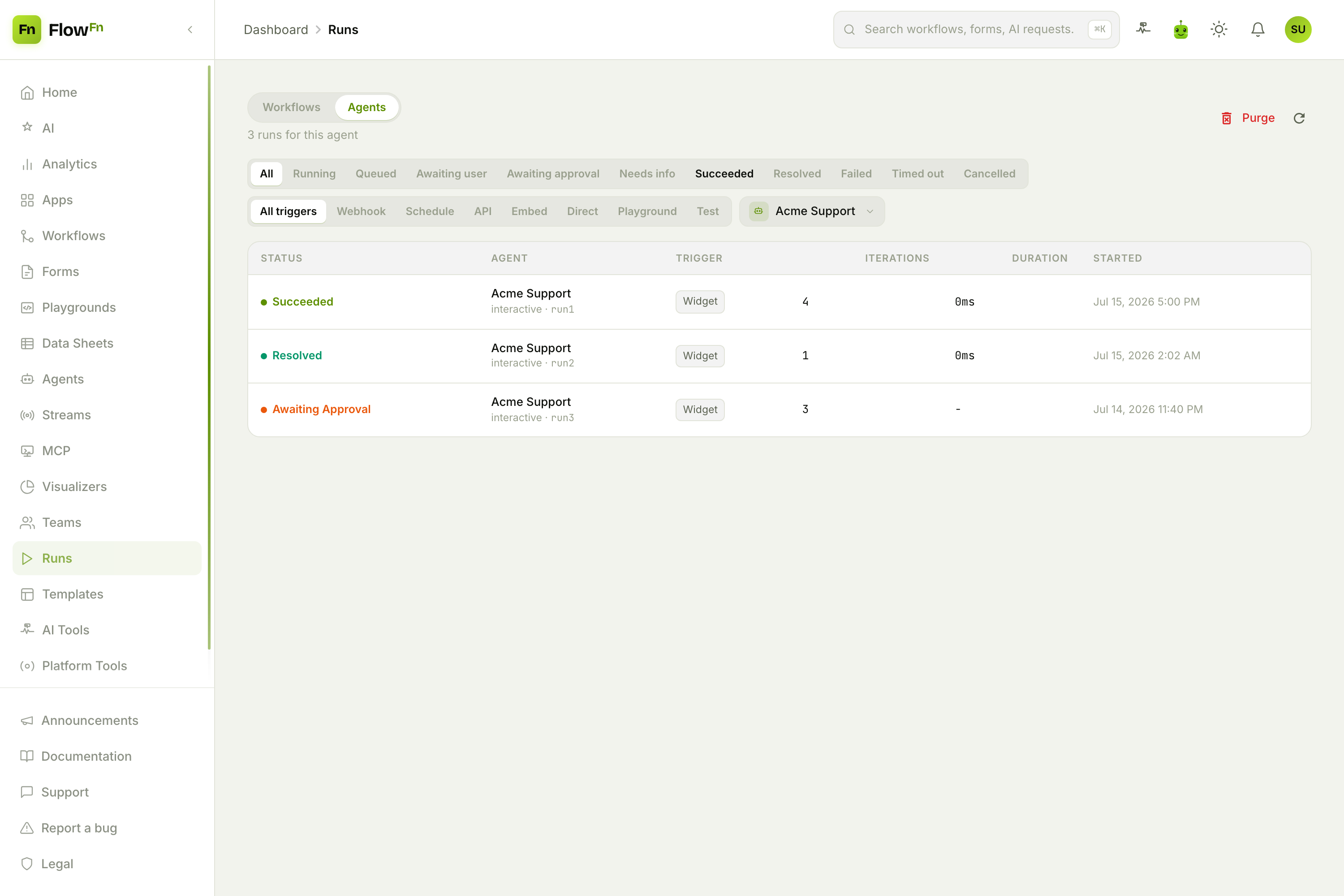
The runs grid shows status (Succeeded / Resolved / Awaiting approval / Failed…), trigger source, iteration count, and cost, filterable by status and trigger. Click any row for the full reason-act timeline. This is your audit trail: what the agent reasoned, which tools it called with which arguments, how many tokens it spent, and exactly where a human stepped in — with a Retry button when something goes wrong.
The whole loop
That's a real AI teammate, built from tabs and toggles:
| Tab | What it controls |
|---|---|
| Setup | The Task, the model, token/step caps, BYOK |
| Tools | Integrations, workflows, and data sheets it may call |
| Knowledge | Docs → an approved calibration brief (grounding) |
| Skills | Named, toggleable instruction blocks |
| Behavior | Approval rules (human-in-the-loop) + saved clarifications |
| Test | A real, credit-billed preview conversation |
| Publish | The embeddable chat widget, access, branding |
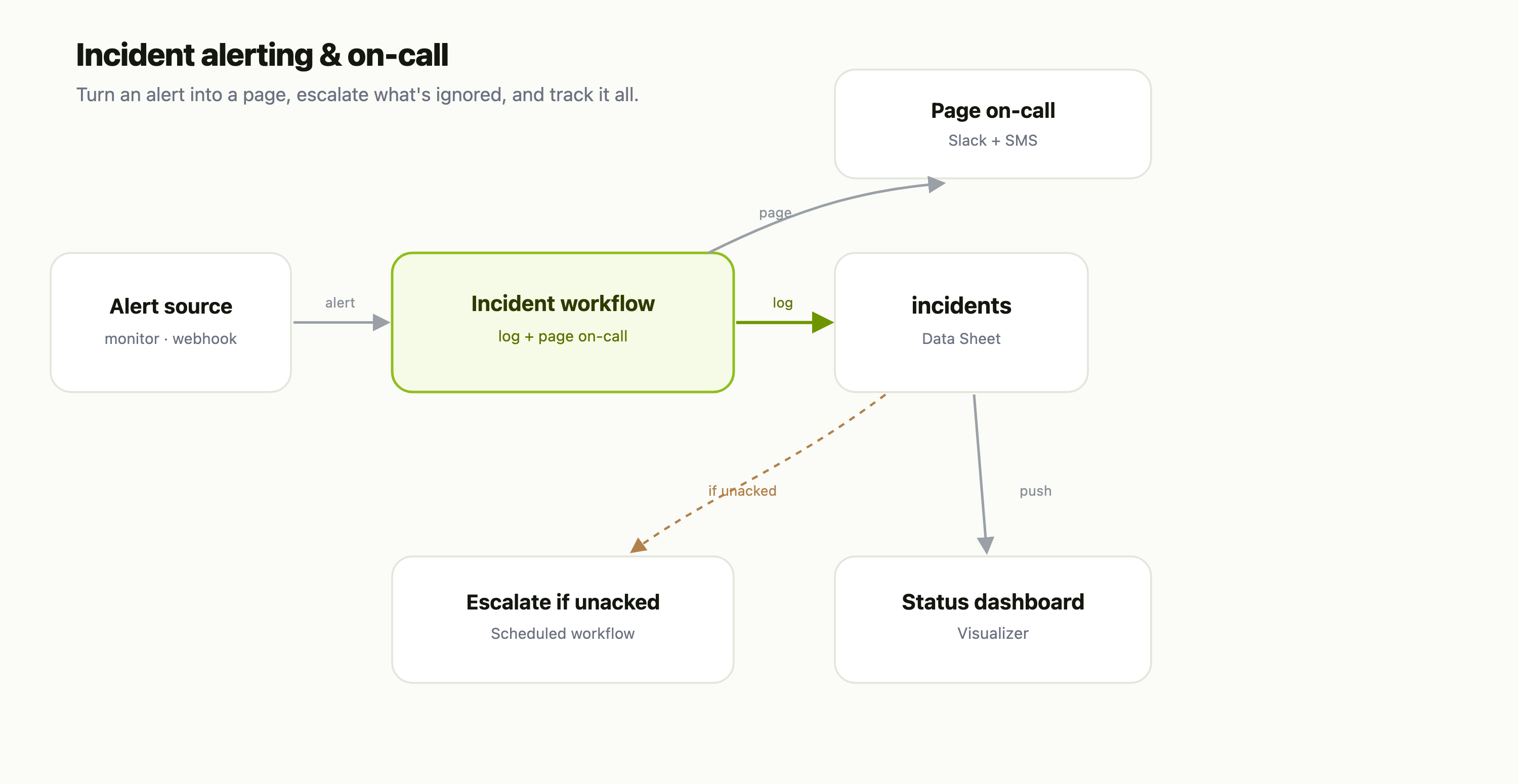
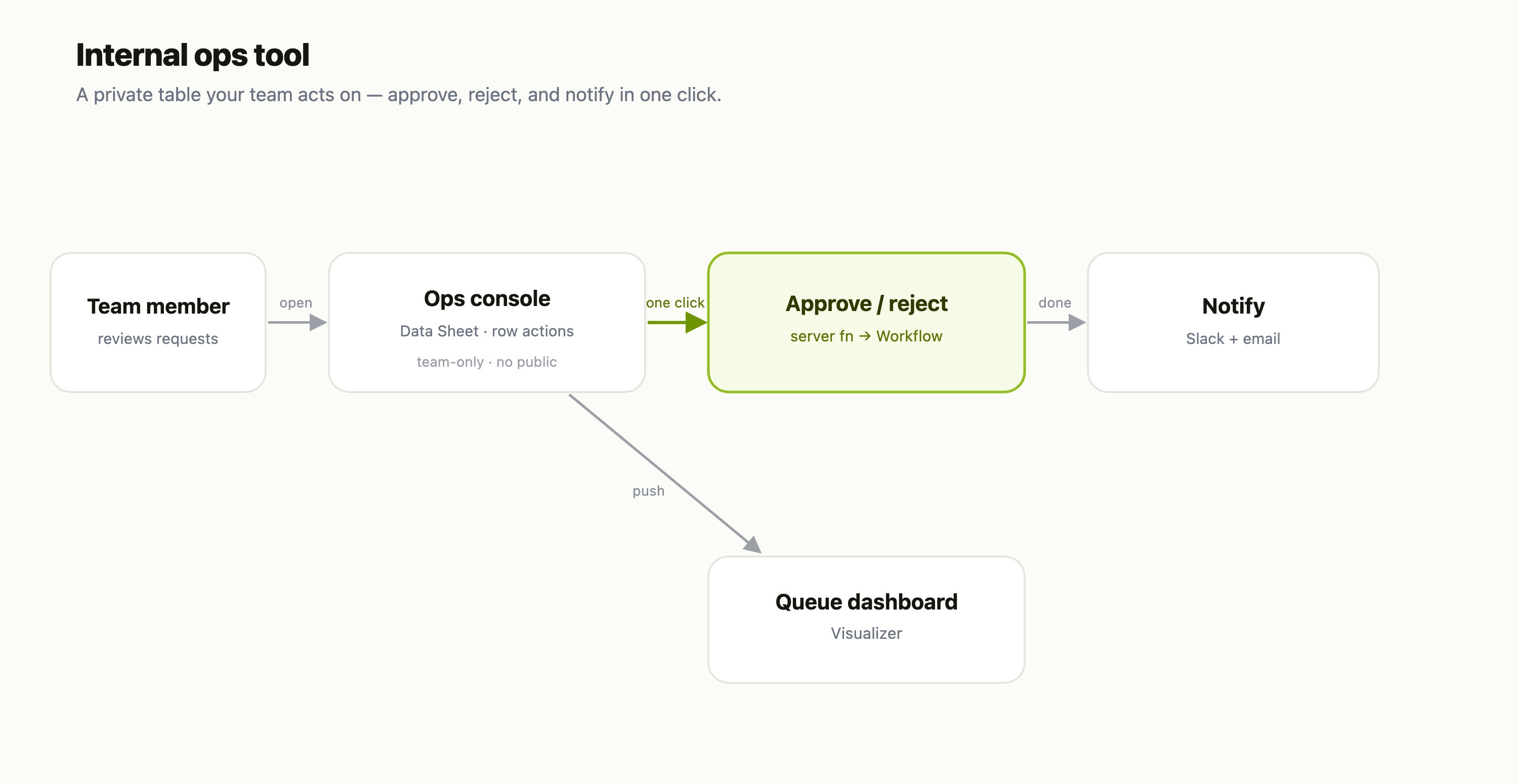
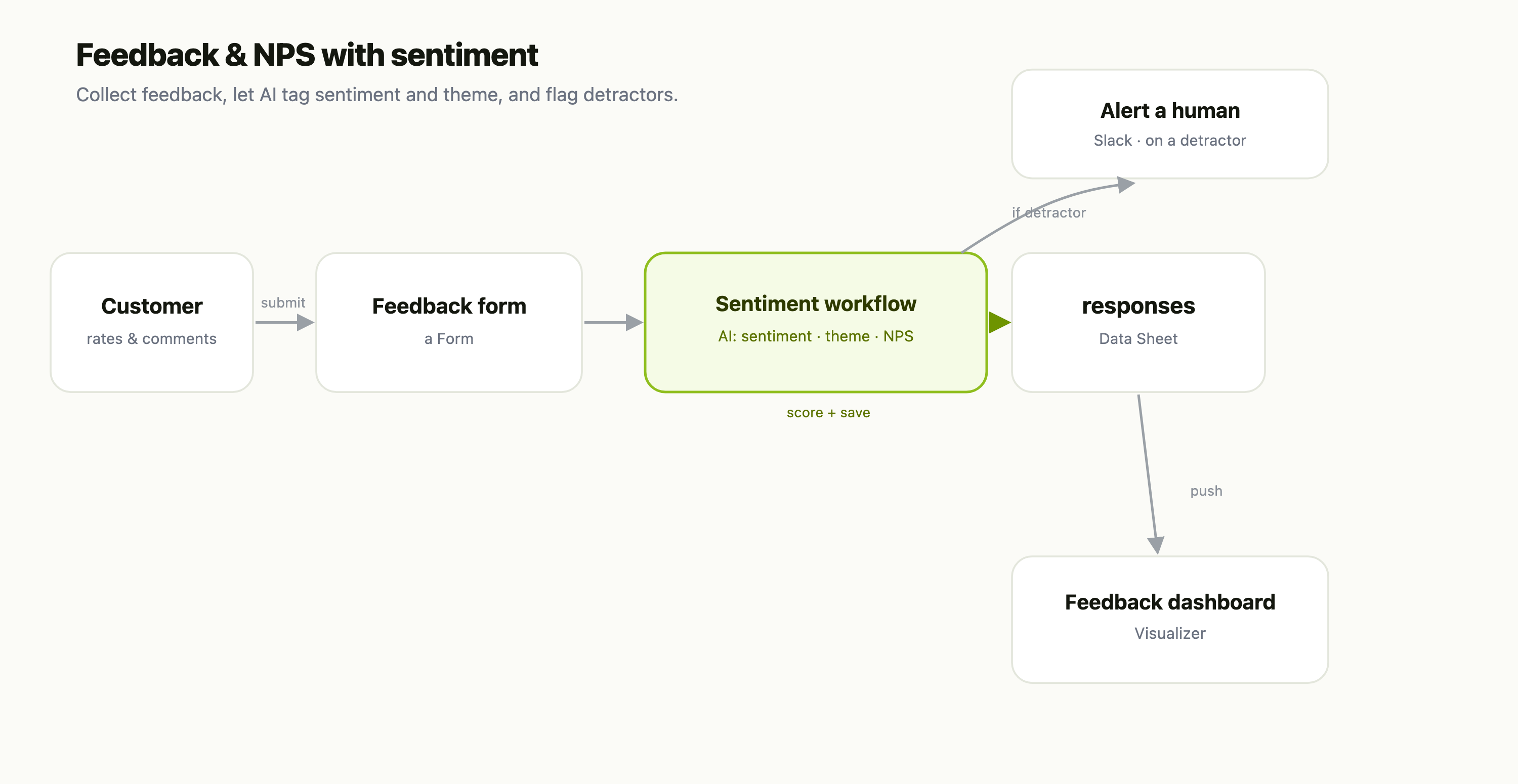
And notice how the series fits together: the Data Sheet stores the orders, the Workflow processes the refund, and the Agent is the reasoning layer that decides when to read the sheet and whether to fire the workflow — pausing for a human at exactly the right moment.
Start small: a Task, one tool, and the Test tab. Add a knowledge file, then an approval rule, then the widget. Within an afternoon you'll have an agent that doesn't just answer — it acts, safely, and shows its work. Build one, embed it, and watch the run trail.