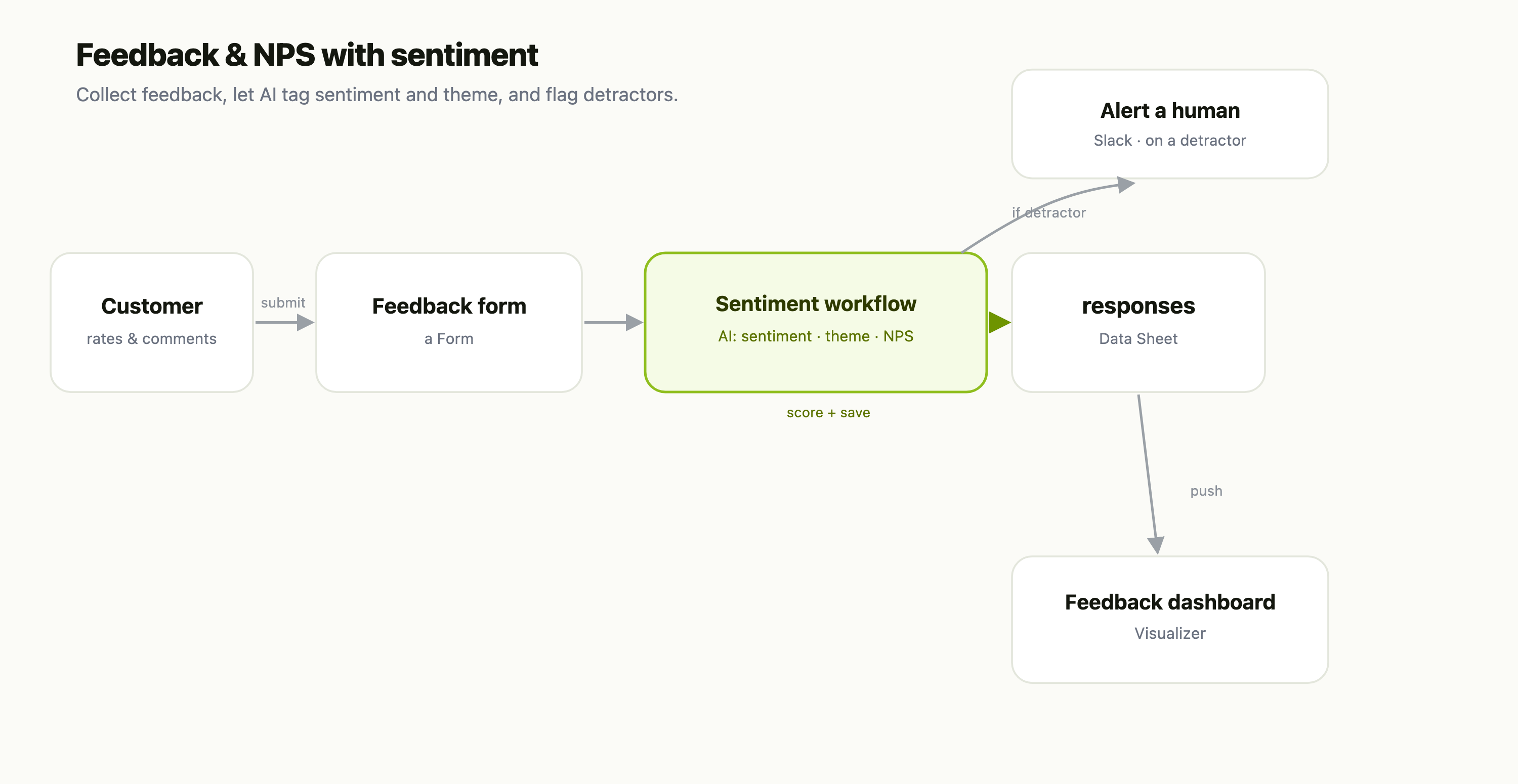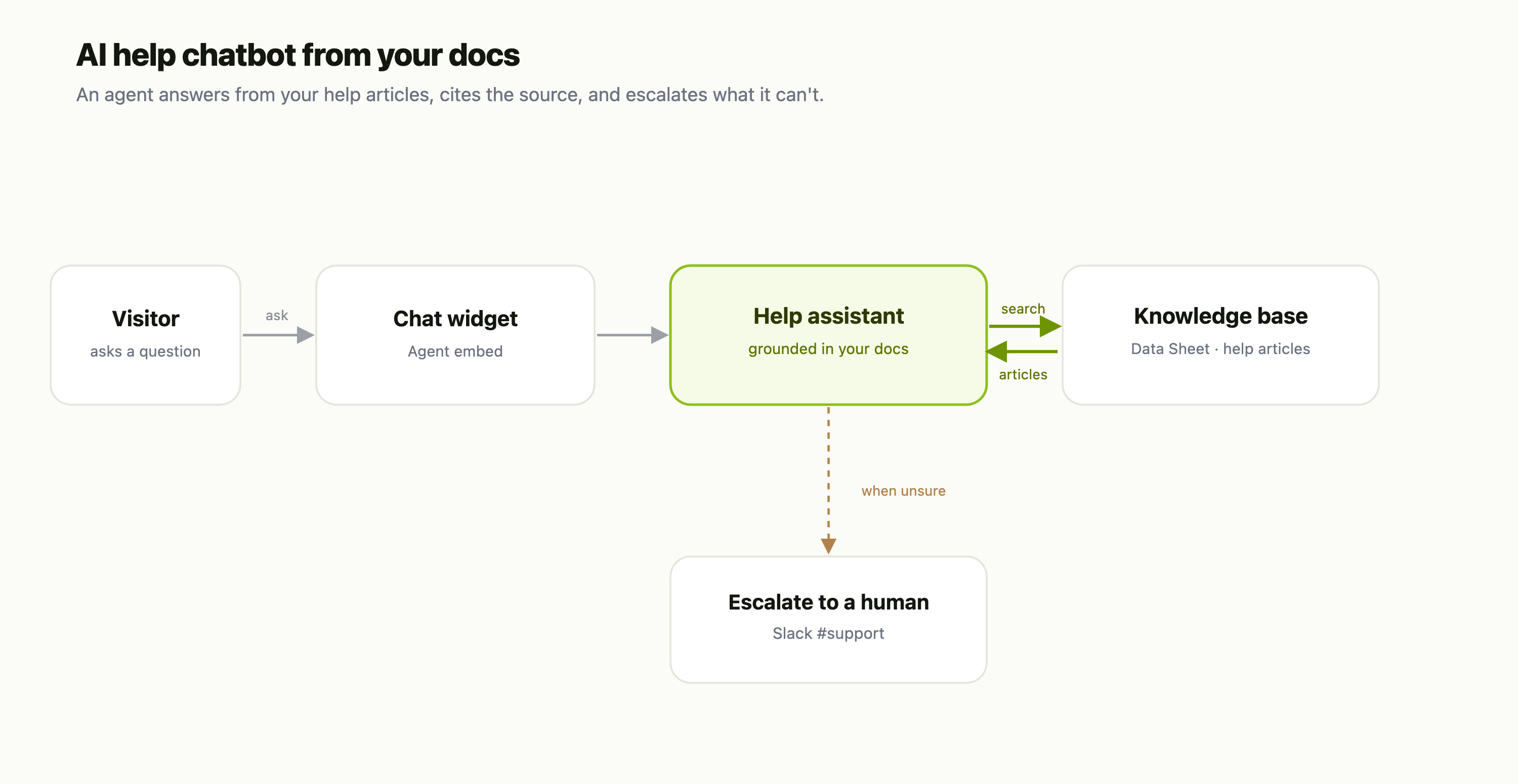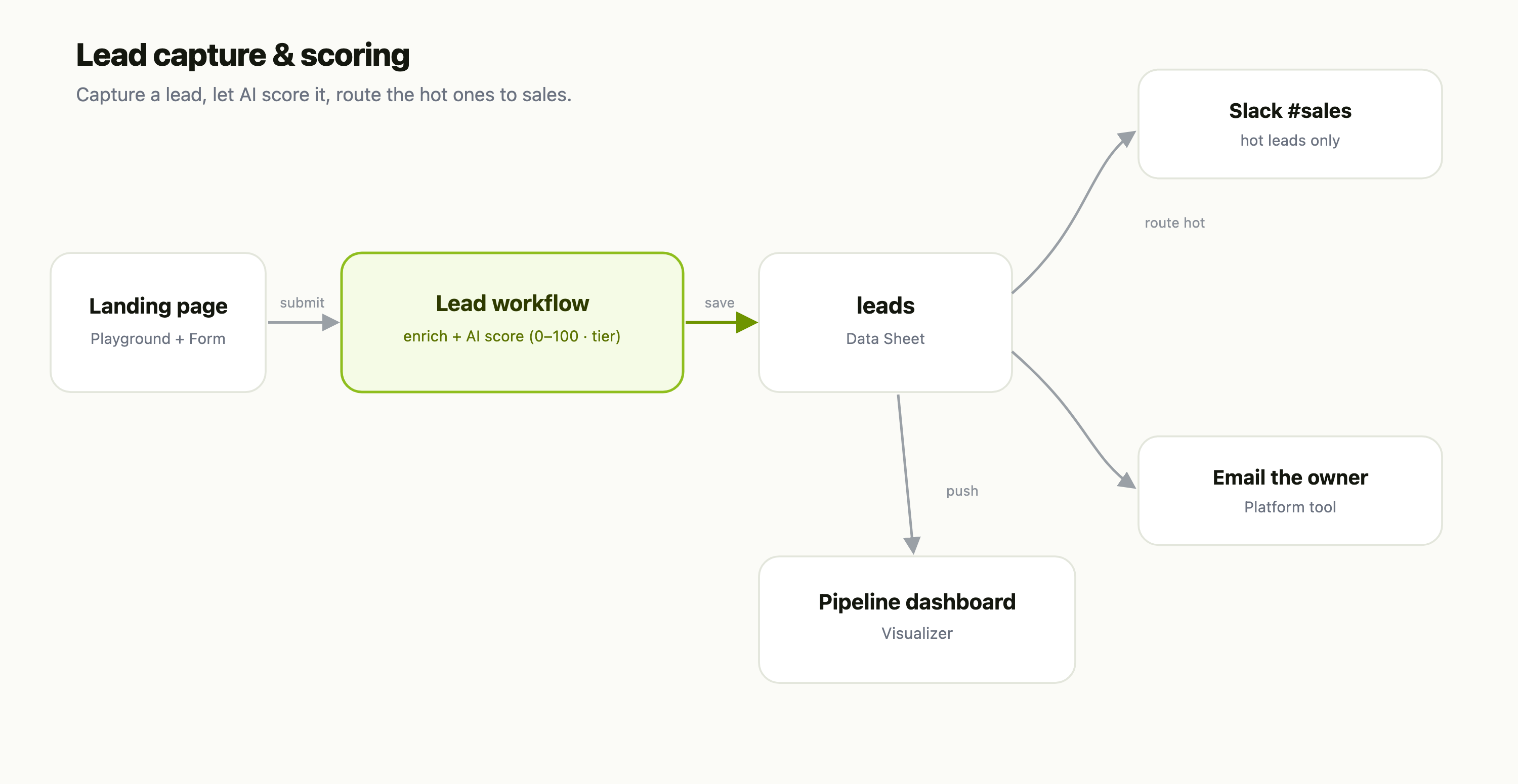
The Model Context Protocol is the emerging standard for letting AI assistants call external tools. Most of the time you think about it as a consumer — pointing your assistant at somebody else's MCP server. FlowFn flips that: it lets your App be the server. You describe what to expose, and any MCP client — Claude Desktop, Claude Code, Cursor, Windsurf, VS Code, the ChatGPT/Claude.ai web connectors, or the MCP Inspector — connects over a token-authed HTTPS endpoint and gets exactly the tools you attached. Nothing more.
Two things make this safe enough to actually turn on:
- Deny-by-default exposure. An MCP server exposes nothing until you explicitly attach it.
- A rotatable bearer token, host-locked, billed to you. One credential, revocable in a click, and every call runs as the app owner — so a client can never act as someone else.
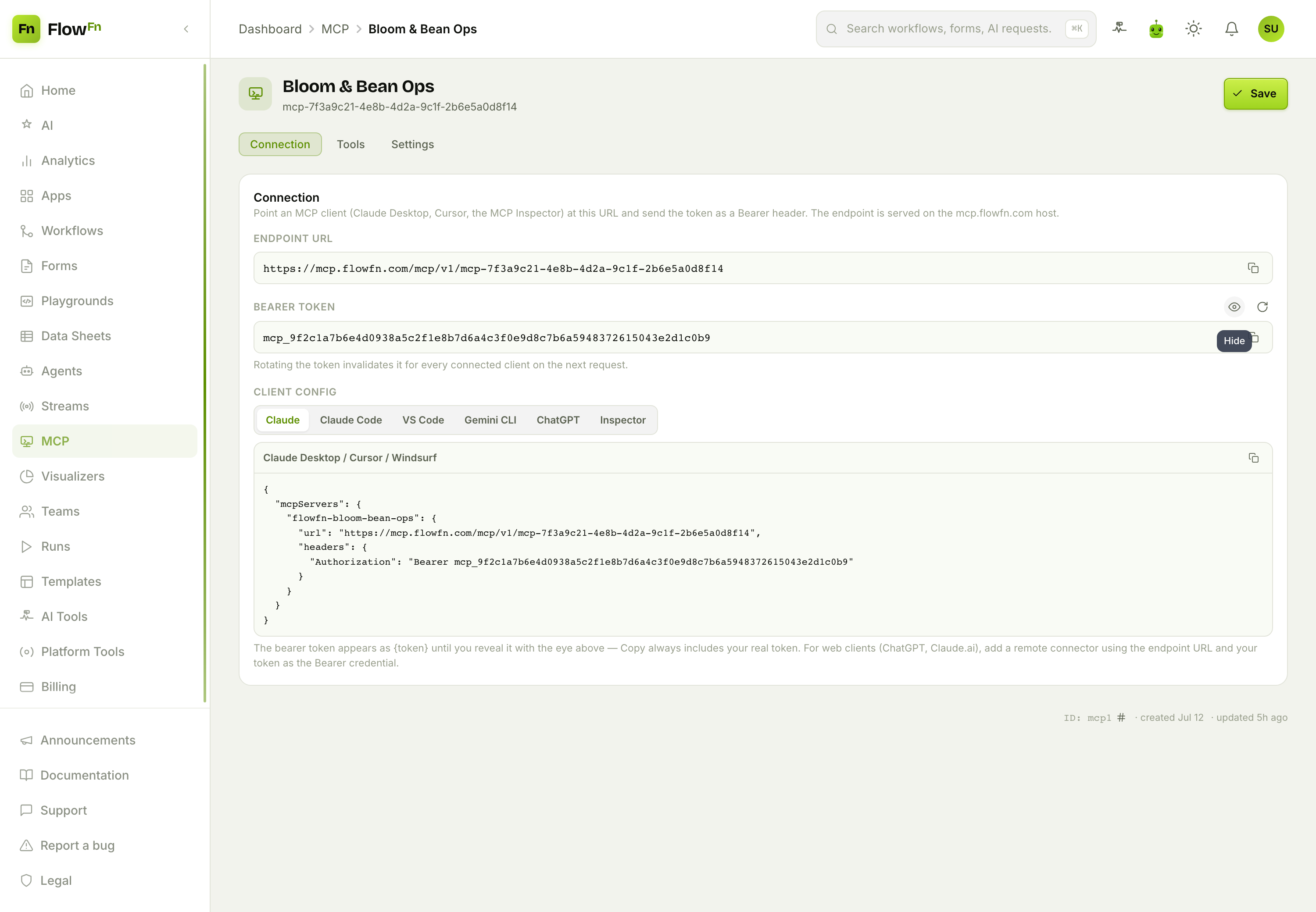
We'll wrap the café we've been building — its orders database, its concierge agent, and a "notify the kitchen" workflow — in a single MCP server called Bloom & Bean Ops, so an assistant can answer "how many lattes did we sell today?" and even place an order. Here's the connection screen we're aiming for:
Step 1 — Create an MCP server
From MCP, hit New MCP. Give it a name, pick the App, and (optionally) a description — that description becomes the instructions the external AI reads when it connects, so it's worth a sentence about what the server is for.
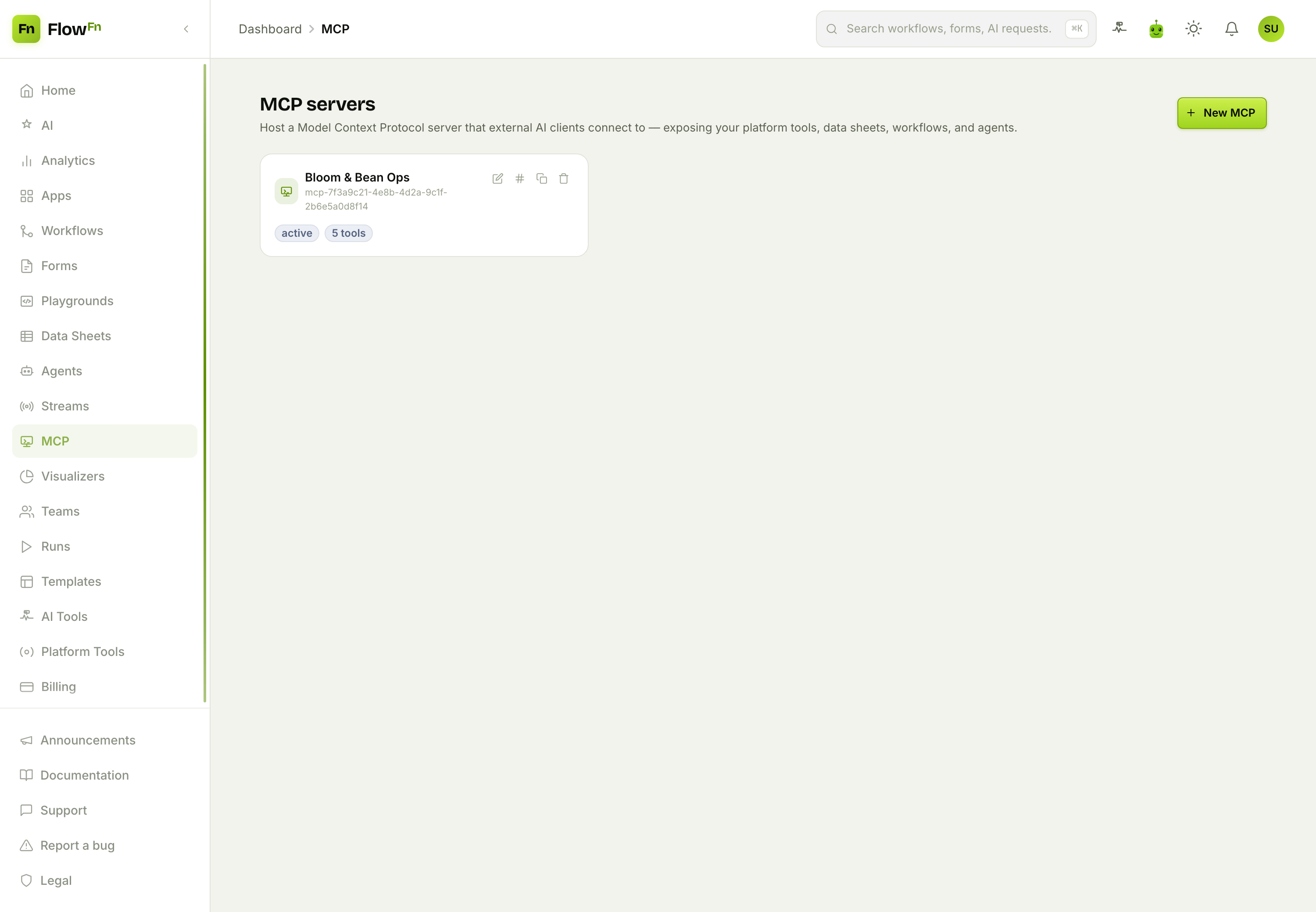
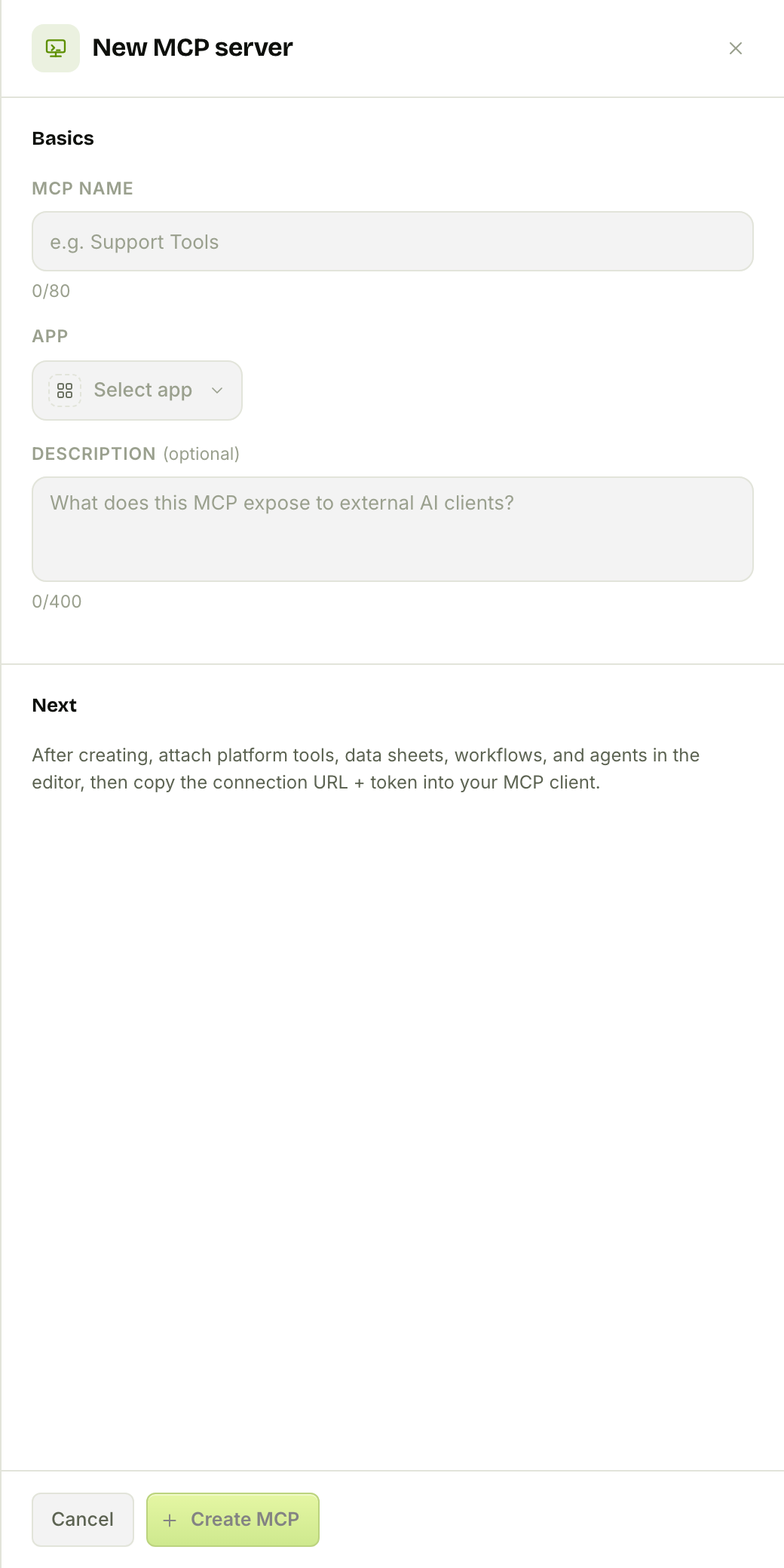
Creating it drops you in the editor with three tabs — Connection, Tools, Settings — and a server that, right now, exposes nothing at all.
Step 2 — Connect a client
The Connection tab is the integration guide (that hero shot above). It gives you:
- Endpoint URL —
https://mcp.flowfn.com/mcp/v1/<code>. Thatcodeis public but unguessable, and the endpoint only answers on themcp.flowfn.comhost — hit it anywhere else and it returns a dark 404. - Bearer token — a rotatable
mcp_…secret. Reveal it with the eye, copy it, or rotate it (which invalidates every connected client on their next request). This is the only credential; there's no app-code-plus-key alternative. - Client config — copy-paste snippets for each client, so you don't hand-write JSON. Pick your tool and paste:
The Claude Desktop / Cursor / Windsurf shape:
{
  "mcpServers": {
    "flowfn-bloom-bean-ops": {
      "url": "https://mcp.flowfn.com/mcp/v1/<code>",
      "headers": { "Authorization": "Bearer mcp_…" }
    }
  }
}
…and the Claude Code CLI one-liner:
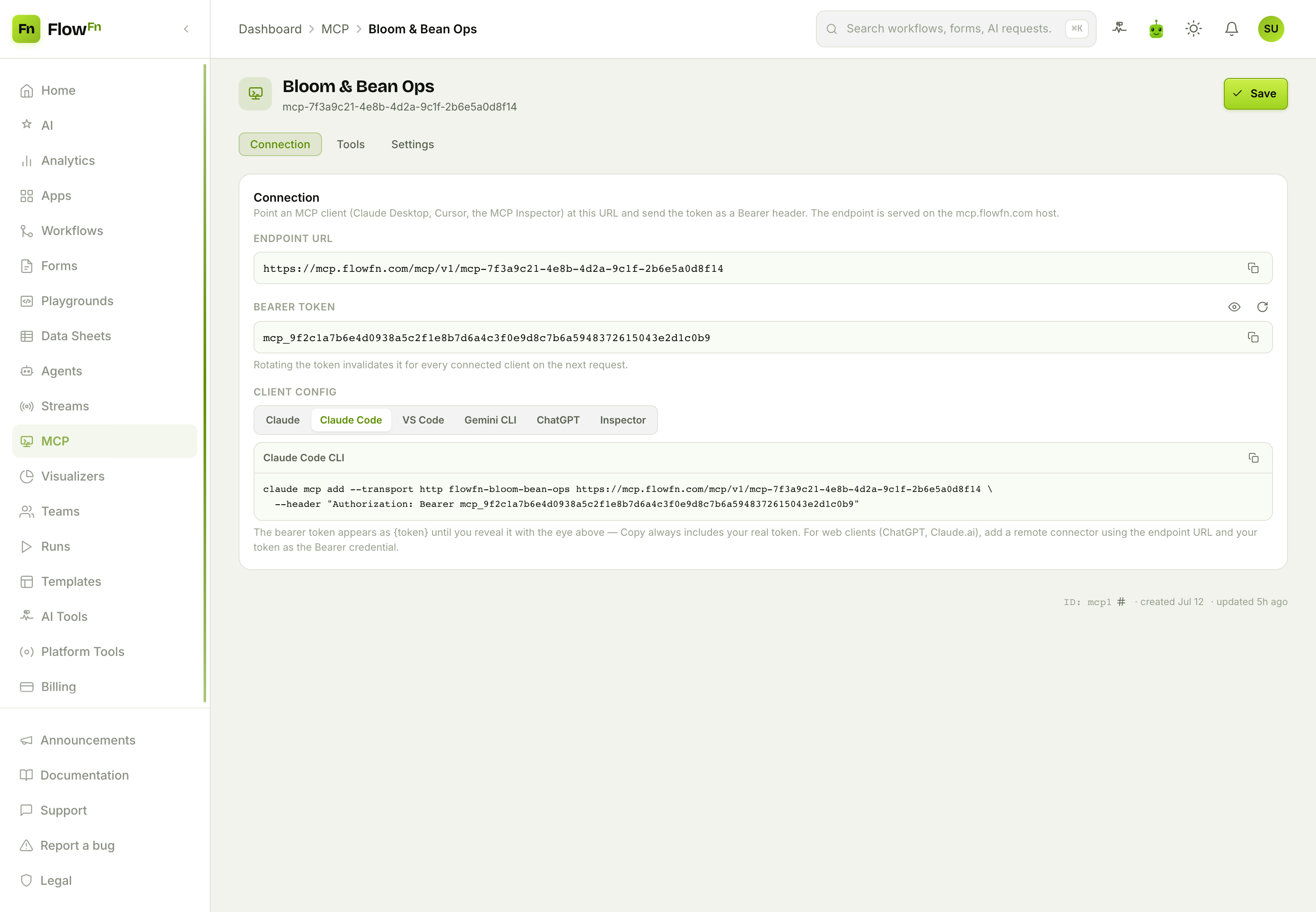
claude mcp add --transport http flowfn-bloom-bean-ops \
  https://mcp.flowfn.com/mcp/v1/<code> \
  --header "Authorization: Bearer mcp_…"
There are cards for VS Code (.vscode/mcp.json), Gemini CLI (~/.gemini/settings.json), the ChatGPT / Claude.ai web connector, and the MCP Inspector too. Paste one, and your assistant runs initialize → tools/list → tools/call against your app.
Step 3 — Choose what to expose
This is the important tab. Tools is where deny-by-default lives — the server can only list and call what you attach here.
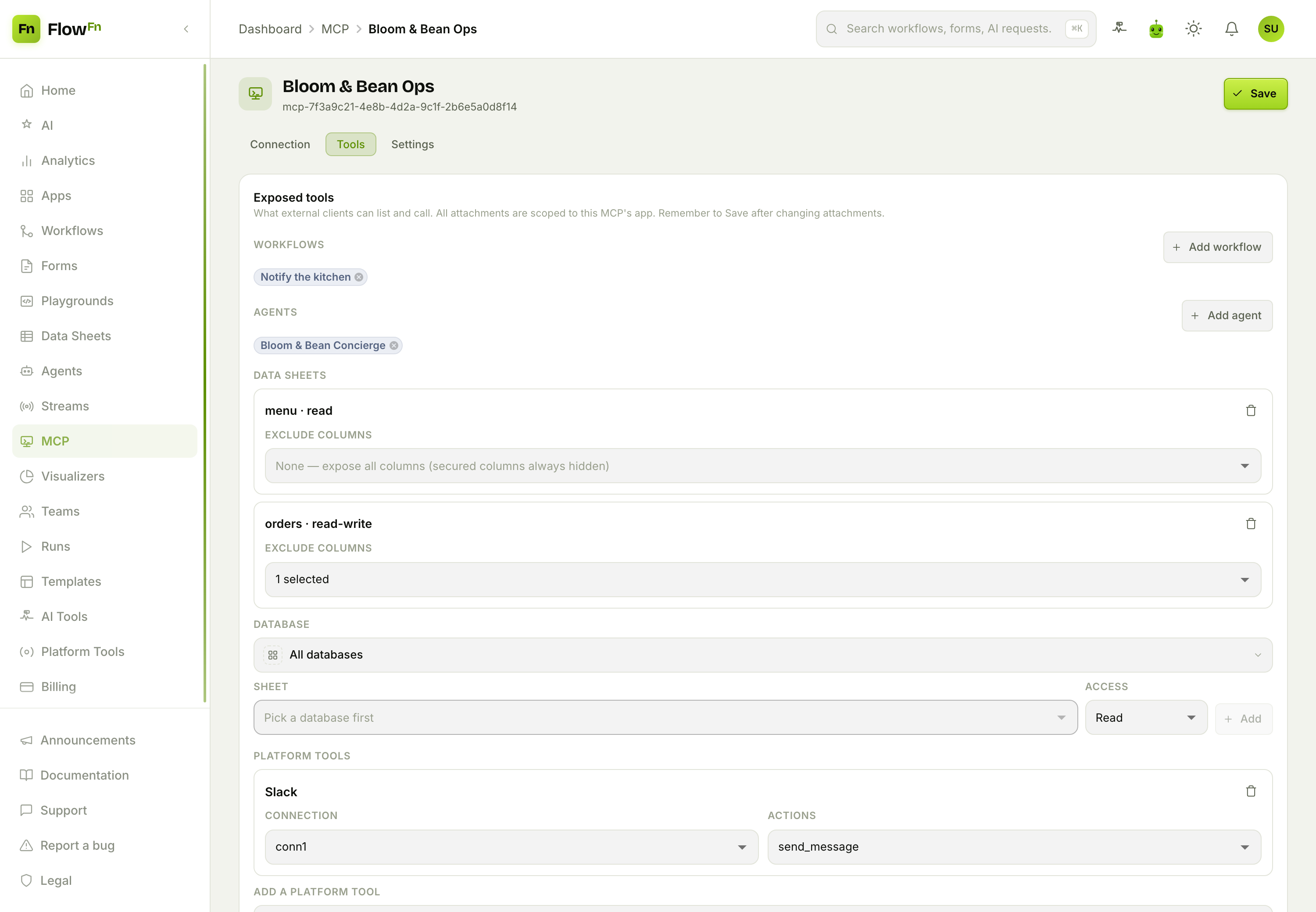
Four kinds of thing plug in:
- Workflows — each attached workflow becomes a callable tool that starts a run (we expose Notify the kitchen).
- Agents — an attached agent runs end-to-end when called (our Bloom & Bean Concierge).
- Data sheets — attach a sheet read (a query tool only) or read-write (query + create + edit + delete). We give
menuread access andordersread-write, and use Exclude columns to withholdcustomer_phonefrom the AI. Secured (hashed/encrypted) columns are always hidden regardless — the AI can never see a PIN. - Platform tools — expose specific actions of an integration (a Slack Send message, say), each with a "when to use" hint and per-action output you can withhold.
Two things worth internalizing about exposure:
- Everything is deny-by-default and explicit. Nothing is exposed until you add it here — attach a workflow, an agent, or a sheet, and for a platform tool, pick the specific actions to expose from its Actions list. Remove a chip and that tool vanishes from the server on the next Save. A newly-registered action isn't live until you go in and select it.
- FlowFn only offers you the safe actions. The Actions picker hides the ones that shouldn't be exposed at all — destructive verbs like delete/purge, and any action an admin flagged off — so you can't attach them by accident. What you pick is exactly what an external client can call; that eligibility filter just narrows the menu, it never exposes anything on its own.
Attach a workflow or an agent and the editor shows a blunt high-privilege warning: an external client can trigger everything that workflow or agent does — send email, charge a card, write rows. That's the point of MCP, and the reason the allow-list is deny-by-default. Save after changing attachments — the tab holds a draft until you do.
Step 4 — Flip it on (and off)
The Settings tab carries the name, description, and an Active switch. Turn it off and the endpoint refuses every client until you turn it back on (a valid token to a disabled server gets a 403; a bad or missing token always gets a 401) — a clean kill switch that's separate from deleting the server or rotating the token.
Under the hood the auth is fail-shut and constant-time (a wrong token and an unknown server both return the same 401, so there's no way to probe which servers exist), the server can't be tricked into fetching a URL the caller supplies (SSRF is blocked), and every call executes as the app's team owner — a client can never act as another user or another team.
Billing and limits
Each tools/call costs a small, flat per-call credit (default: 1), charged to the app owner, plus whatever the underlying work costs — an exposed workflow or agent still bills its normal run. On the plan side, MCP hosting is opt-in (allow_mcp, off by default), with a cap on how many servers you can run and a per-server daily call limit that trips a cost-guard if a client goes wild.
Three MCPs, don't mix them up. This feature — an App hosting a server for external clients — is different from FlowFn consuming someone else's MCP server (the agent's MCP capability), and different again from the platform management MCP (a code-less control-plane for authoring FlowFn resources over
/mcp/manage/v1, authed by a personal access token). Same protocol, three very different jobs.
Wrap-up
MCP hosting is how your FlowFn App reaches out — or rather, how you let trusted AI reach in, on a leash you control. Attach a workflow, an agent, or a data sheet; hand a client the endpoint and a bearer token; and an assistant can query your café, place an order, or ping the kitchen — using exactly the tools you exposed, billed to you, revocable in a click. Deny-by-default attachments, a host-locked endpoint, owner-scoped execution, and a rotatable token mean you can turn it on without holding your breath.
Start with one read-only data sheet, connect the MCP Inspector, and watch tools/list return exactly what you attached. And that's the whole café — a database, a dashboard, an agent, workflows, and now an AI-facing API. Next, we'll stitch every piece together into one build. Give AI a safe door in, and your app becomes a tool the whole ecosystem can use.