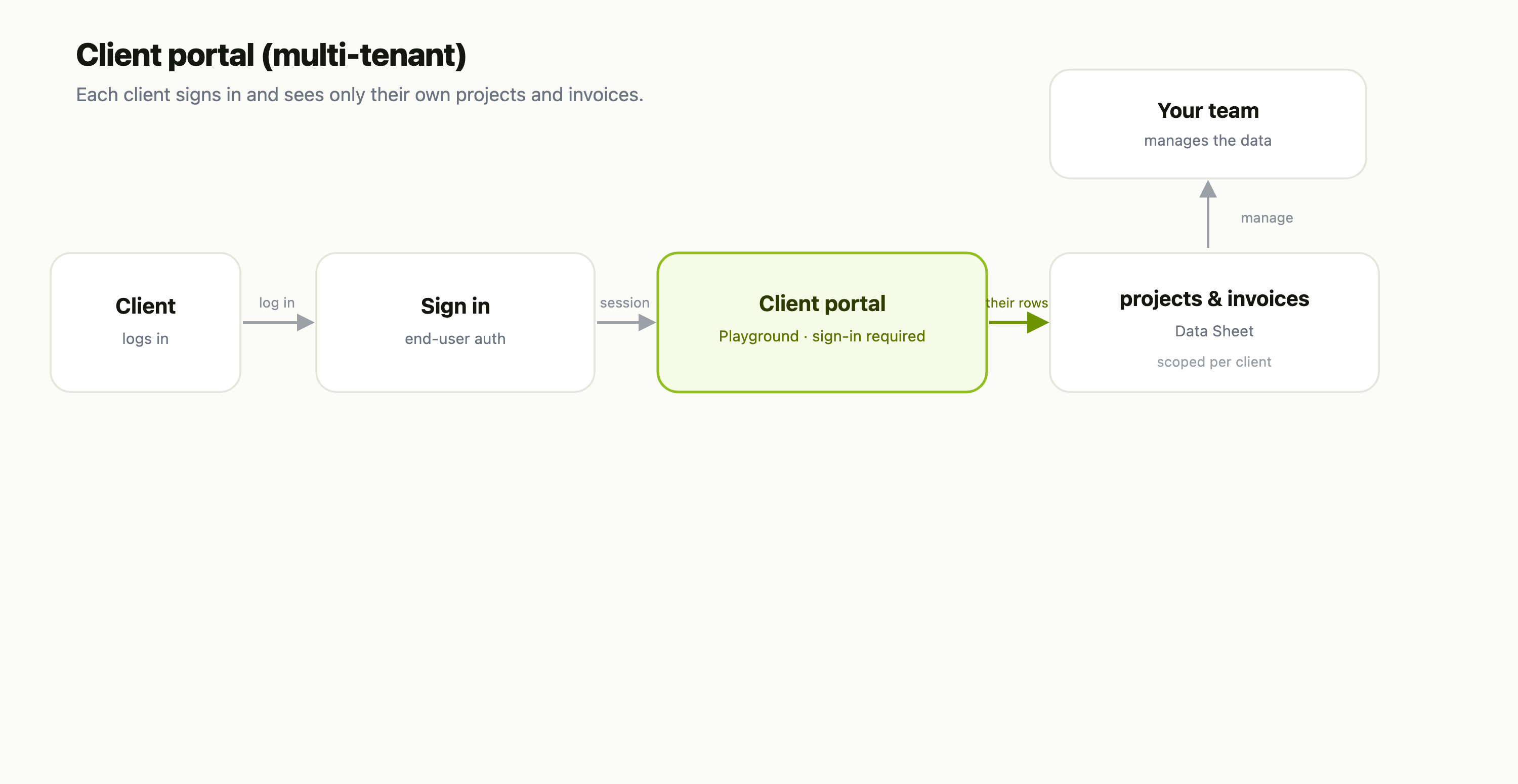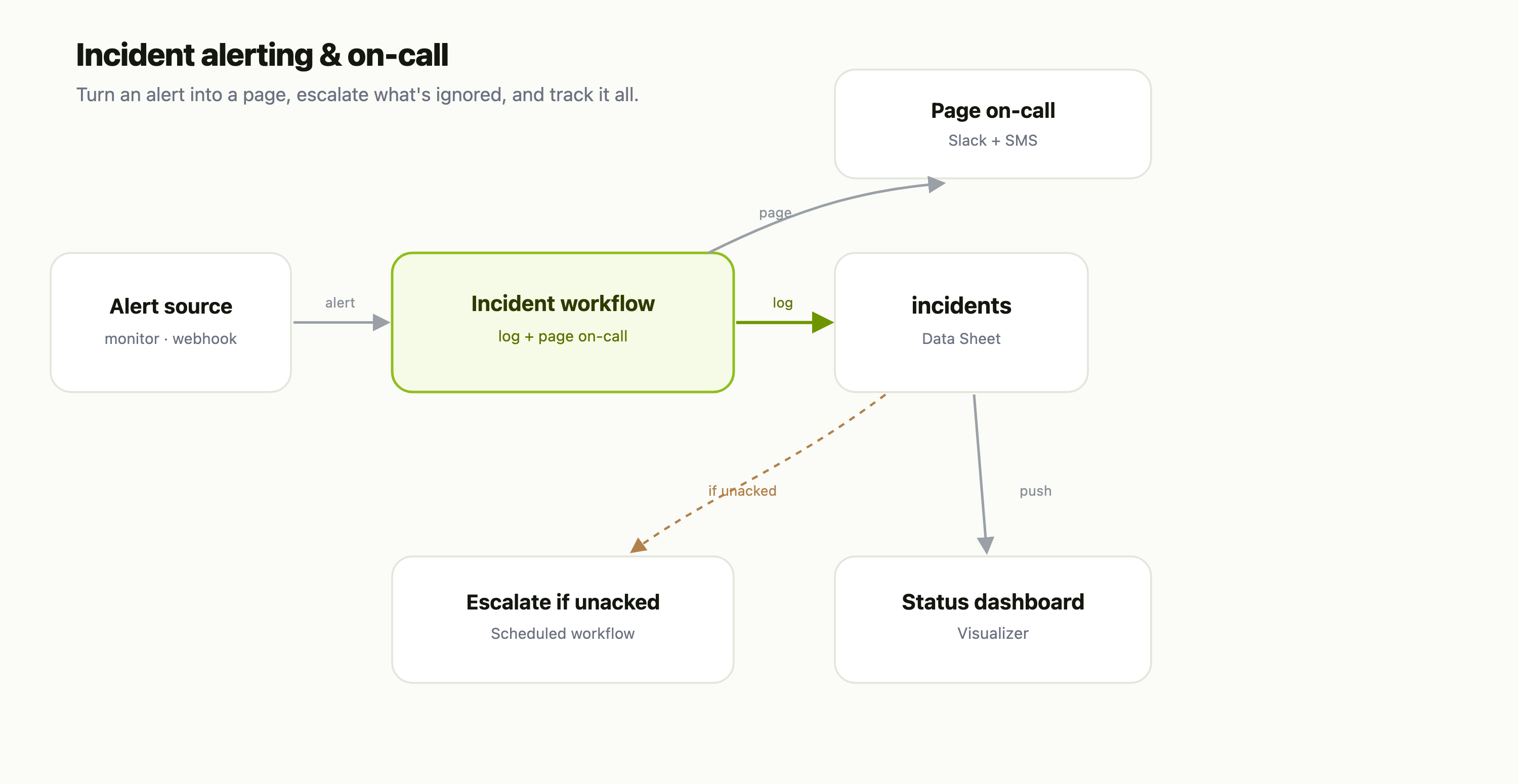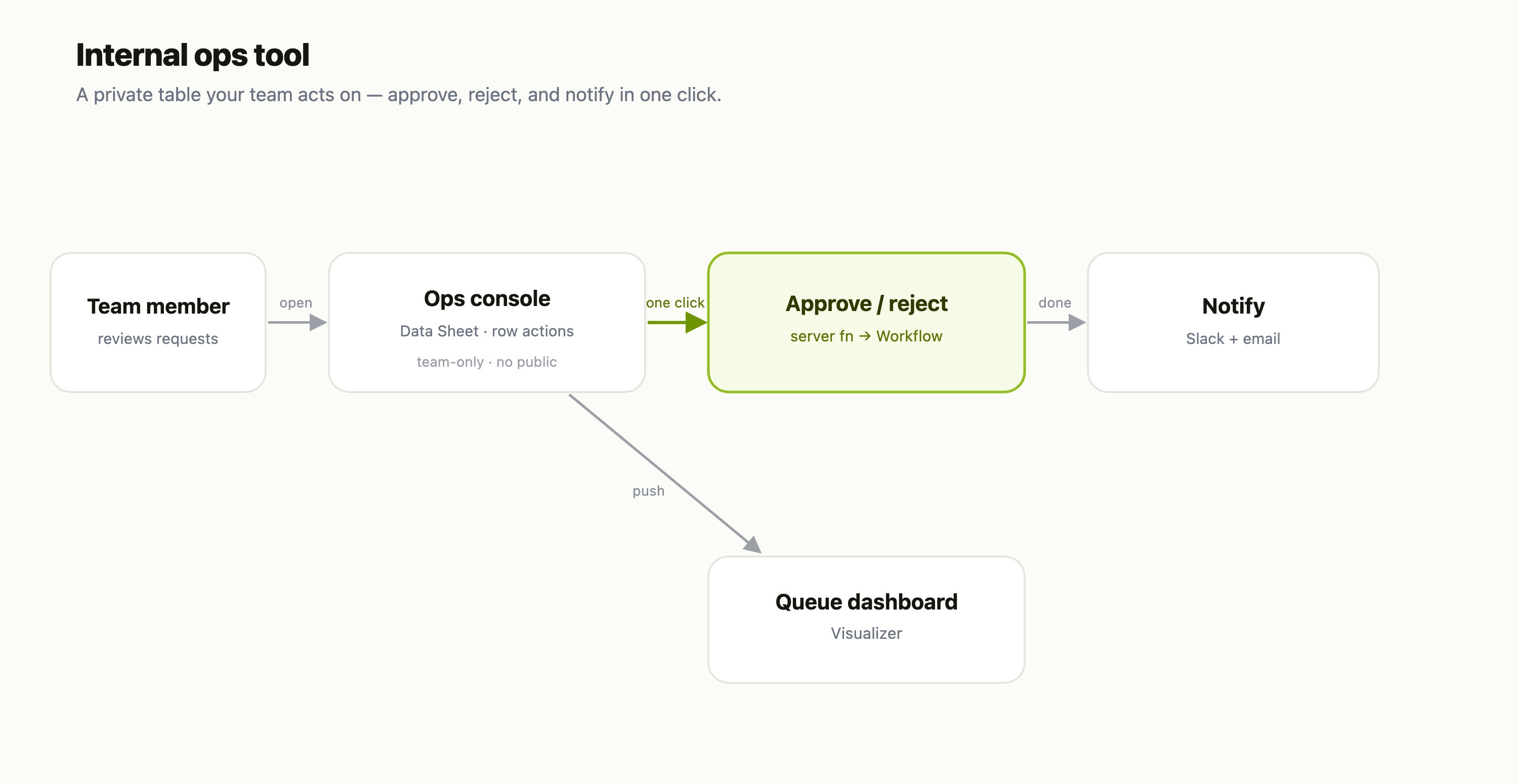
Data lives at the center of everything else in FlowFn. The workflow that routes a lead, the agent that looks up an order, the playground that renders a menu, the stream that keeps score — they all need a place to read and write rows. Data Sheets is that place: a Database you own, made of named Sheets (tables), each a list of rows. Fanned out across three MongoDB collections under the hood, it behaves like a spreadsheet you can edit by hand and a database your automation can query — the same rows, two front doors.
To make it concrete, we'll build the backing store for a small café — Bloom & Bean — with three sheets: a menu, live orders, and loyalty customers. Here's the payoff, the orders sheet in the editor:
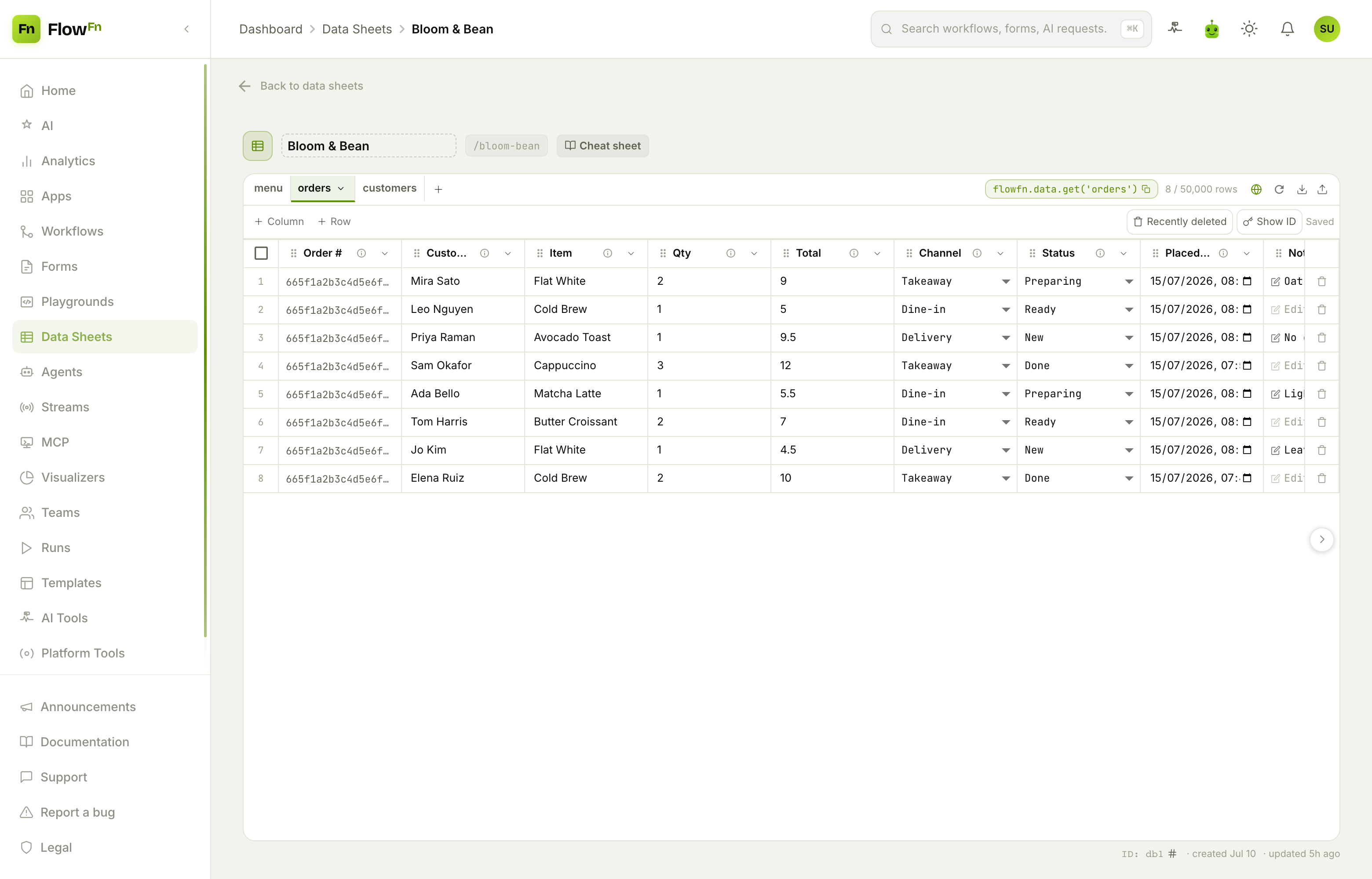
Sheet tabs across the top, a real grid below, and a toolbar that hands you a flowfn.data.get('orders') snippet, a live row count, and one-click public access, refresh, export, and import. Let's build it.
Step 1 — Create a database
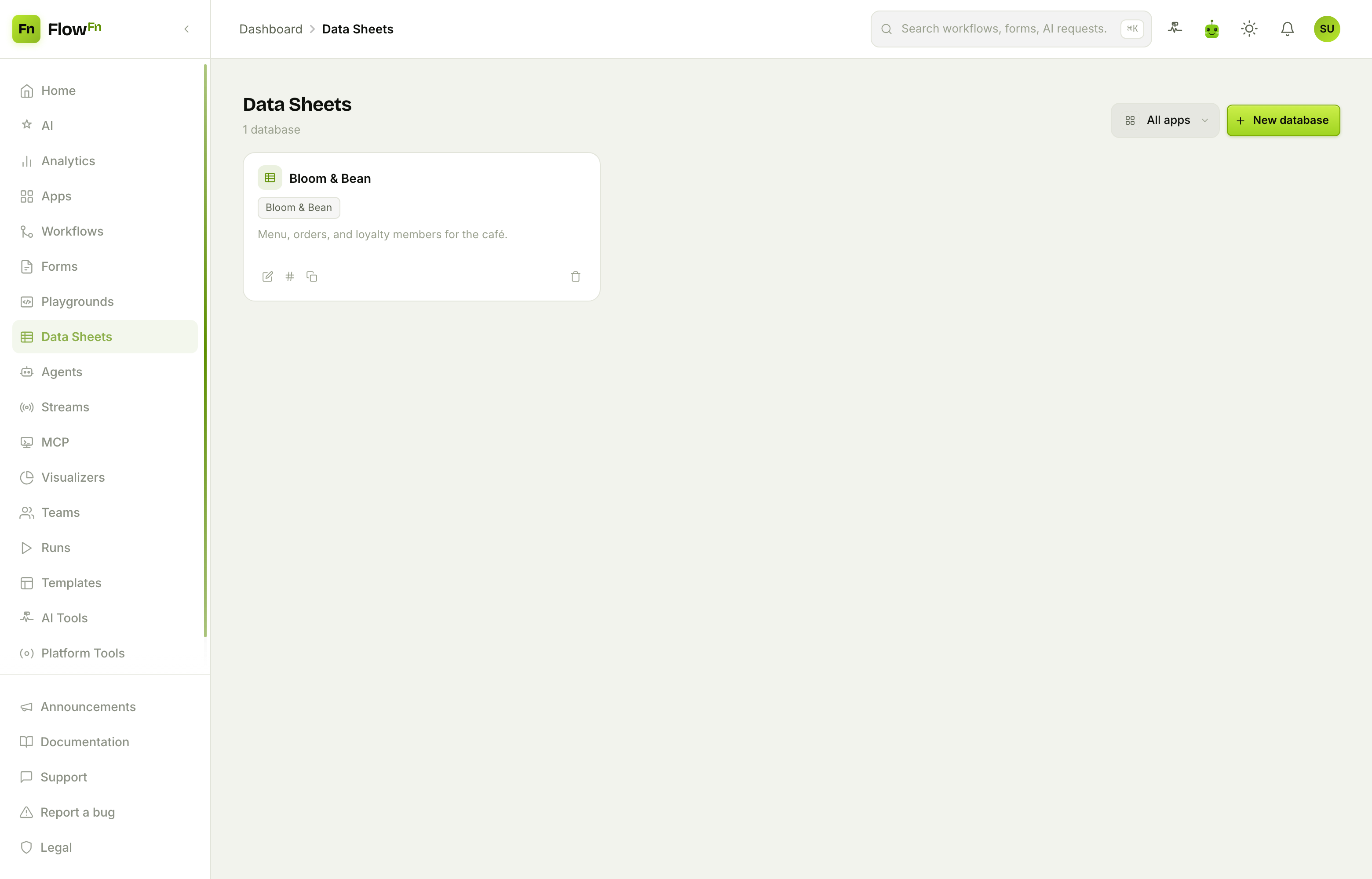
Databases are an App-owned artifact. From Data Sheets, you get a card per database; hit New database to add one.
The drawer asks for just the essentials — the App it belongs to, a name, an optional slug (leave it blank to derive one from the name), and a description.
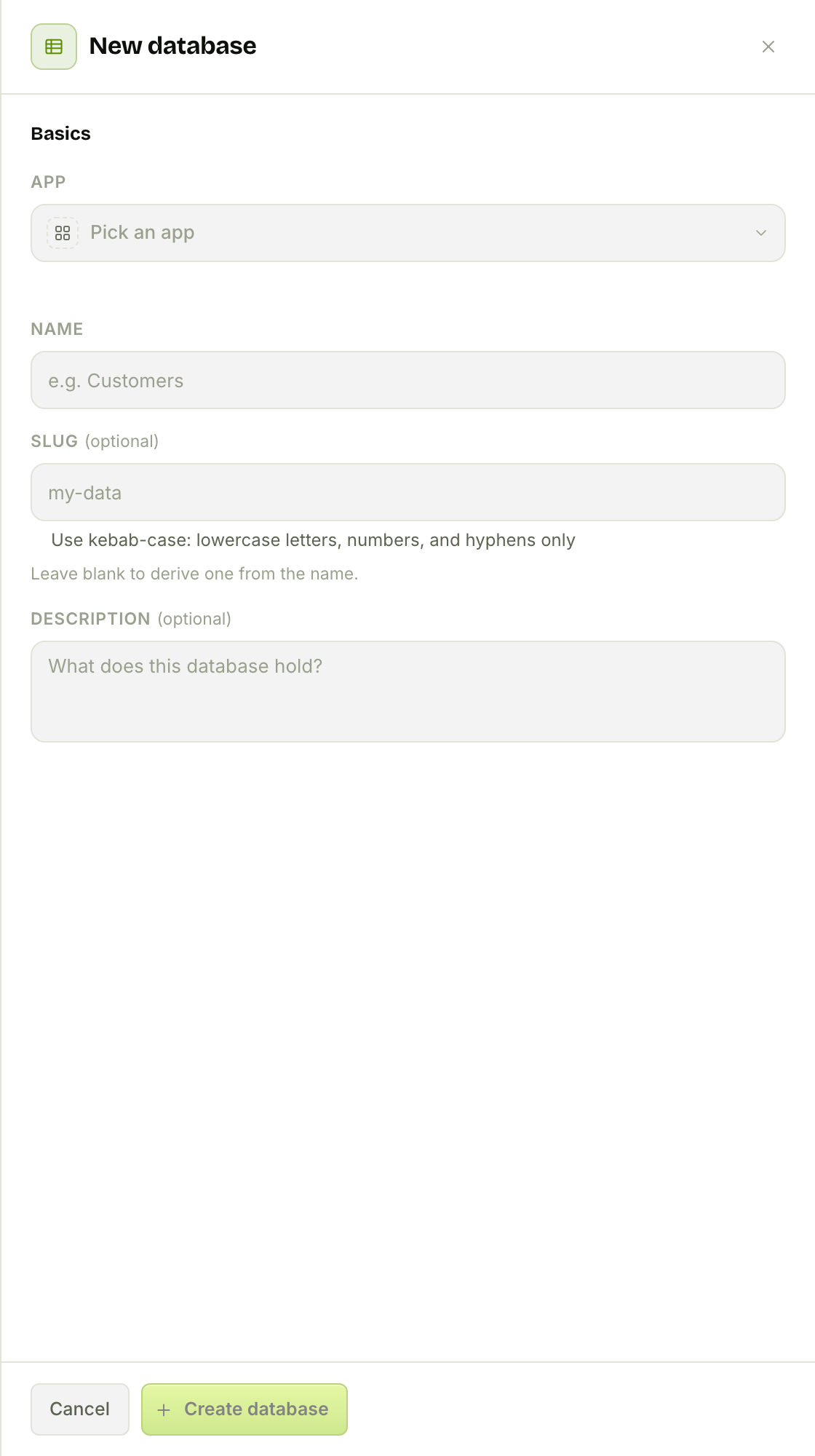
That's the whole setup. A Database is a container; the tables — Sheets — come next. One Database holds up to twenty Sheets by default (a plan can set that higher or lower), so keep everything for one App together (menu, orders, customers) rather than spinning up a database per table.
Step 2 — Design a sheet: columns and types
Inside the editor, each Sheet is a tab. Add one with +, rename it by double-clicking, and shape it with + Column / + Row. Here's the café menu:
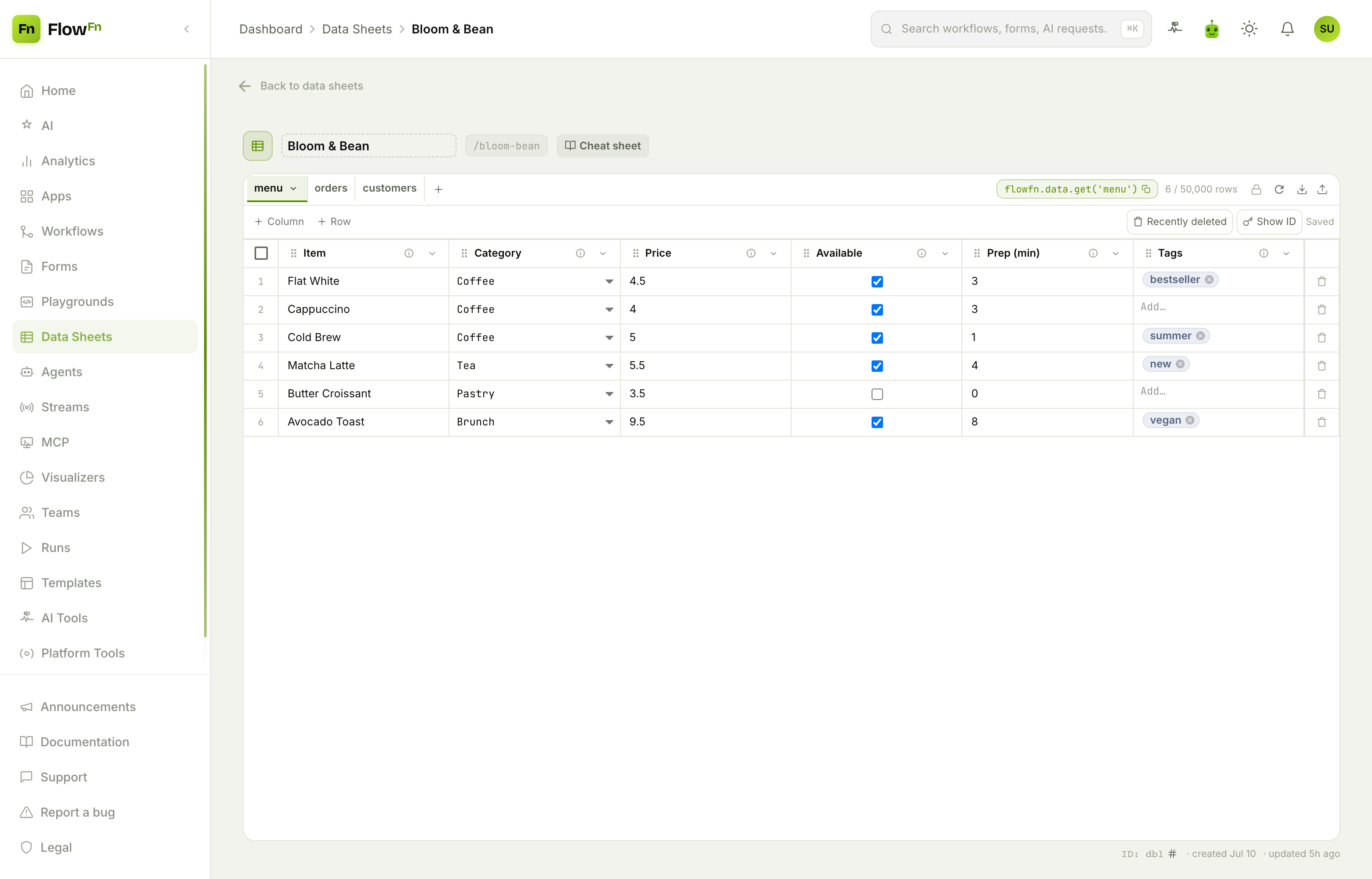
The interesting part is the column type. Every column carries one of twenty types, and the type decides how the cell edits and how the value is stored and queried. Open a column's ⋯ menu to change it:
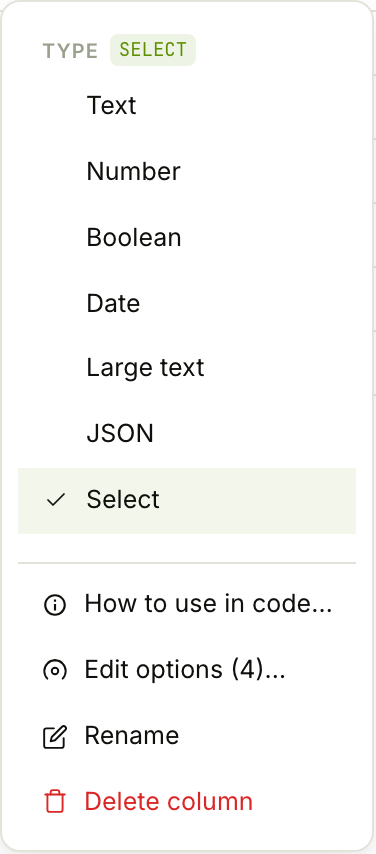
A quick tour of the ones you'll reach for:
- Text / Large text / JSON — a short string, a long one, or a structured blob.
- Number / Currency / Percent / Rating — numerics with the right editor (a money field, a 0–100%, a star rating).
- Boolean — a switch (our menu's
available). - Select / Multi-select — a dropdown; pick Edit options… to set the choices (our
category: Coffee / Tea / Pastry / Brunch). - Date / Date + time / Time — real date pickers, stored as timestamps you can range-filter.
- URL / Email / Phone — validated text with the right keyboard and format.
- Text list — a free-form tag input (our
tags). - Auto increment — a system-managed, read-only unique id, generated on insert. It guarantees uniqueness (the value is a long generated key, not a running 1, 2, 3), so it's a stable primary key to reference a row by — not a human-friendly receipt number.
- Hashed / Encrypted — secured columns (more on those below).
Picking the right type up front pays off everywhere downstream: a Currency total sums correctly in a chart, a Date + time sorts chronologically, and a Select gives your form and your API the same fixed vocabulary.
Step 3 — Edit rows like a spreadsheet
The grid is a real editor, not a preview. Type into a cell and it saves (a debounced auto-save — watch the Saving… / Saved indicator). Reorder columns by dragging their handles, multi-select rows with the checkboxes for a bulk delete, and flip Show ID to reveal each row's stable id. Deletes are soft: anything you remove drops into Recently deleted and can be restored for 90 days, so a fat-fingered bulk delete is never fatal.
Every sheet has a generous row cap — 50,000 by default, and plan-adjustable higher (up to a million) — shown as used / cap in the toolbar. Rows live in their own collection, so a big sheet stays fast and pages in as you scroll.
Step 4 — Query it from your code
A sheet you can only edit by hand is a spreadsheet. What makes Data Sheets a database is that your automation can read and write it. Click Cheat sheet in the editor header for the full API:
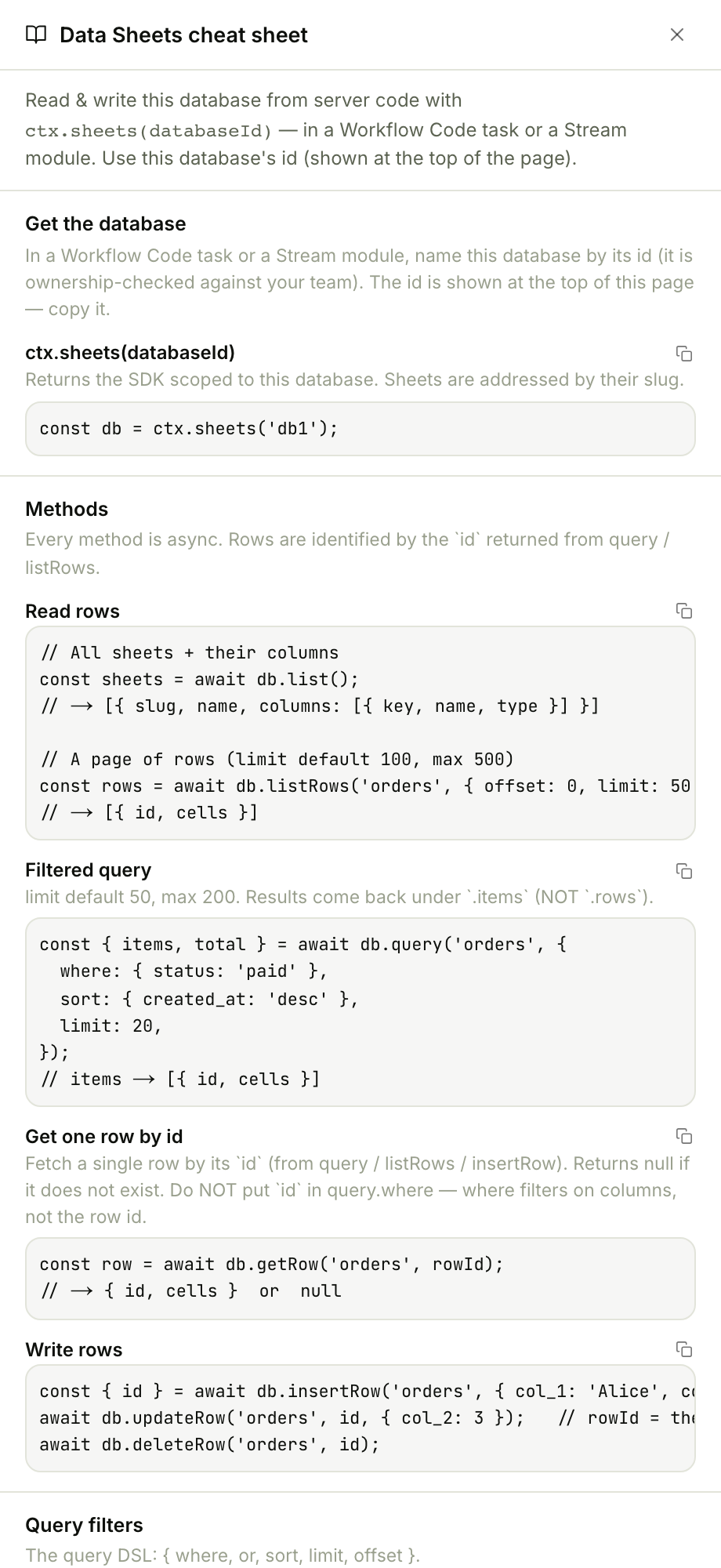
In Workflow Code tasks and Stream modules you reach it as ctx.sheets(databaseId); inside a Playground page the iframe SDK reaches the same data as flowfn.data.* (with its own method names — get, query, insert, update, delete). The ctx.sheets shape below is small and consistent:
const db = ctx.sheets('<database_id>');           // scoped to this Database

// Read
const menu   = await db.listRows('menu', { limit: 100 });   // → [{ id, cells }]
const { items } = await db.query('orders', {                // the query DSL
  where: { status: 'New', channel: 'Delivery' },            // object keyed by column
  sort:  { placed_at: 'desc' },
  limit: 20,
});                                                          // results are .items, NOT .rows
const one = await db.getRow('orders', rowId);               // by id → { id, cells } | null

// Write
const { id } = await db.insertRow('orders', { customer: 'Mira', item: 'Flat White', total: 4.5 });
await db.updateRow('orders', id, { status: 'Ready' });
await db.deleteRow('orders', id);
Two things trip up first-timers, both called out on the cheat sheet:
whereis an object keyed by column key, not an array of clauses. A bare value means equals; wrap it ({ total: { gte: 10 } }) for a comparison. Operators:eq, ne, gt, gte, lt, lte, in, nin, contains, startsWith, exists.- Results come back under
.items, not.rows. And don't put a row's id inwhere— that filters on columns; usegetRow(slug, id)to fetch by id.
There's a Generate with AI button in the code editors too, but the API is small enough to hand-write once you've seen it.
Step 5 — Let the public write to it
A café wants online orders, which means anonymous visitors need to insert into the orders sheet — safely. Each sheet carries per-operation opt-ins. Click the globe/lock in the sheet toolbar:
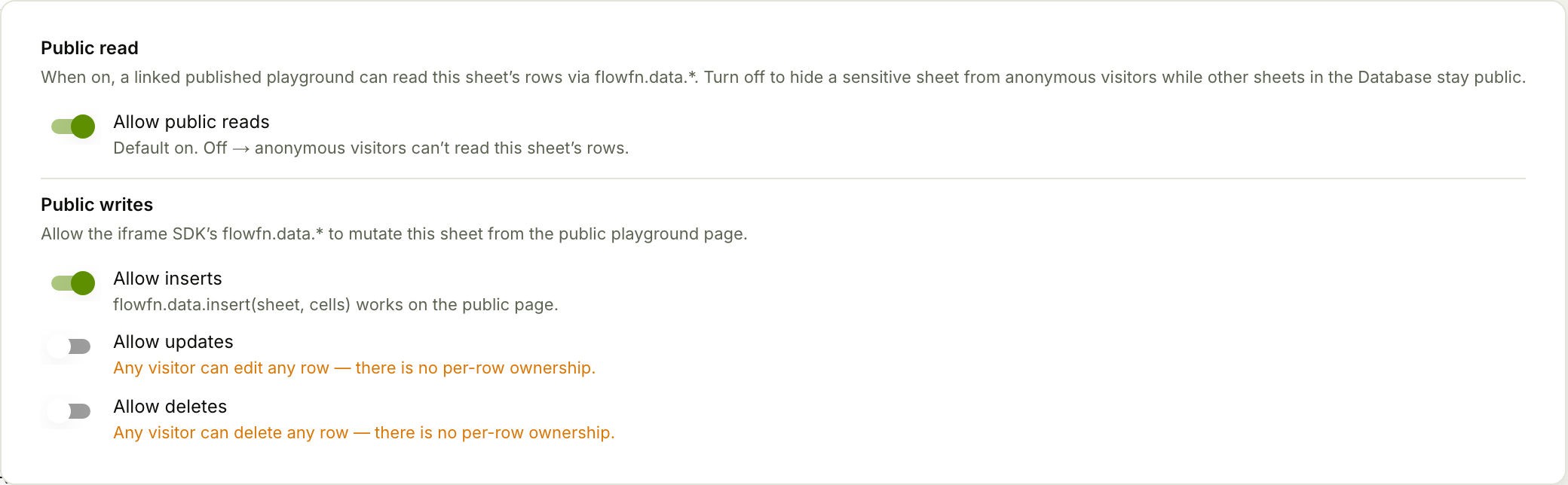
Public reads are on by default (a linked published page can list rows). Public writes are off by default and you enable exactly what you need — for orders, that's Allow inserts and nothing else. The popover is blunt about the trade-off: there's no per-row ownership, so turning on updates or deletes means any visitor could edit any row. For an order intake form you want inserts only.
One important wiring detail: a Database isn't a public endpoint by itself. Public writes are served through a linked Playground — you attach the Database on the Playground's Data tab, publish the page, and then flowfn.data.insert('orders', {...}) from the page (or a form that feeds a workflow) lands rows here. The per-sheet toggles and your plan's public-writes gate both have to say yes.
Step 6 — Import, export, and tidy up
Already have a menu in a spreadsheet? Use the Import button. Pick a CSV and choose how it merges:
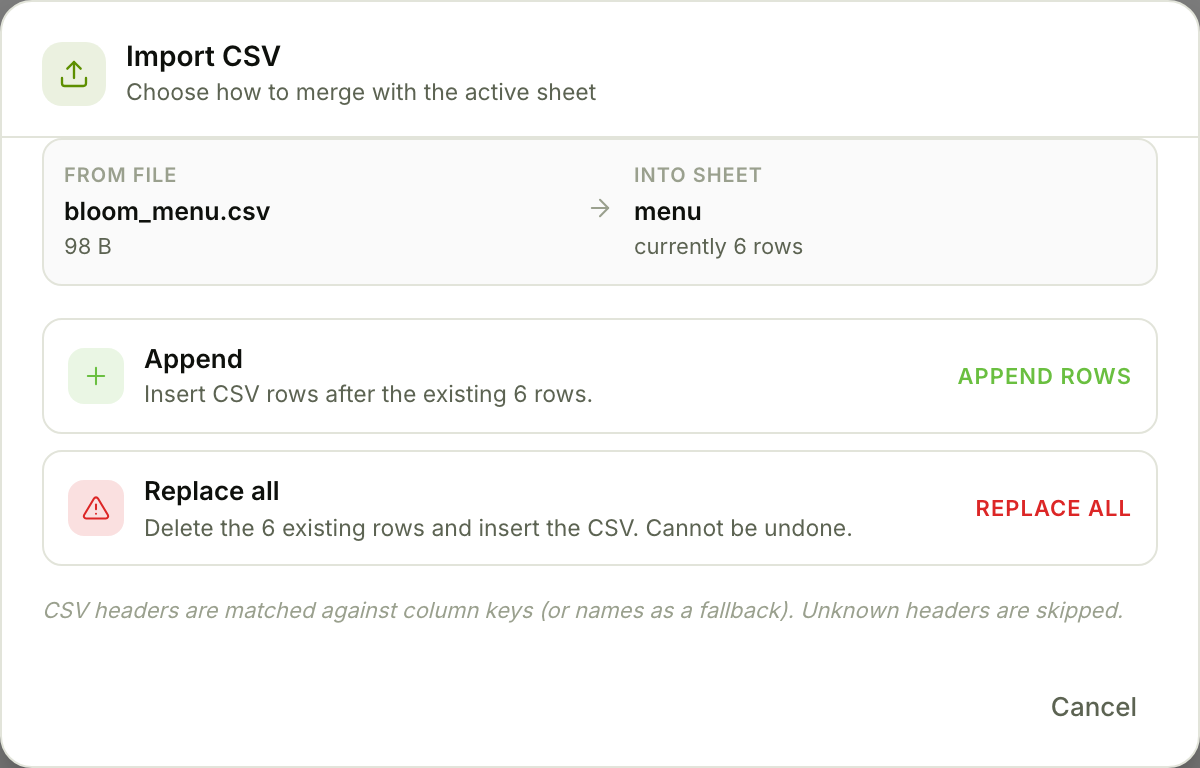
Append adds the CSV's rows after the existing ones; Replace all clears the sheet first (irreversible for the pre-import rows). Headers are matched to your column keys, and unknown columns are skipped — so you can import a messy export and only the columns you've defined come through. Export does the reverse, streaming every row to a clean, spreadsheet-safe CSV.
To wipe a sheet without deleting its columns, use Empty sheet from the tab menu — it makes you type the sheet's name to confirm, and the cleared rows still land in Recently deleted for 90 days.
Secured columns: store secrets safely
Loyalty members have a PIN, and you should never keep those in plain text. Two column types are secured:
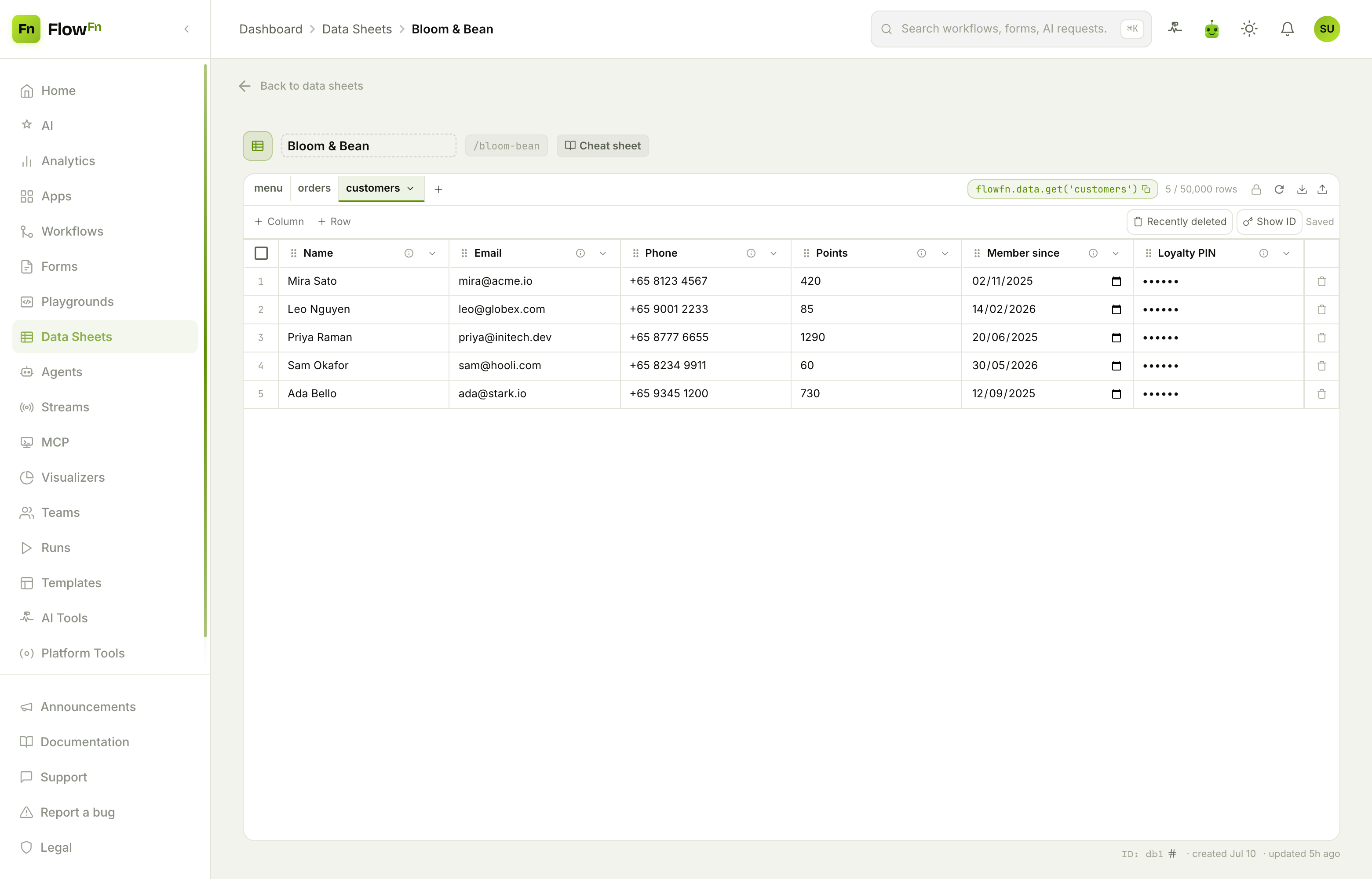
- Hashed — a one-way scrypt hash (PINs, passwords). You can verify a value but never read it back.
- Encrypted — reversible AES-256-GCM under a per-Database key, for data you must decrypt later.
Both are masked everywhere in the editor (you see ••••••, never the value), rejected by the query DSL, and rejected on public writes. Only a ctx.auth call verifies a hash or decrypts a value. Notice the sheet-level lock in the toolbar too — this customers sheet has public reads turned off, so it stays private even while menu and orders in the same Database are readable.
The connective tissue
Data Sheets isn't a silo — it's the shared store the rest of FlowFn plugs into. The join is always the same pair: a database_id and a sheet_slug.
| Feature | How it attaches | What it can do |
|---|---|---|
| Workflows | a Data Sheet task (database_id + sheet_slug + operation) |
read / create / edit / upsert / delete a row as a step |
| Agents | allowed_sheets: [{ database_id, sheet_slug, mode }] |
query (read) or full CRUD (read-write) as an AI tool |
| Streams | Tools tab links one Database | ctx.sheets() with no id resolves to it |
| Playgrounds | linked_database_id on the Data tab |
flowfn.data.*, public writes, owner row-actions |
| MCP | attach sheets to the server's tools | expose query / create / edit / delete to an external AI |
Two of those deserve a callout. A form doesn't write to a sheet directly — it collects a submission, triggers a workflow, and a Data Sheet task in that workflow lands the row. And owner row-actions — little admin buttons on each row that run a server function with the clicked row (refund, resend, mark-fulfilled) — are configured on the linked Playground, not in the standalone editor.
Plan limits
Data Sheets is plan-gated. Your plan sets whether the feature is on (allow_data_sheets), how many databases per App and sheets per database you get, the per-sheet row cap, and whether public writes are allowed. If you ever downgrade, your data is never deleted — reads stay open, only creating new artifacts is gated — so nothing you built disappears.
Wrap-up
Data Sheets turns "we need a database" from a week of infrastructure into a design-time object. Create a Database, add a Sheet, pick your column types, and you have a real, typed store you can edit like a spreadsheet, query from code with ctx.sheets, open to public inserts one toggle at a time, and secure with hashed/encrypted columns. Then every other part of FlowFn — a workflow, an agent, a stream, a playground, an MCP server — reads and writes it by the same database_id + sheet_slug.
Start with one Database and a single Sheet, type a few rows, and open the cheat sheet. Next up, we'll point a live dashboard at these orders — no SQL, no BI tool — with FlowFn Visualizers. Give your app a memory, and everything else has something to build on.