A team is the account everything belongs to — your apps, workflows, and the rest are all owned by a team, not by you personally. You can belong to several teams, and each membership carries a role that governs your permissions. Here's the Teams page:
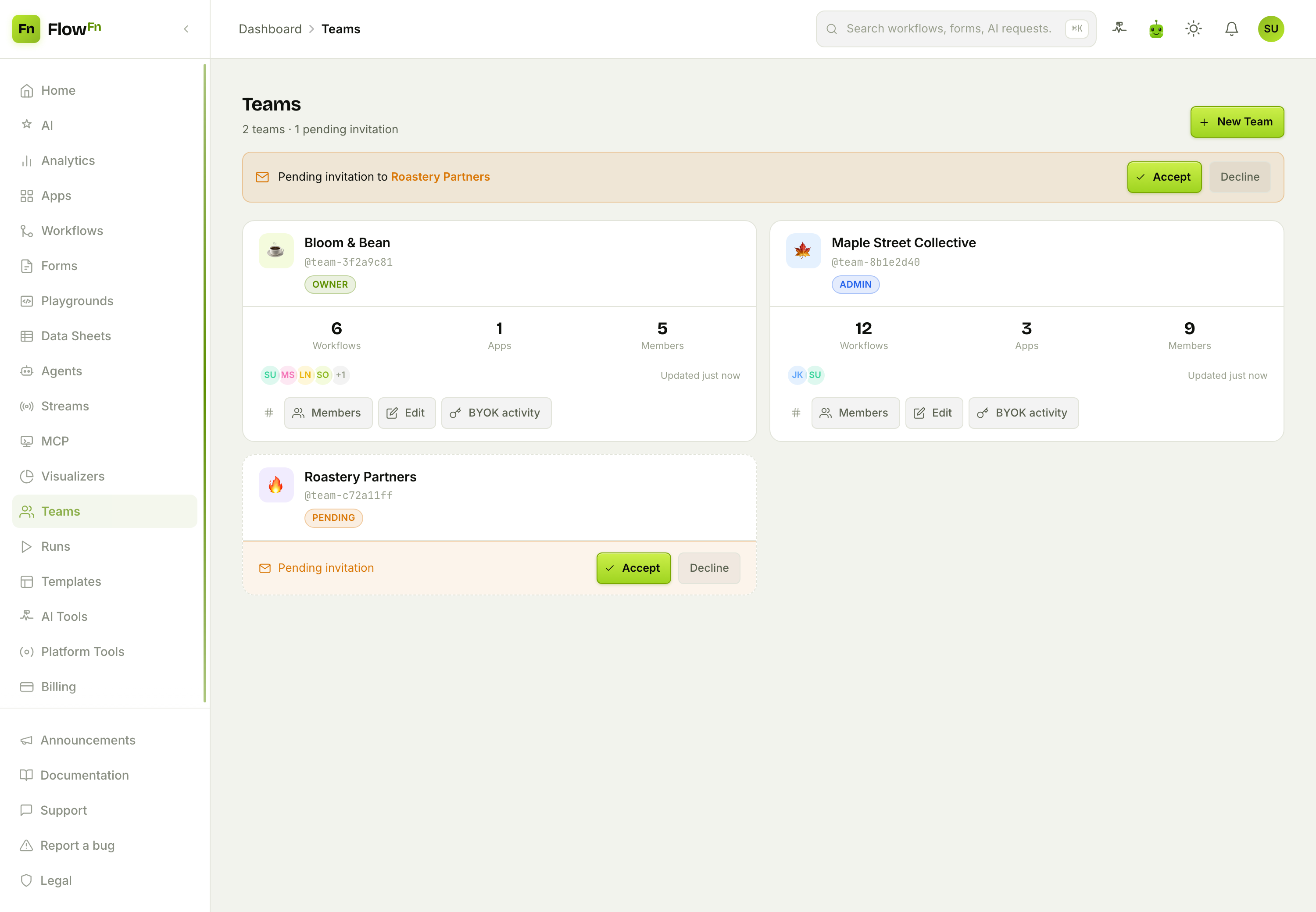
Each card shows your role on that team (Owner, Admin…), the team's stats, and its members. Up top, a pending invitation waits to be accepted. You can be an owner of one team and an admin of another — the role is per-team.
The five roles
Roles are the heart of it. From most to least powerful:
| Role | Can… |
|---|---|
| Owner | Everything — transfer, archive, or delete the team, manage billing, manage members, and full build access. |
| Admin | Manage members and settings, and full build (create/edit/delete artifacts) — but not transfer/delete the team or touch billing. |
| Developer | Build: create and edit artifacts and manage connections. No member management, no deletes. |
| Billing | View the team and manage billing only — no access to the build surfaces. |
| Viewer | Read-only. |
That spread lets you match access to the person: a contractor gets Developer (they can build but can't remove teammates or nuke resources), your accountant gets Billing (they see invoices, not your workflows), a stakeholder gets Viewer.
Inviting people
Open a team's Members and you get the roster and an invite box:
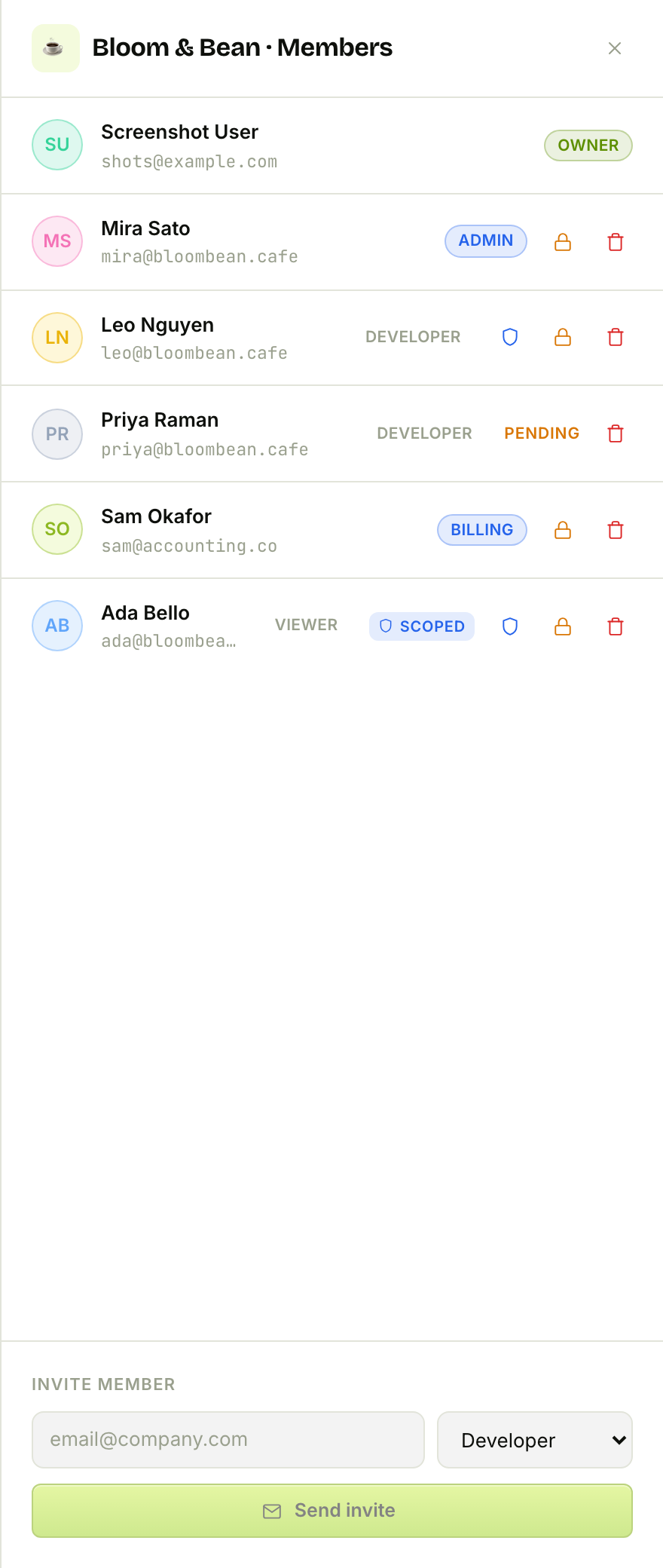
Every member shows their role, and each row has actions to change access, deactivate, or remove them. Notice the details this surfaces: a pending member who hasn't accepted yet, and a scoped member — a Developer or Viewer whose access you've narrowed to specific resources rather than the whole team. To invite someone, type their email, pick a role, and Send invite; if they don't have a FlowFn account yet, one is created and they get an email. (Only an owner can invite another owner — a small guardrail so ownership can't be handed out casually.)
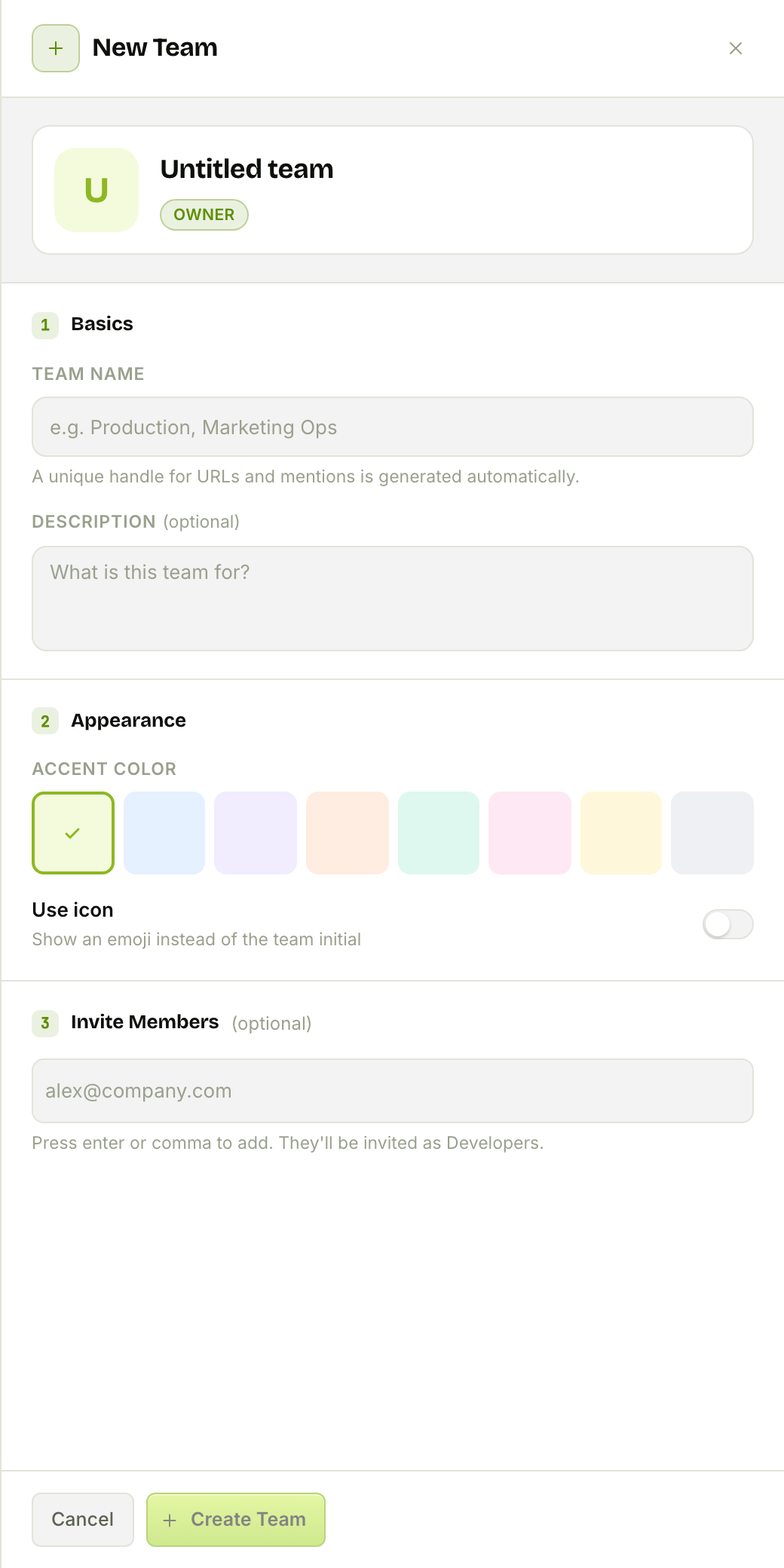
Creating a whole new team is just as quick — name it, pick an accent, and invite your first people in one drawer:
Switching, and the safety rails
You switch between teams from the team switcher (in the dashboard chrome) — the "current team" is what every page you open belongs to. A few rules keep things safe:
- The owner can't just leave or be removed. To step away, an owner must first transfer ownership to an active member (the old owner becomes an admin).
- Deleting a team is deliberate. You type the team's handle to confirm, and the team must be empty — no apps, and no other active members (pending invites and deactivated members don't block it) — so a live team can't vanish by accident.
- The handle is immutable. You can rename a team and change its look, but its
@handle(used to reference it) never changes. - Access is revocable and clean. Remove someone and their scoped grants are wiped too — no stale access lingering.
Plans set how many teams you can own and how many members each team can have, and whether scoped access (that per-resource narrowing) is available.
Wrap-up
Teams turn a solo workspace into a collaborative one without over-sharing. A team owns your apps and artifacts; five roles — owner, admin, developer, billing, viewer — let you give each person exactly the access they need; and scoped access narrows it further to specific resources. Invite by email, switch between the teams you belong to, and rely on the guardrails (owner-transfer, type-to-delete, immutable handles) to keep it safe.
Invite one teammate as a Developer and one as a Viewer, and you'll see the roles do their job immediately. Next, we'll measure what everyone's building with Analytics. Bring people in, and give each the right key — not the whole ring.