An App is the top-level container in FlowFn. Create one and everything else you build gets scoped to it: a workflow belongs to an App, a form belongs to an App, a playground belongs to an App. That scoping does three jobs at once — it organizes your work (one App per product or environment), it hosts it (a subdomain, a custom domain, a bound homepage), and it shares things across the artifacts inside it (environment variables, an app code + API key).
We've been building the Bloom & Bean café across this series; every one of those pieces lives in the café's App. Here's the whole workspace:
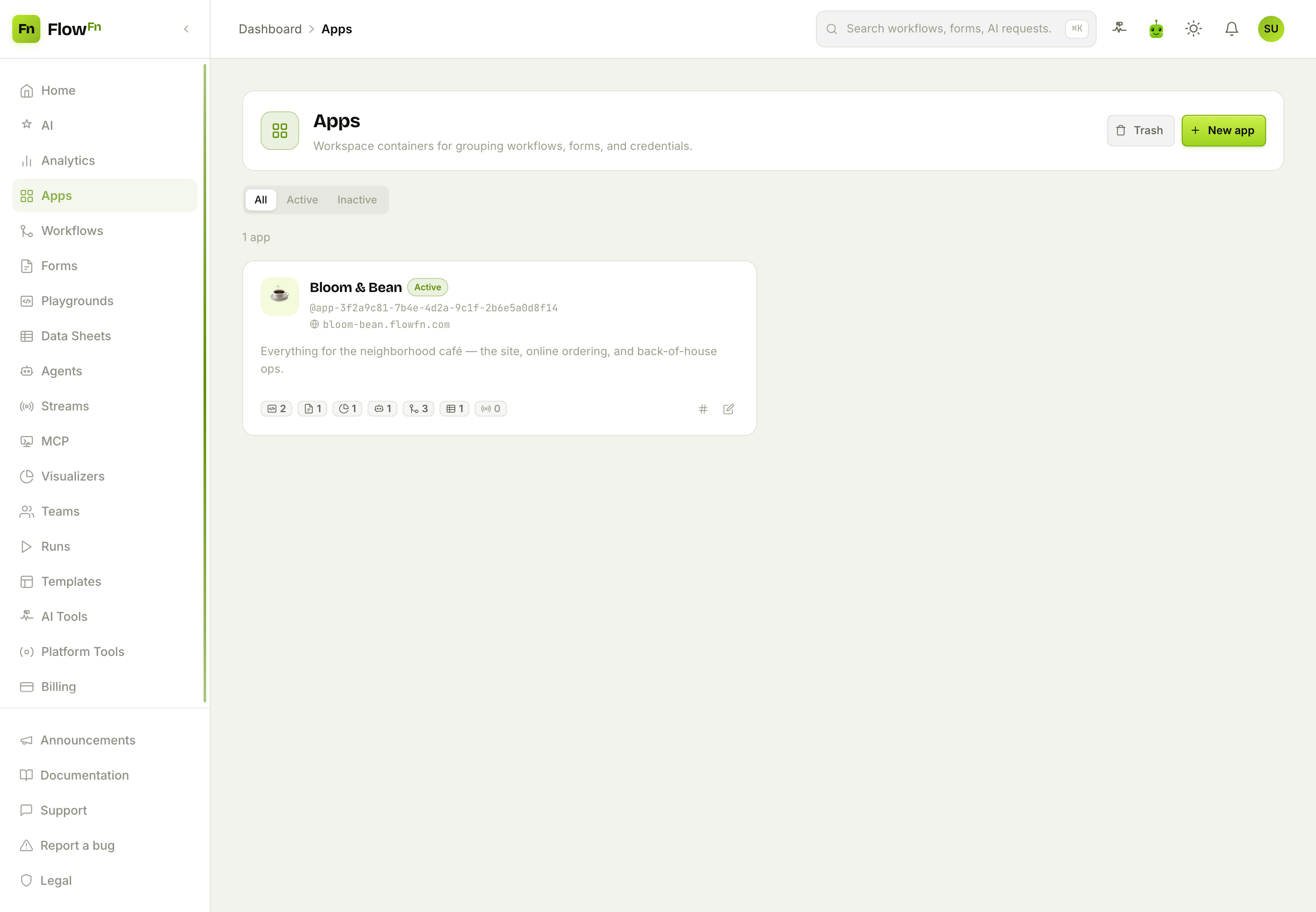
One card, and it already tells the story: the app's public address (bloom-bean.flowfn.com), its code, and a row of counts — 2 playgrounds, 1 form, 1 visualizer, 1 agent, 3 workflows, 1 data sheet. Let's build it.
Step 1 — Create an App
From Apps, hit New app. You need two things: a name and a subdomain.
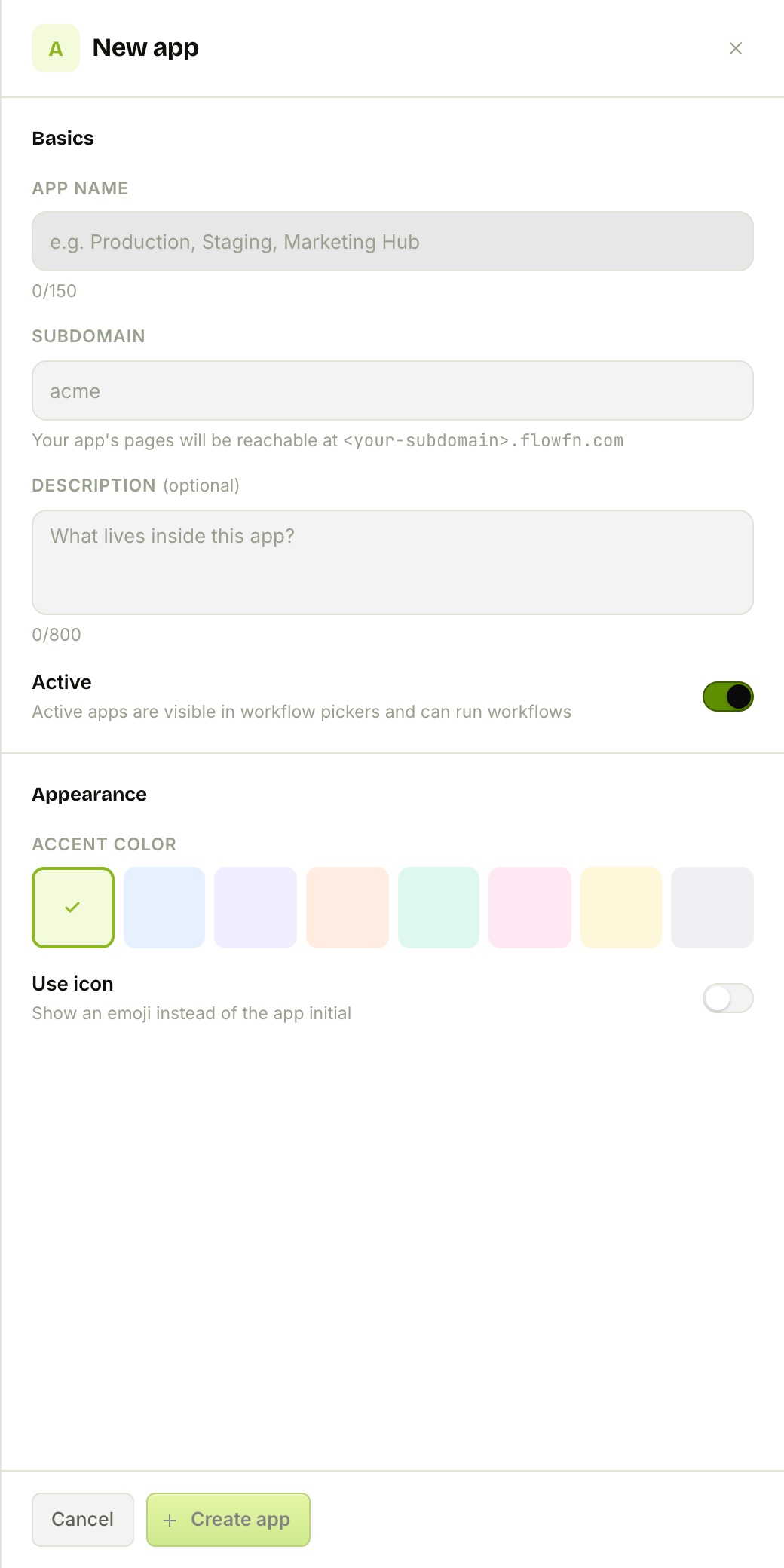
The subdomain is required at creation — it's how your App goes public immediately, at <subdomain>.flowfn.com, no DNS setup at all. (A big list of names is reserved — www, api, admin, app, and so on — so pick something specific like bloom-bean.) Give it an accent color and an optional emoji icon, and you've got a workspace.
Step 2 — Put it on a real domain
A free *.flowfn.com subdomain is fine to start, but a café wants bloombean.cafe. Open the App editor and find Public hosting:
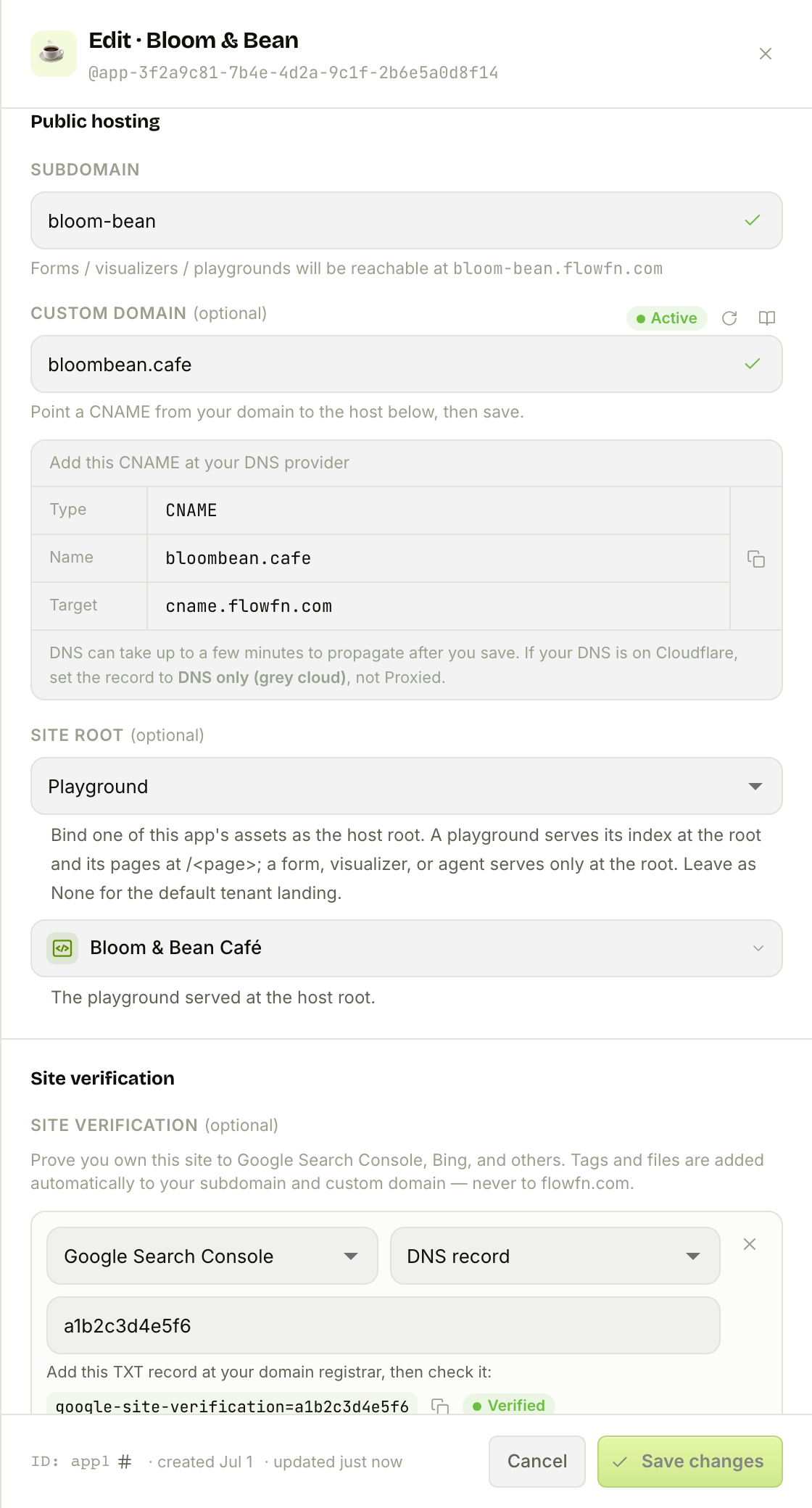
Two things to know here, because they surprise people:
- Custom domains are automatic — there's no "verify" button. You type your domain, add one CNAME record pointing at
cname.flowfn.com, and save. FlowFn issues and renews the HTTPS certificate for you on the first request. The status badge moves Provisioning… → Active on its own (usually a few minutes; it only reports Failed after a 48-hour grace). The refresh icon just re-reads the status. If your DNS is on Cloudflare, set the record to DNS only (grey cloud), not Proxied, or the certificate can't be issued. site_rootbinds a homepage. By default a custom domain shows FlowFn's tenant landing page. Point Site root at a Playground and that becomes your homepage — its index serves at/and its pages at/<page>. (A form, visualizer, or agent can be the root too, as a single page.) For Bloom & Bean, the site root is the café Playground, sobloombean.cafeopens straight into the café site we built earlier.
There's a Custom domains & subdomains cheatsheet a click away that lays out every address your App can have:
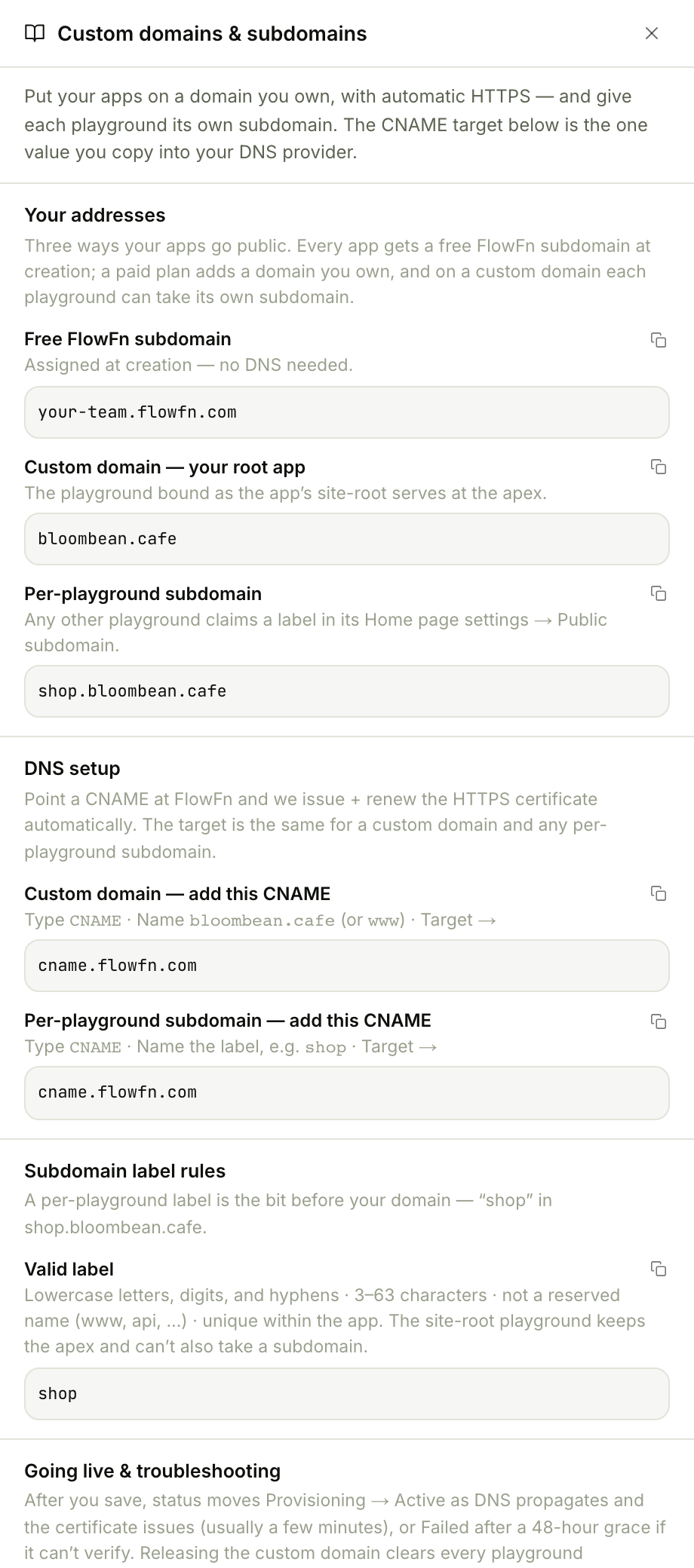
Beyond the apex domain, individual playgrounds in the App can each claim their own subdomain of your custom domain (shop.bloombean.cafe) — same automatic HTTPS, same single CNAME target.
Step 3 — Prove you own it (site verification)
Want the site in Google Search Console or Bing? The Site verification section gives you what each provider wants — a meta tag, an HTML file, or a DNS TXT record. FlowFn serves the meta tag and HTML file on your subdomain and custom domain automatically (never on flowfn.com); for the DNS method it hands you the TXT record to add at your own registrar, then verifies it:
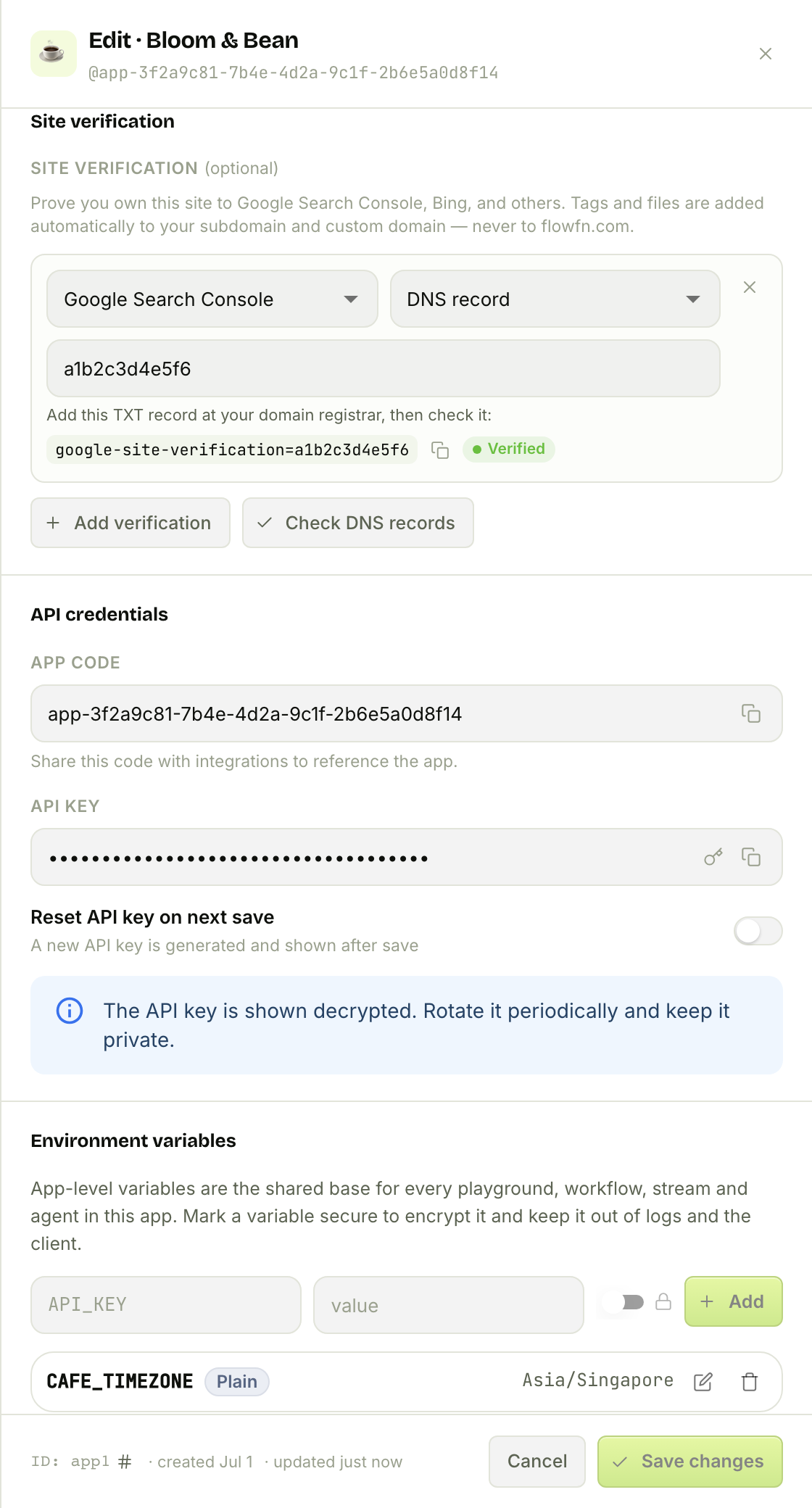
Pick a provider (Google, Bing, Yandex, Pinterest, Meta, and more), a method, paste the token, save, and hit Check DNS records. Bloom & Bean's Google verification is already Verified.
Step 4 — Credentials and shared config
The App is also where the artifacts inside it get their shared secrets and identity:
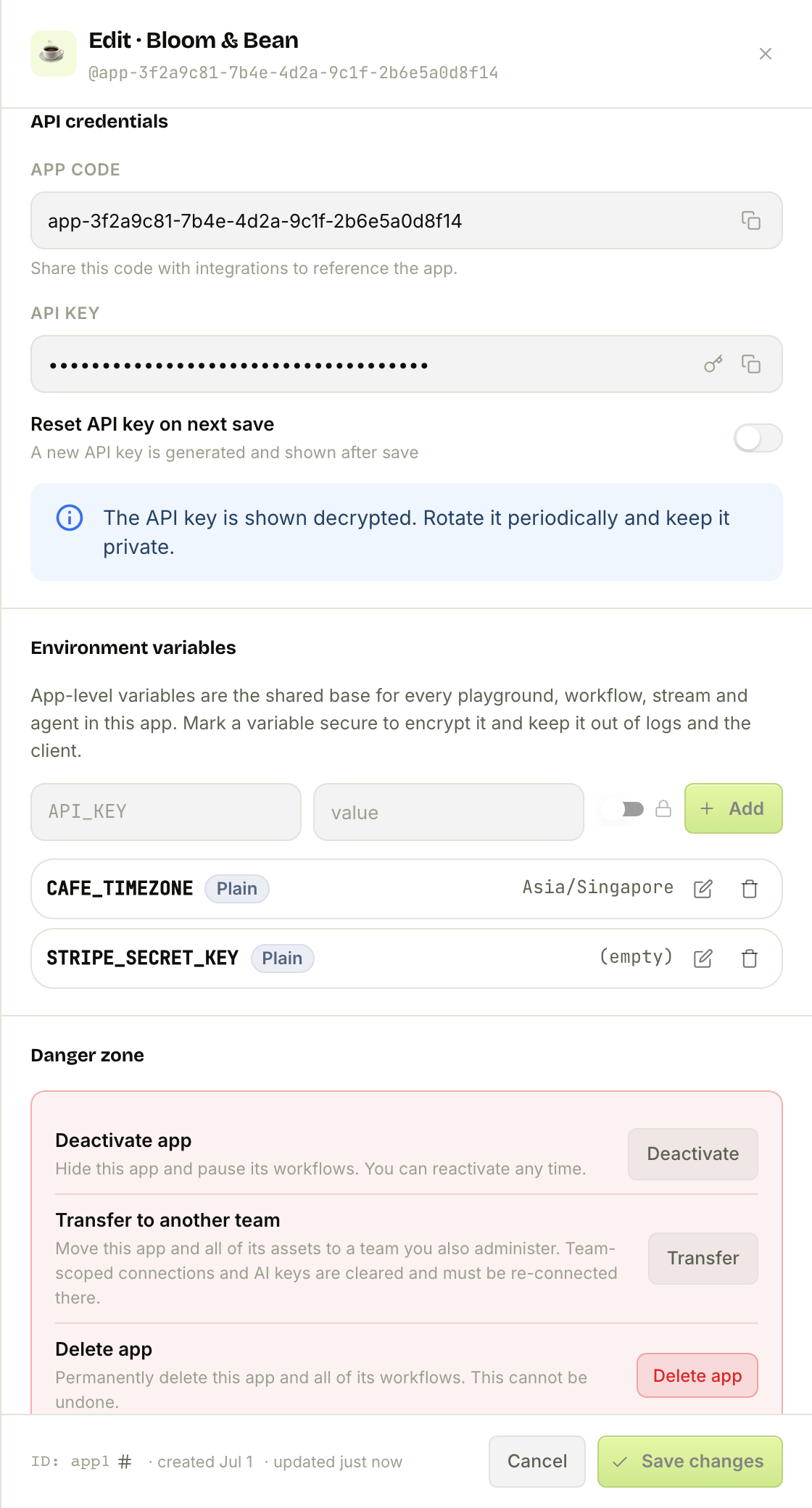
- App code + API key — the App's credential pair. Integrations and the playground external API authenticate with the
x-app-codeandx-api-keyheaders. The key is shown decrypted so you can copy it; flip Reset API key on next save to rotate it (which invalidates existing integrations). - Environment variables — the shared base for every playground, workflow, stream, and agent in the App. Set
CAFE_TIMEZONEonce and it's available everywhere asctx.env. Mark a variable secure and it's encrypted and kept out of logs and the client — perfect for aSTRIPE_SECRET_KEY. - Danger zone — deactivate the App (pauses its workflows), transfer it to another team, or delete it. Deleting requires typing the App code and an empty App — you have to move or delete its artifacts first, so you can't nuke a live product by accident.
Plan limits
Two gates matter here: max_apps (how many Apps your team can create) and allow_custom_domain (custom domains are a paid feature — subdomains are always free). Binding a site root needs the multi-page plan flag too. As always, anything you already set keeps working on a downgrade; only creating new gated things is blocked, and clearing a custom domain is always allowed.
Wrap-up
The App is the frame everything else hangs on. Create one with a subdomain and you're instantly public; add a custom domain and you get automatic HTTPS with a single CNAME; bind a site root and your Playground becomes the homepage; and every artifact inside shares the App's env vars and credentials. It's the difference between "I built some workflows" and "I shipped a product at bloombean.cafe."
Start by giving your App a good subdomain, then bind a playground as its site root and watch your work show up at a real address. Next, we'll connect the outside world — Platform Tools, the integrations your workflows and agents call out to. Give your work a home, and everything you build has an address.