A Platform Tool is a connector to an external service. FlowFn ships a big catalog of them — Slack, Stripe, the Google suite, Notion, Twilio, Shopify, GitHub, databases, and many more — each exposing a set of actions (the operations you can call). You add a connection (a stored, encrypted credential for your team), and from then on any workflow task, agent tool, or MCP server can invoke that tool's actions.
For Bloom & Bean, that means Slack for order alerts and Stripe for payments. Here's the catalog:
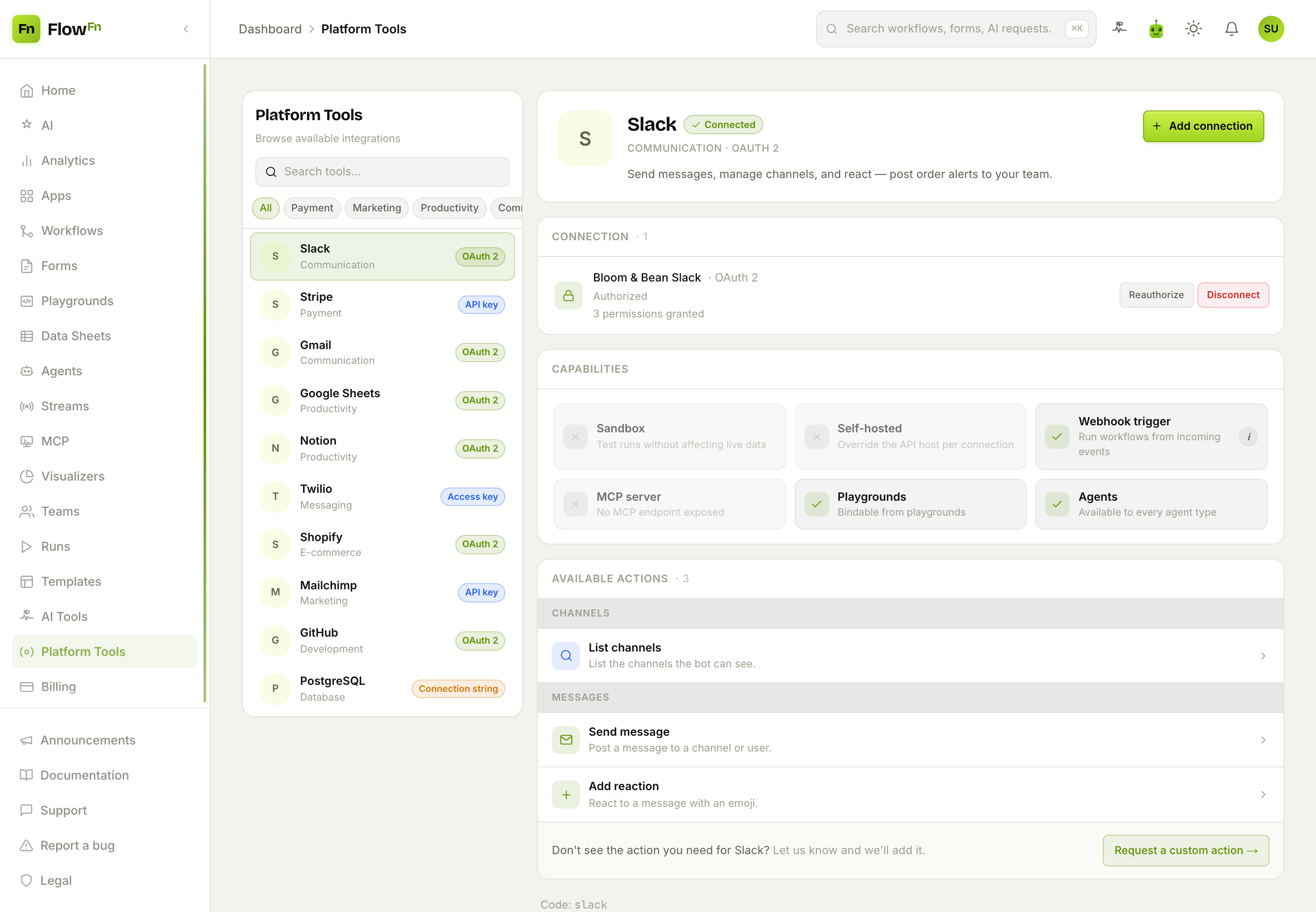
On the left, browse and search by category — every tool shows how it authenticates (OAuth 2, API key, Access key, Connection string…). On the right, the selected tool's detail: its connection, its capabilities, and its actions. Let's connect one.
Step 1 — Add a connection
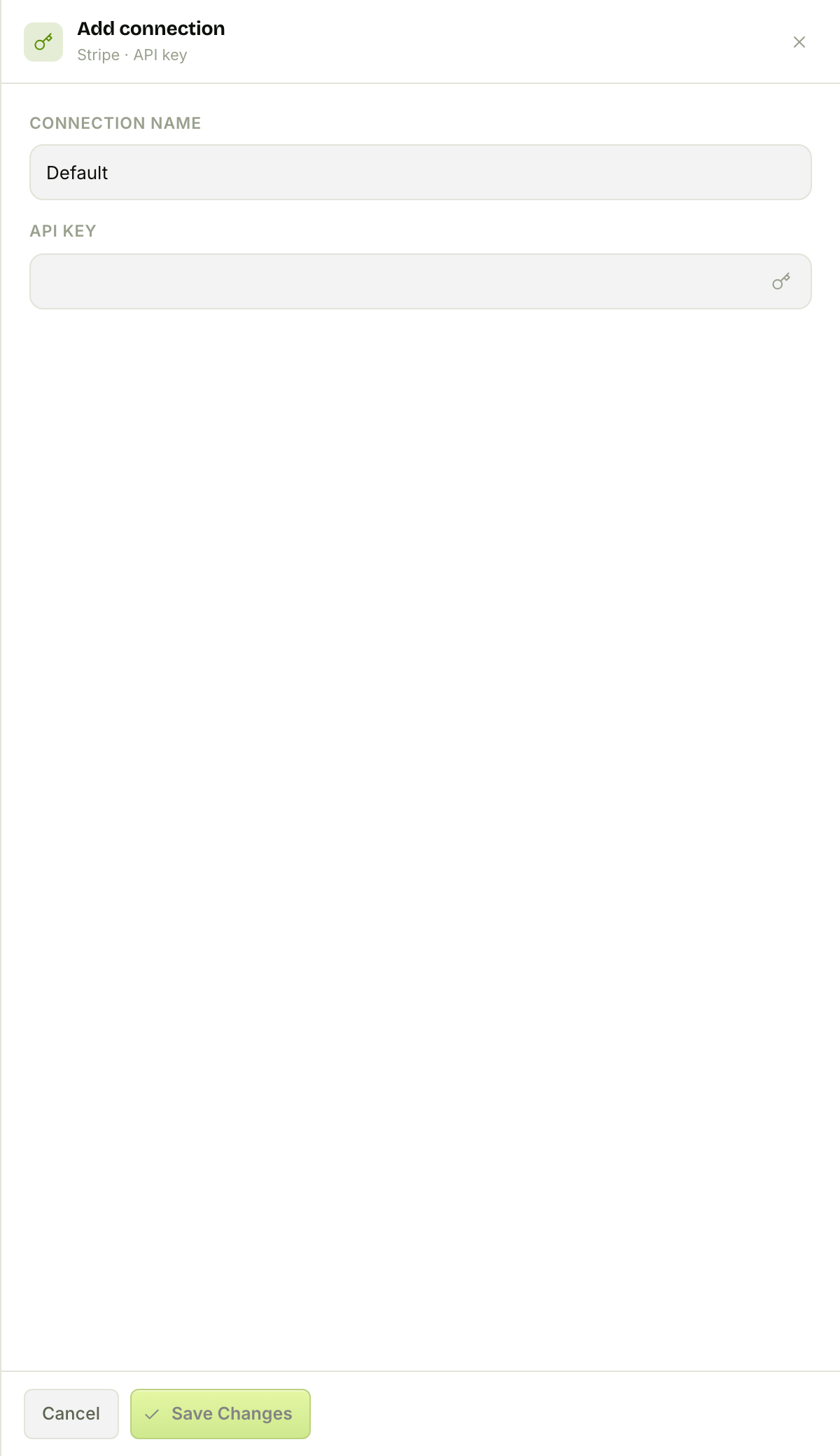
A connection is a credential for your team, and the form depends on how the tool authenticates. For an API-key tool like Stripe, you name the connection and paste the key:
For an OAuth tool like Slack, you click Connect, a popup opens to the provider's authorize page, and you approve — no key to copy at all:
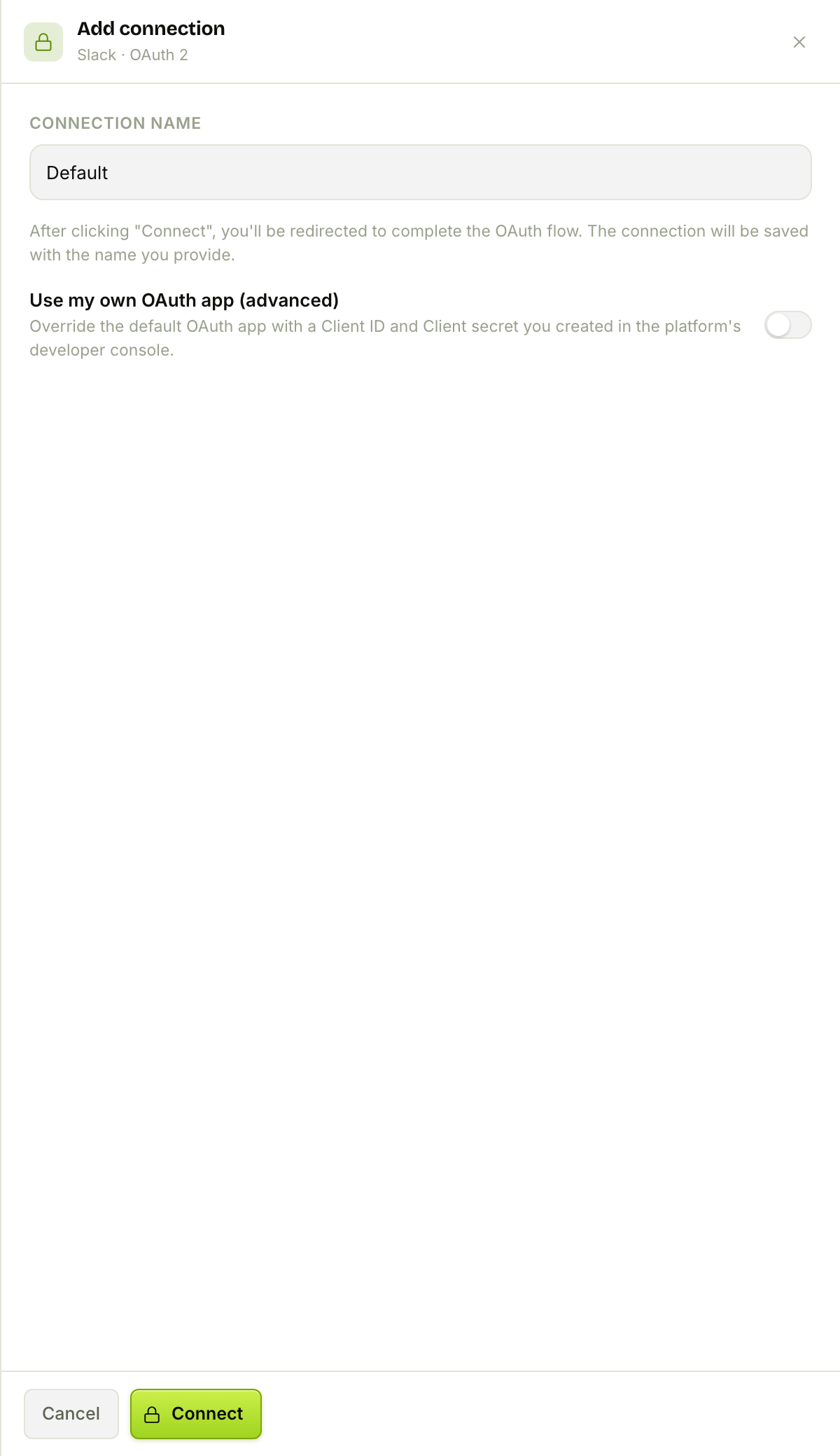
FlowFn provides the OAuth app by default, so connecting Slack is one click; the "Use my own OAuth app (advanced)" toggle is there for teams who want to bring their own client credentials. You can have multiple named connections per tool — a Production and a Staging Stripe, say — and pick which one a given workflow uses.
Once connected, the tool's detail shows the connection as Authorized with its granted permissions (that's Bloom & Bean's Slack in the catalog shot above). Secrets are write-only — after you save, keys and tokens never come back out, only a "connected" state.
Step 2 — Know what a tool can do
Each tool advertises its capabilities and its actions. The capability chips tell you where a tool can be used — as a webhook trigger, from playgrounds, by agents, whether it supports a sandbox or a self-hosted host, or exposes its own MCP server. Below that, the actions: the concrete operations, grouped by category. Click one to see exactly what it takes and returns:
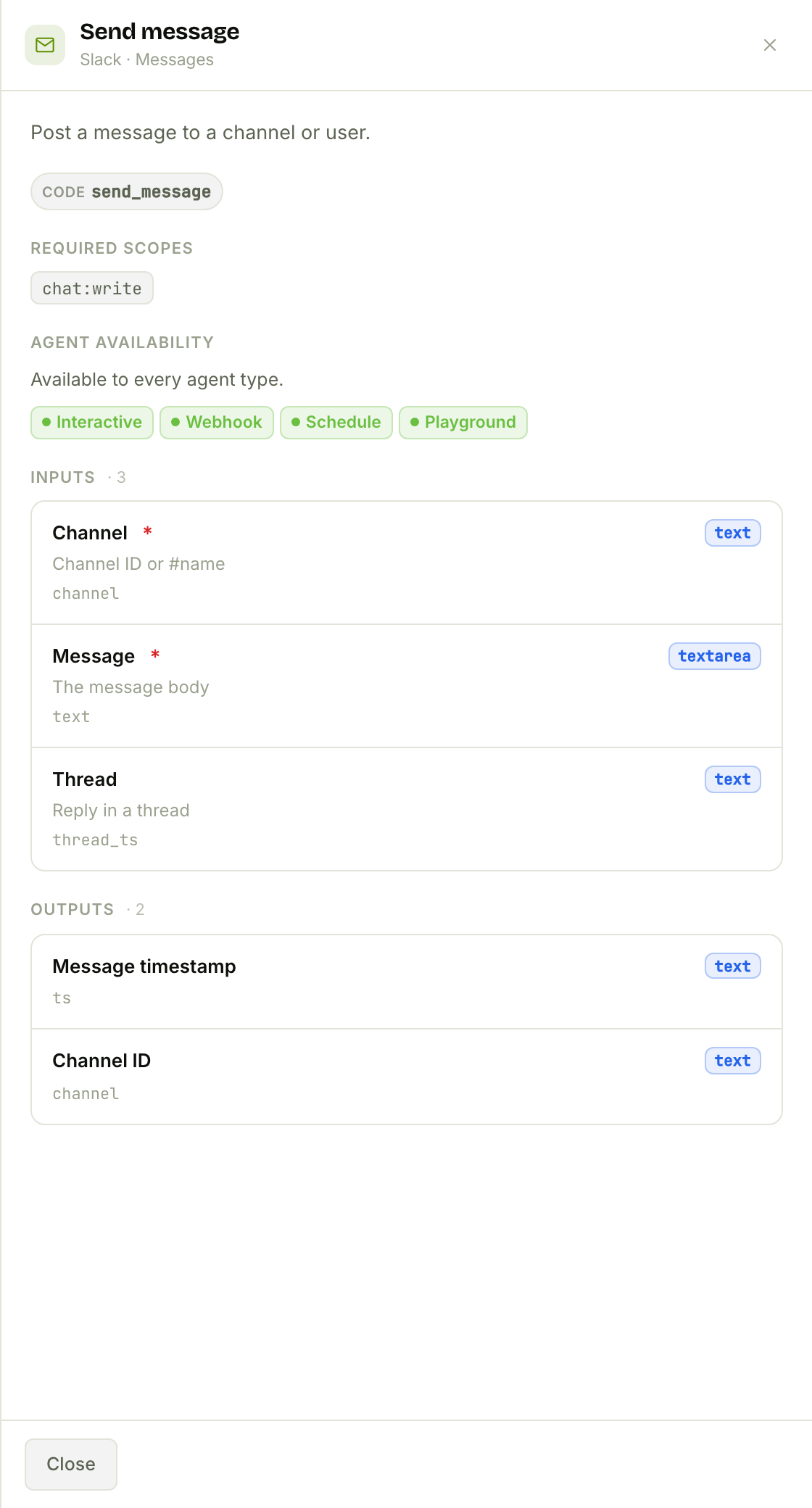
Slack's Post Message takes a channel and a message (plus an optional thread), returns the message timestamp and channel, needs the chat:write scope, and is available to every agent type. Every action is self-describing like this — which is exactly what lets a workflow map its inputs and an agent's LLM decide when to call it.
Step 3 — Use it
A connected tool is now available in three places:
- In a workflow — add a Platform tool task, pick the tool, the action, and the connection, then map its inputs from earlier steps. Bloom & Bean's order workflow ends with a Slack Post Message to
#kitchen. - In an agent — list specific actions in the agent's allowed tools, and the LLM can call them mid-conversation (with a human-in-the-loop approval for the risky ones).
- In an MCP server — expose selected actions to an external AI client.
In every case, the connection you added is the credential the action runs under, and each platform-tool call costs a small, flat credit fee on top of any work it does.
The escape hatches
Don't see the exact SaaS you need? Three generic tools cover the gaps: Custom API (call any REST endpoint), Custom Webhook (fire an HTTP request at any URL — to receive one, use a workflow webhook trigger instead), and Custom MCP (point at any MCP server). And every tool's detail has a Request a custom action button — the catalog grows from what people ask for.
A note on money: most tools are free to use (you pay only the per-call credit), but some are premium (need a paid plan) or paid (either a one-time purchase or a per-tool subscription). The tool's detail makes that clear before you wire anything up.
Wrap-up
Platform Tools turn "integrate with X" from an SDK-and-OAuth project into: find the tool, add a connection, pick an action. Authenticate once — OAuth in a click, or paste an API key — and that connection is available to every workflow, agent, and MCP server you build, each action self-describing its inputs and outputs. It's the layer that lets your FlowFn app reach out and touch the rest of your stack.
Connect the one tool your app leans on most — for a lot of teams that's Slack or Stripe — then drop its action into a workflow. Next, we'll let your app's own visitors sign in with end-user auth. Connect the outside world once, and everything you build can use it.