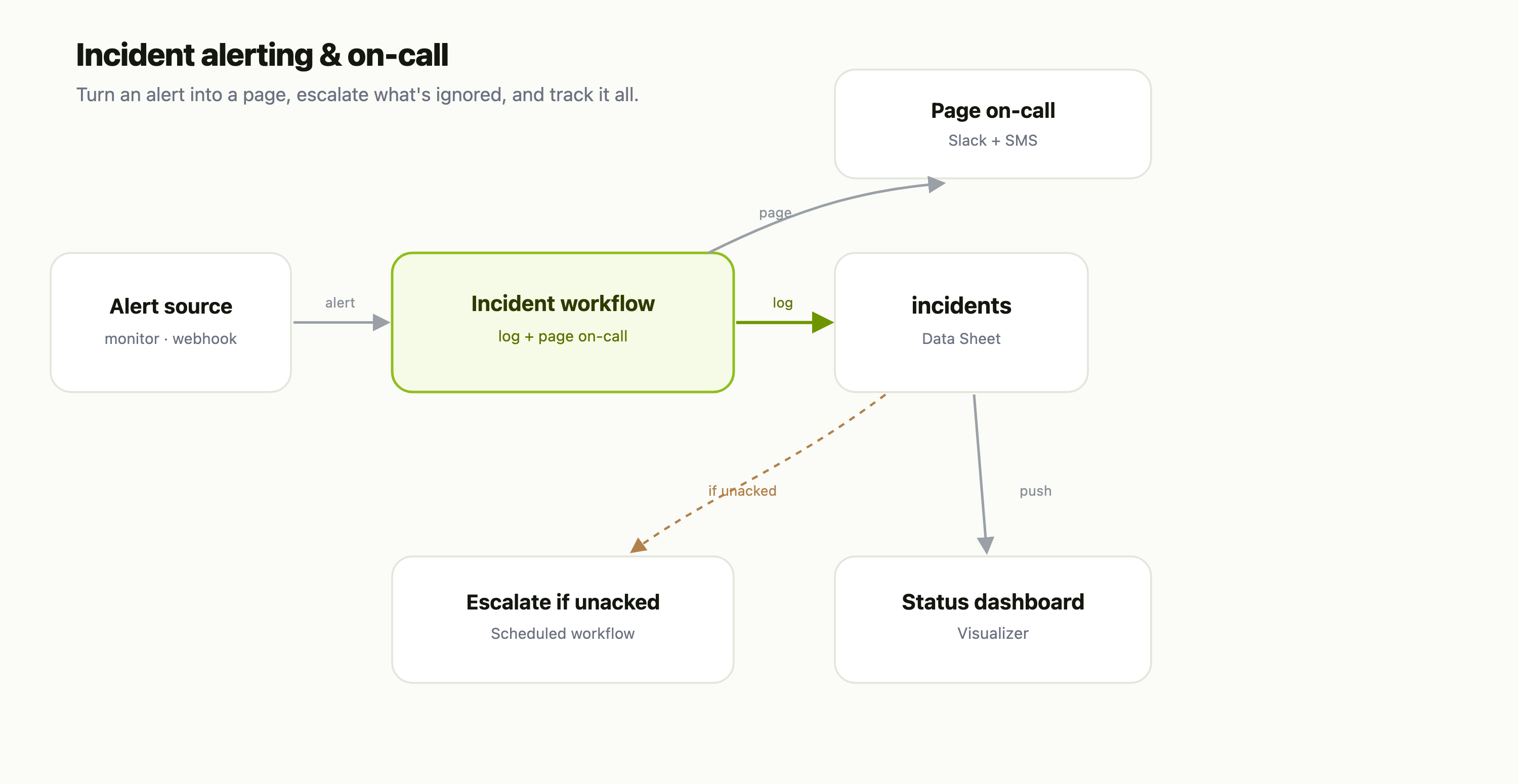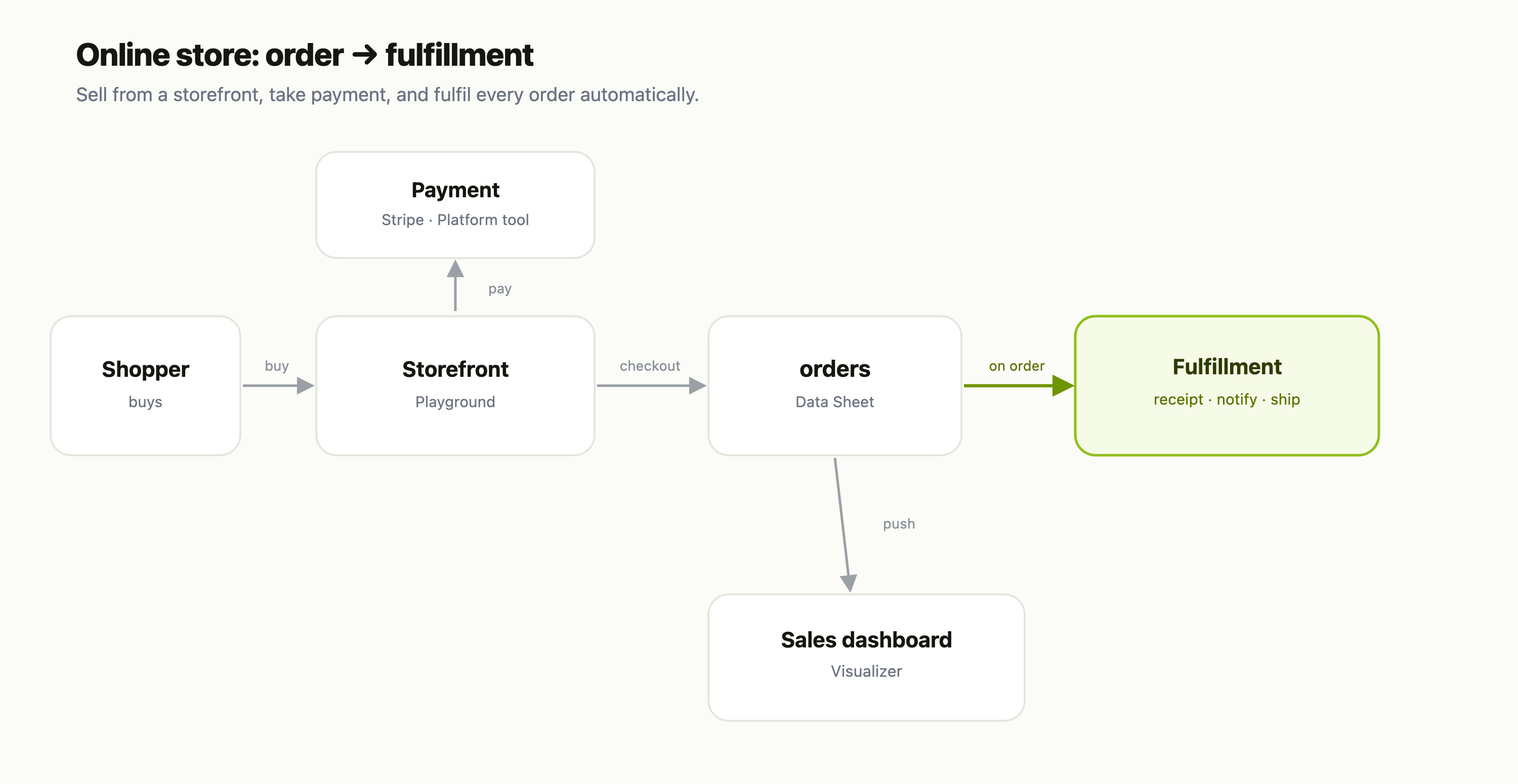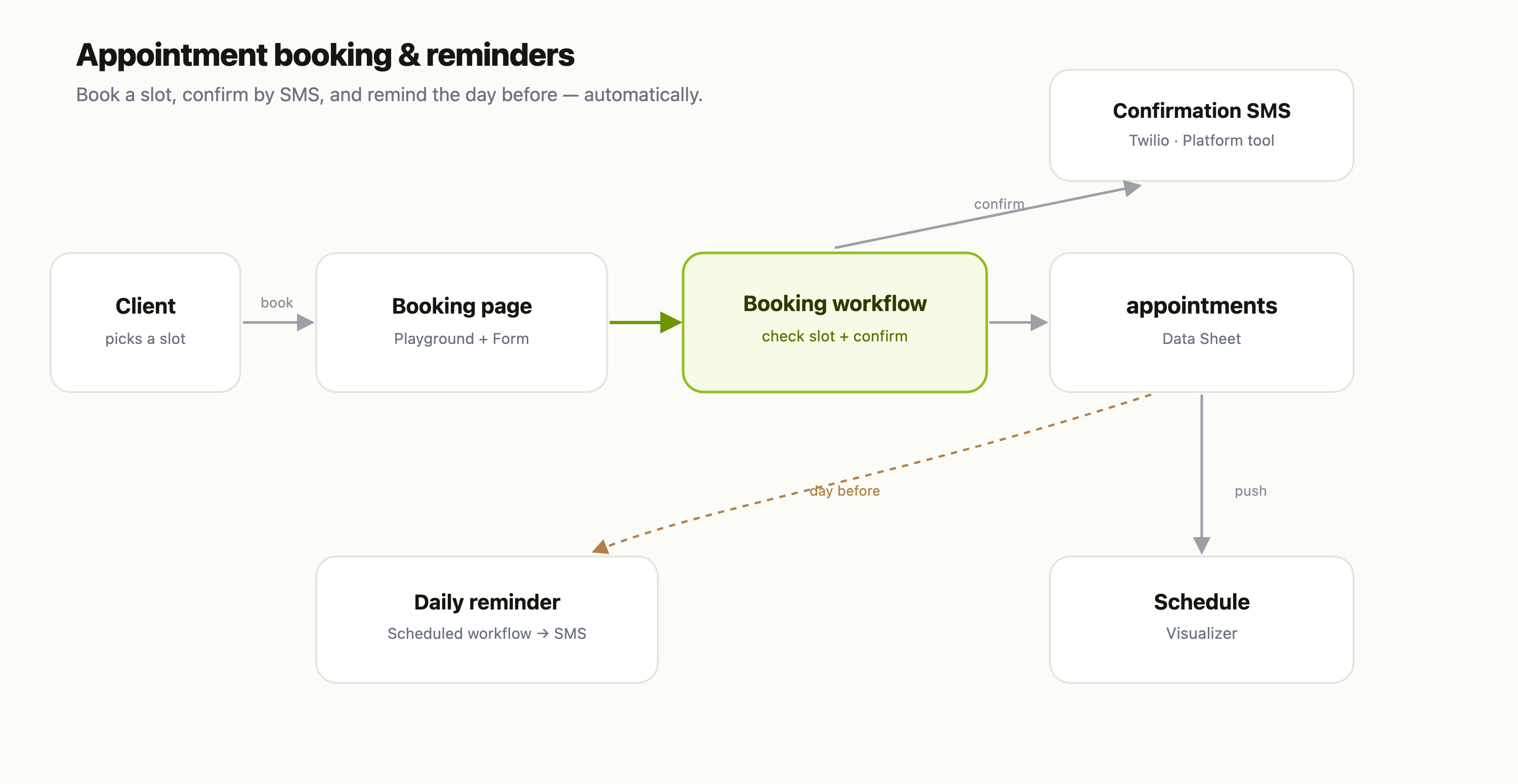
This is a recipe — each part is its own FlowFn feature, wired together into a back-office console:
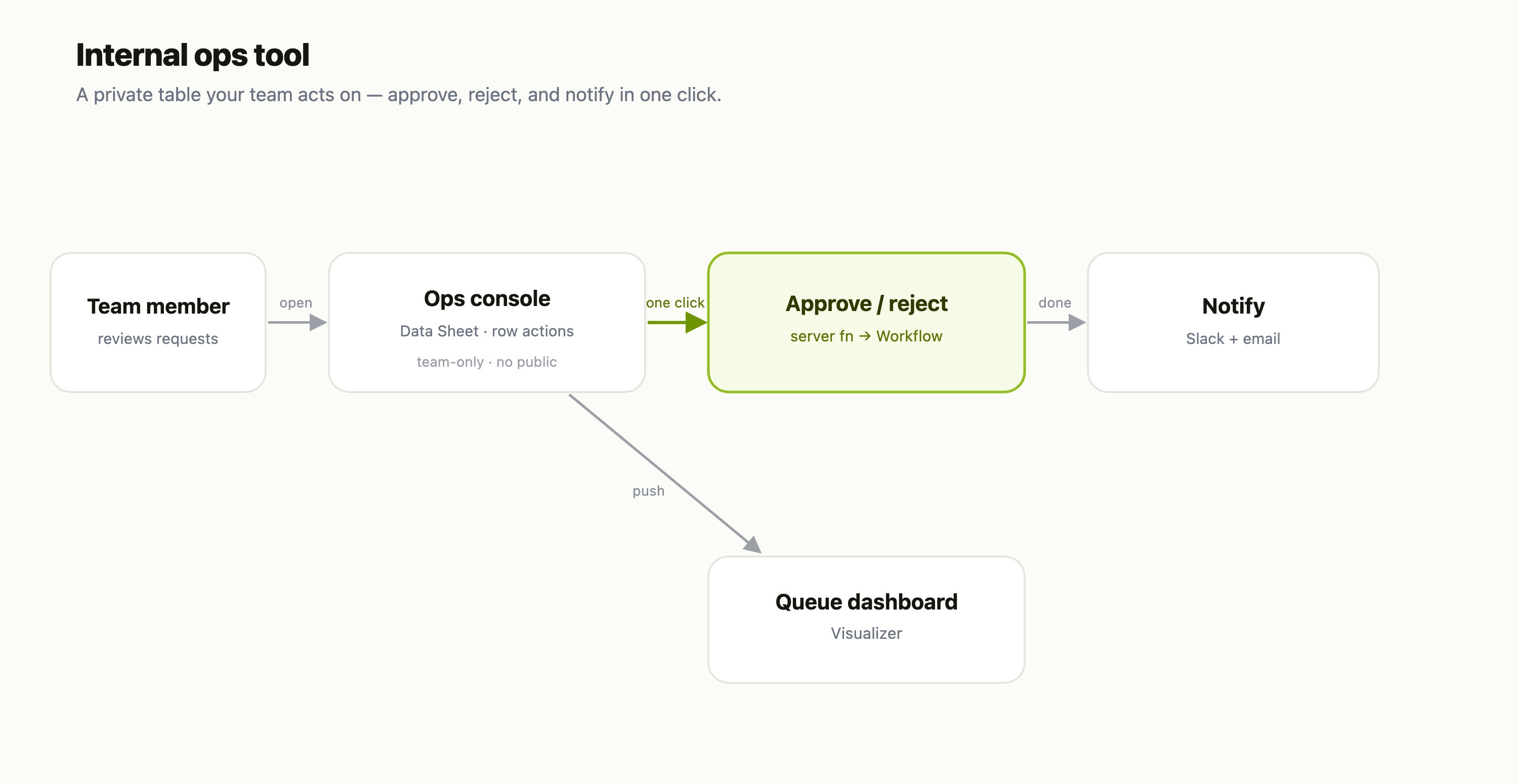
| Piece | FlowFn feature |
|---|---|
| The console | a Data Sheet with row actions |
| Who can use it | your Team & roles — no public access |
| The action buttons | row actions on a Playground with the Database linked |
| Approve / reject | a server function that calls a Workflow |
| Notify | Slack + email Platform Tools |
| Queue health | a Visualizer |
Let's build it.
Step 1 — The console
A Data Sheet is the console: one row per request, with the type, requester, detail, amount, an assignee, and a status (Pending / Approved / Rejected). It's private by default — no public read, no public write — so it lives entirely inside your team's dashboard.
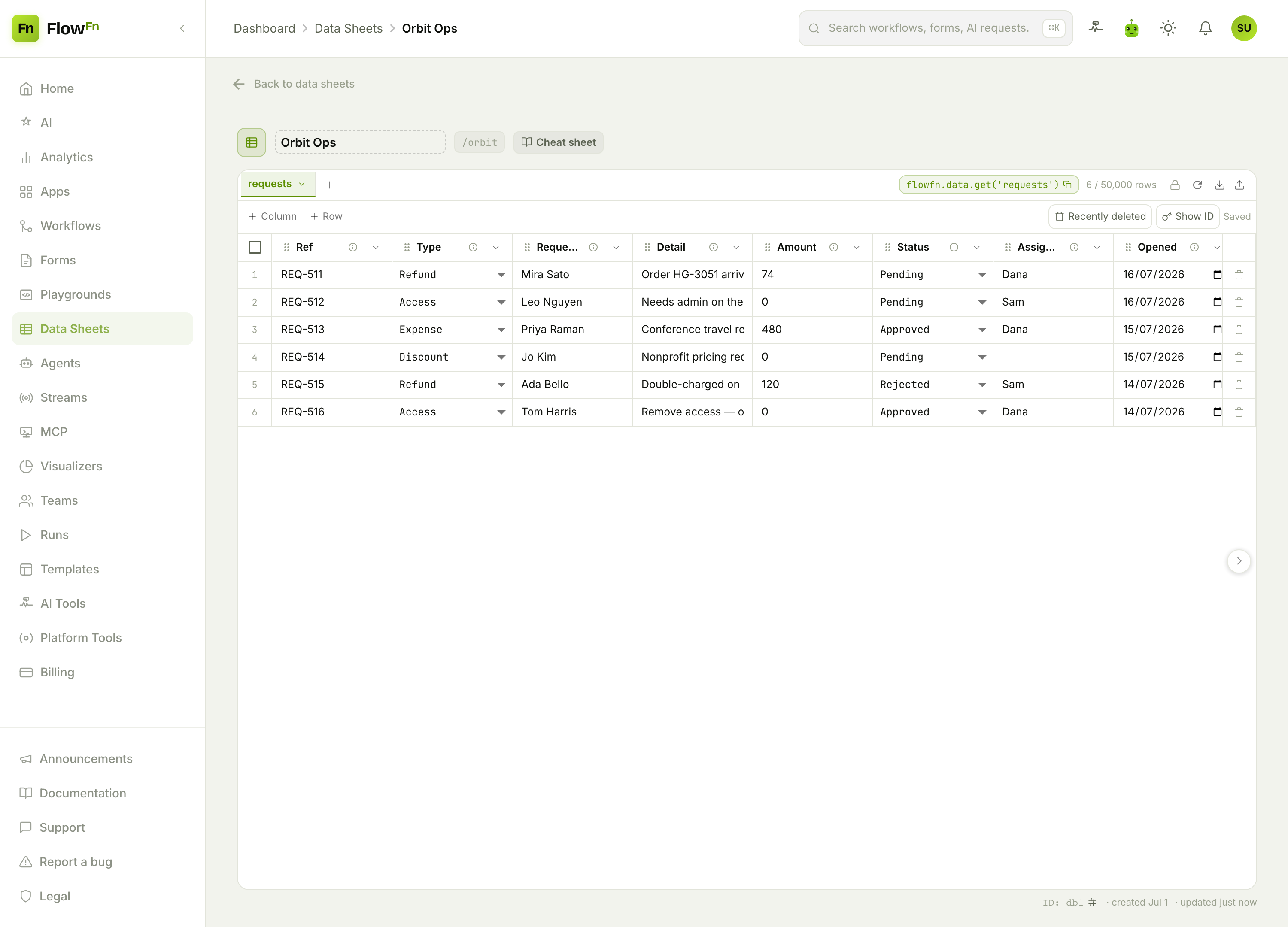
Requests can flow in from a public form, a webhook, or another workflow; however they arrive, they land here as rows your team can filter, sort, and act on.
Step 2 — Act in one click
This is what makes it a tool and not just a table. Add row actions — buttons on each row that run one of your functions against it. Row actions live on a Playground that has the Database linked: each button calls a server function you write, and that function flips the status, records who decided, and kicks off whatever should happen next — typically by calling a Workflow (ctx.workflows.run) to issue the refund or grant the access. An Approve and a Reject button (the latter behind a confirmation) let your team act on the row without leaving the table, and every action runs your logic — not a free-for-all of manual edits.
Step 3 — Notify automatically
The approve/reject workflow ends by notifying — Slack the requester's manager, email the person who asked, or post to an audit channel. The decision and its follow-up happen together, so "did anyone action REQ-511?" is never a question.
Step 4 — Keep the queue honest
Have a workflow feed a Visualizer — a scheduled one that reads the queue and pushes the figures in works well — and you get an ops board:
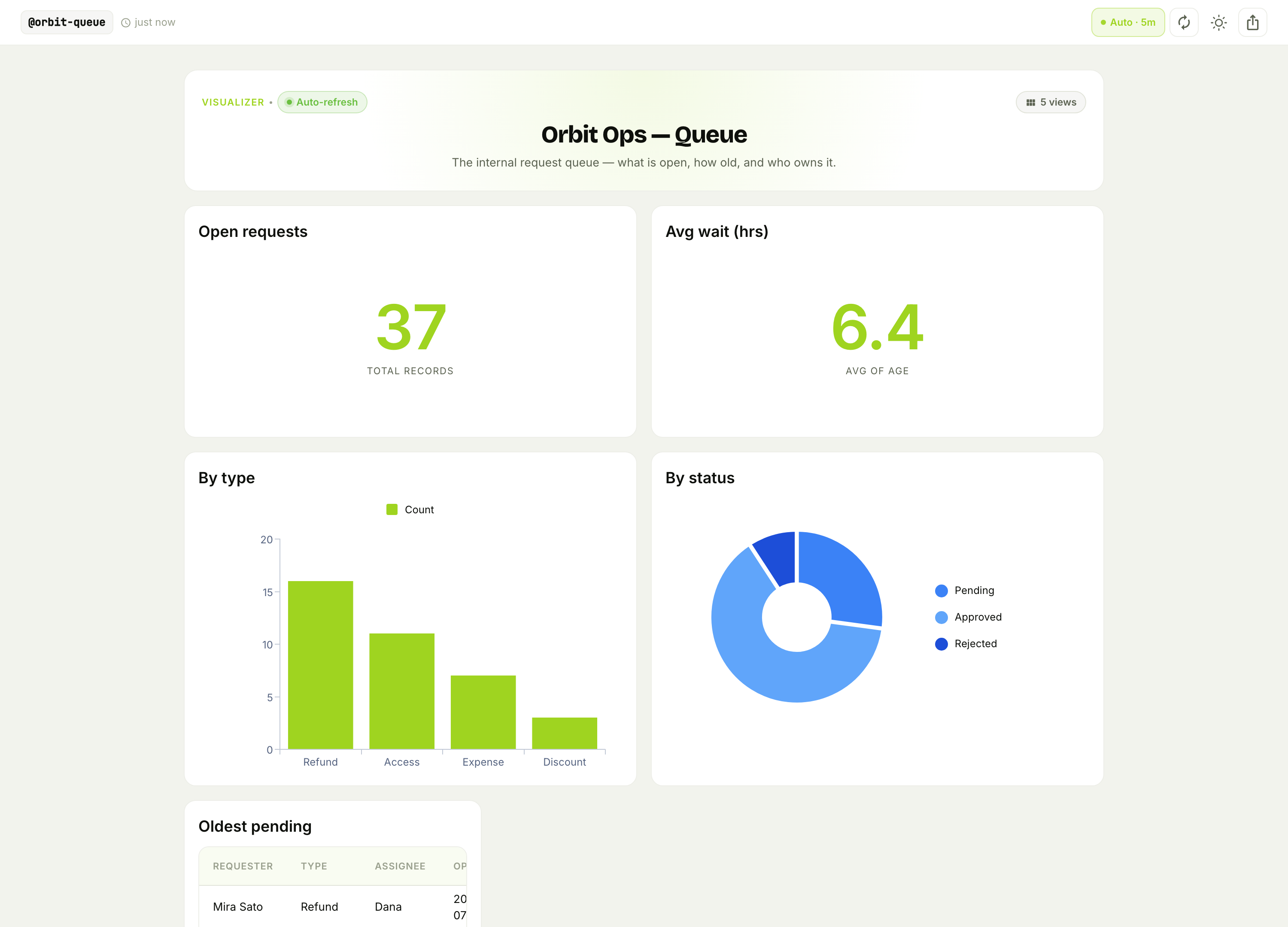
Open requests, average wait time, the mix by type, and how many are still Pending versus resolved — plus the oldest pending items so nothing ages out unnoticed. It's the view that tells your team whether they're keeping up.
Why this beats a spreadsheet (or an internal-tools SaaS)
- Actions run your logic, safely. A row-action button runs a server function (which can call a workflow) — not a hand-edit that skips the refund or the audit trail.
- It's private by construction. No public read, gated to your team and roles — the sensitive queue never leaks.
- No internal-tools subscription. It's Data Sheets, Workflows, and a Visualizer you already have, wired together.
Wrap-up
An internal ops tool is a private Data Sheet → row actions that run server functions (which call Workflows) → automatic notifications → a queue dashboard. The sheet is the console, the row actions turn intent into audited automation, and the dashboard keeps the backlog visible — no internal-tools platform required.
Start with one queue (refunds, say), a status column, and an Approve action; even that beats a spreadsheet and a Slack thread. Then add rejection, notifications, and the board. Give your team the buttons, and let the busywork run itself.