A Run is one execution of a workflow or an agent. The Runs page collects all of them, and each run opens into a detailed trace. It's where you go to answer "did that order get processed?", "why did last night's job fail?", and "what did the agent actually do when it answered that customer?"
For Bloom & Bean, that's the order workflow firing on every order and the Concierge agent answering diners. Here's a workflow run:
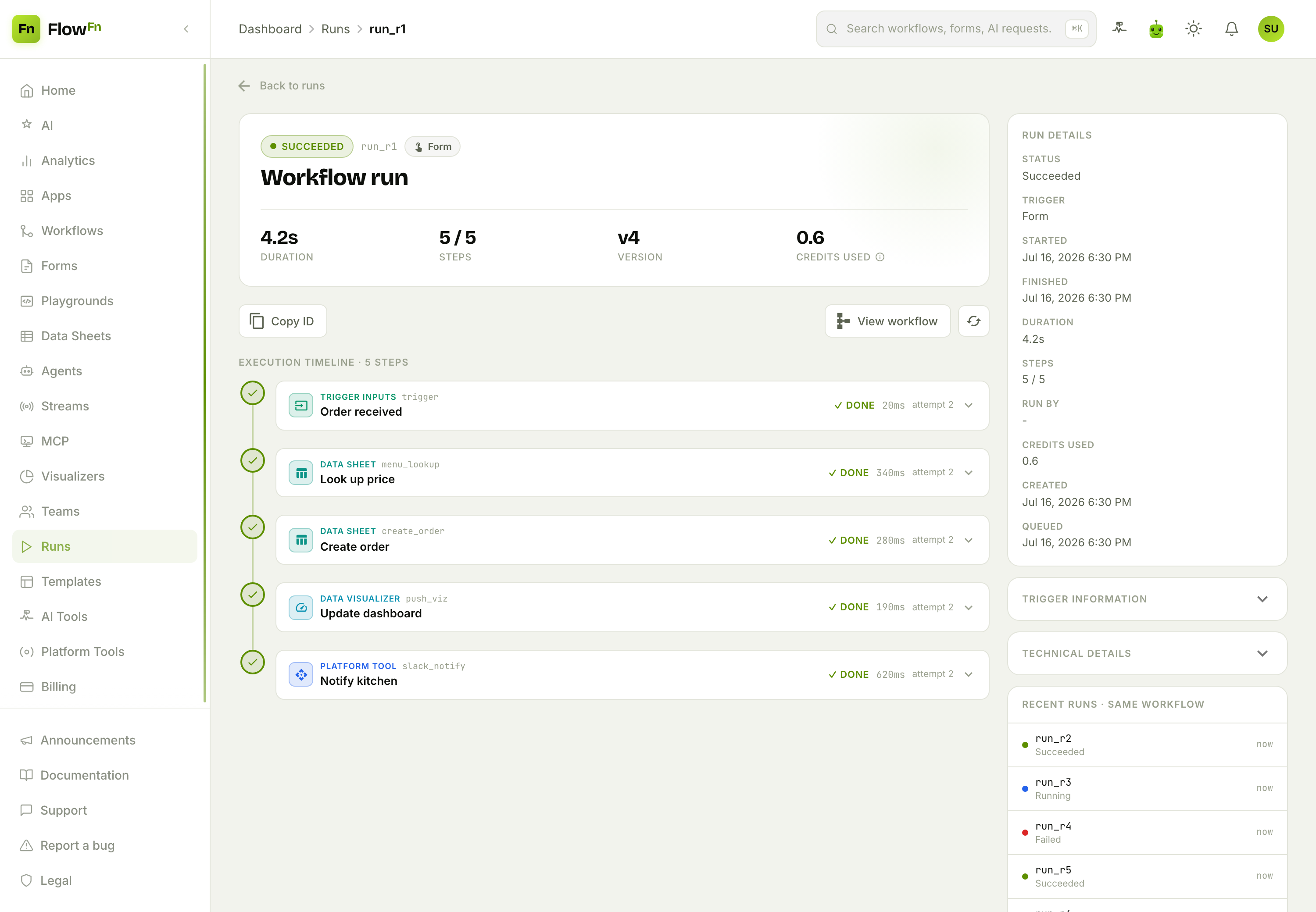
The order workflow succeeded in 4.2 seconds across 5 steps — you can read the whole thing top to bottom: Order received → Look up price → Create order → Update dashboard → Notify kitchen, each with its status, duration, and type. Let's tour it.
The runs list
The Runs page has two sides — Workflows and Agents — and a set of filters to find what you're looking for:
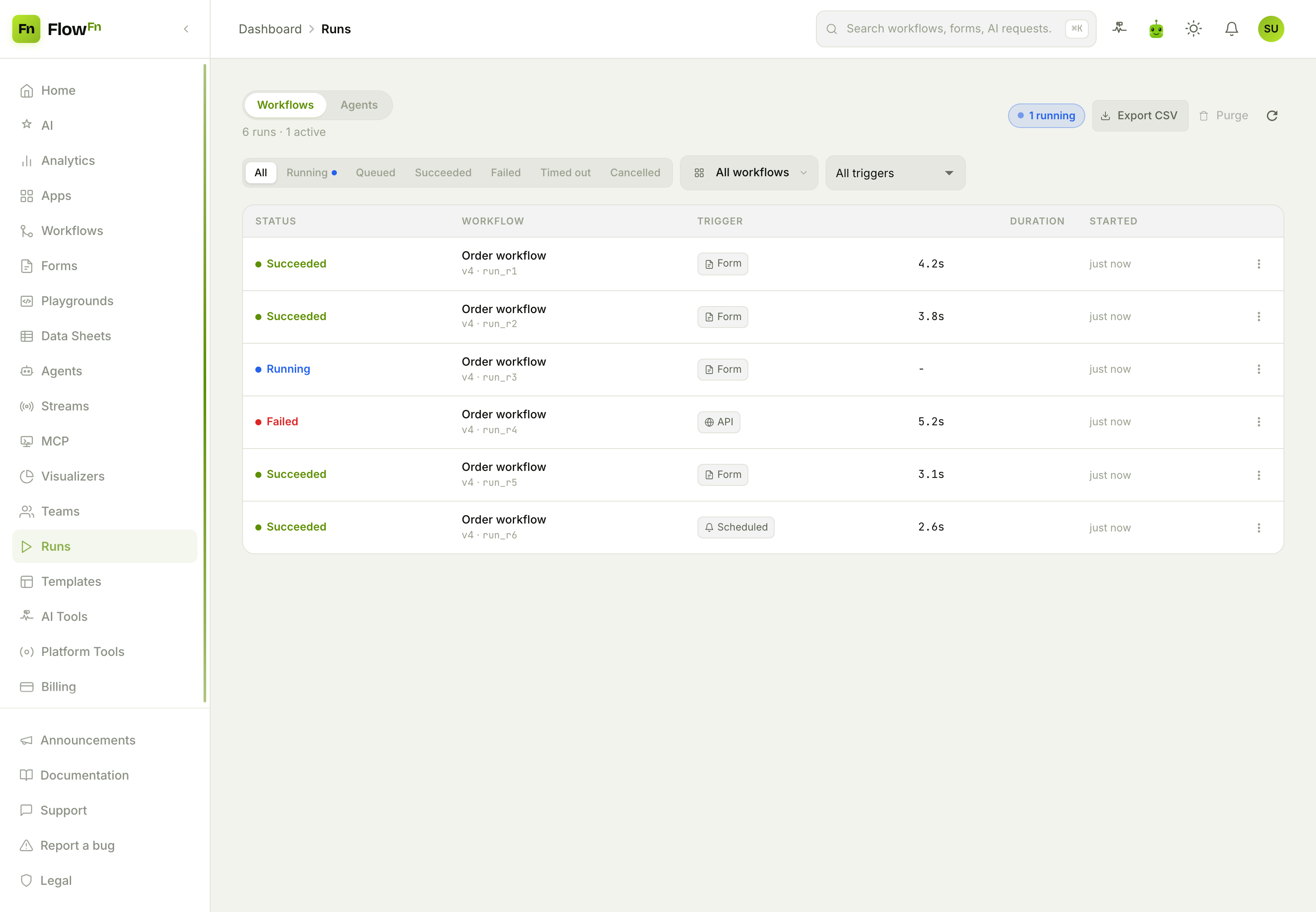
Filter by status (Running, Succeeded, Failed, Timed out, Cancelled…), by trigger (webhook, scheduled, API, form, playground, agent, stream), or narrow to a single workflow. Each row shows the run's status, its trigger, how long it took, and when it started; a live counter tells you how many are running right now. From here you can Export CSV for reporting, or Purge old runs.
Inside a workflow run
Click a run and you get the full trace. The execution timeline is the heart of it — one node per step, colored by task type and status. Click any step to drill in:
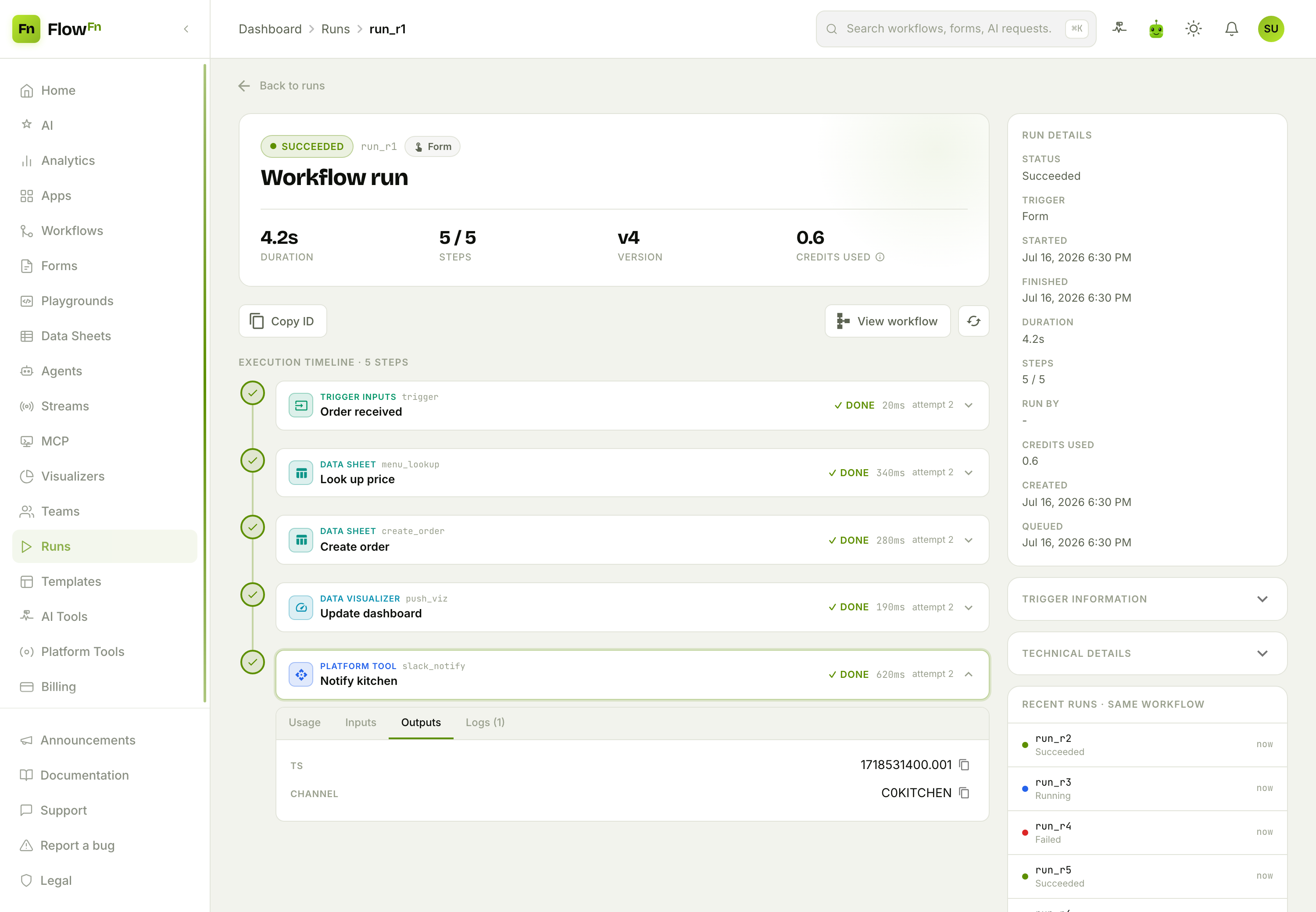
Every step expands to four tabs — Usage, Inputs, Outputs, and Logs — so you can see exactly what a task received, what it produced, and what it logged. Here the Notify kitchen step's Outputs show the Slack message timestamp and channel it posted to. The sidebar carries the run's metadata (trigger inputs, timing, credits used) and a list of recent runs of the same workflow.
When something does fail, the same view shows you where: the failing step is marked, its error is surfaced, and you get two recovery buttons — Retry (queue a fresh run with the same inputs) and Resume (pick up from the last successful checkpoint instead of starting over). Runs that pause for a human approval show the approve/reject panel right inline.
Inside an agent run
An agent run is a different kind of trace — not a fixed pipeline but a reason→act loop, and the run detail shows every turn of it:
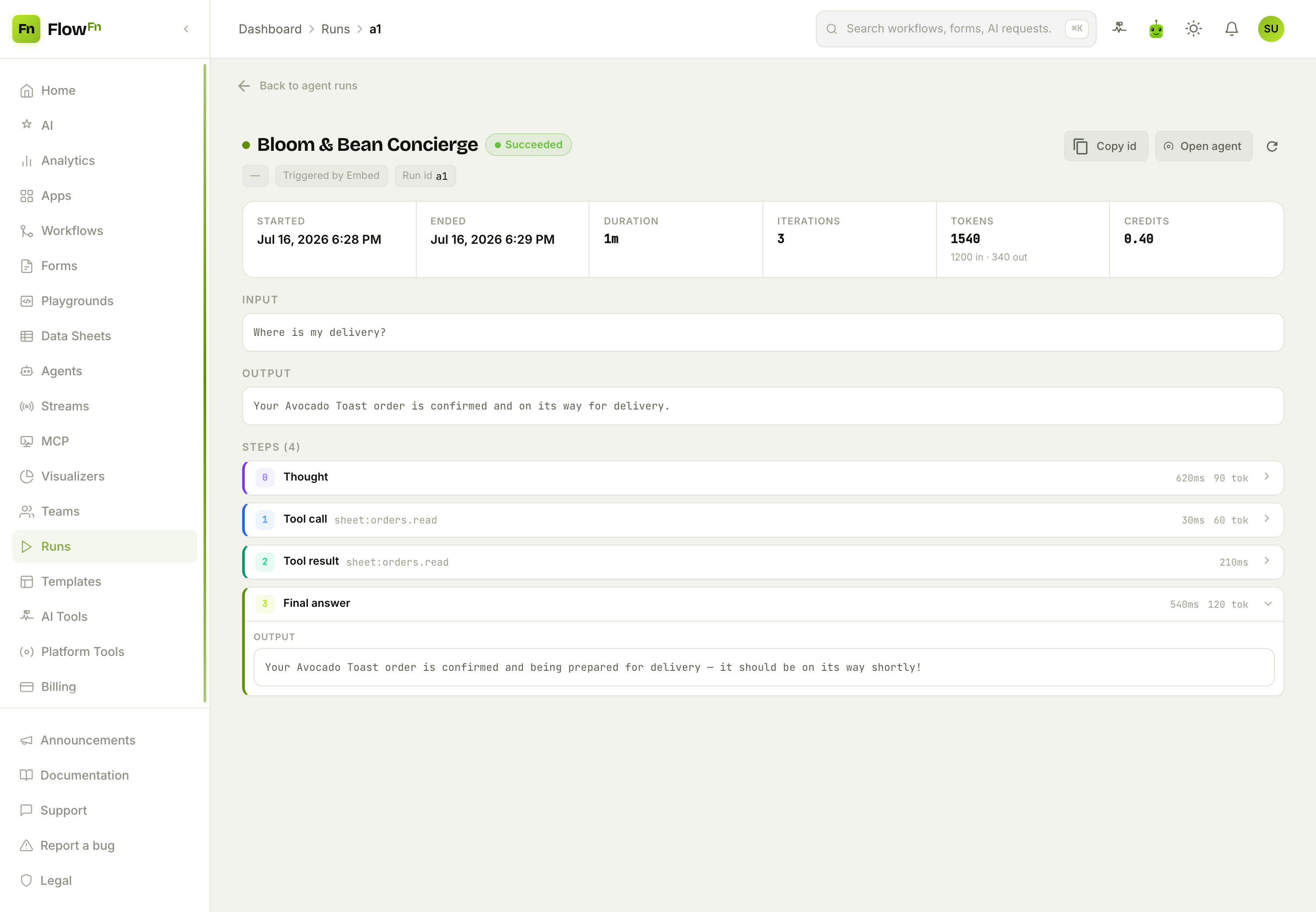
At the top, the run's vitals: started/ended, duration, iterations, tokens (in and out), and credits. Below the input and output, the Steps timeline is the agent's actual thinking, step by step:
- Thought — the agent reasoning ("the customer's asking about a delivery; I should look up their order")
- Tool call — the act (
sheet:orders.read) - Tool result — what came back
- Final answer — what it told the customer
That trail is why agents are debuggable at all. When an agent gives a surprising answer, you can read exactly which tools it called, what they returned, and how it reasoned to its reply — and step kinds like Approval request and Clarification request show up right in the timeline when the agent pauses for a human.
Statuses, retries, and retention
Runs carry precise statuses — workflows move through queued → running → succeeded / failed / timed_out / cancelled (and paused when waiting on an approval); agents add awaiting_user, awaiting_approval, and awaiting_clarification for their human-in-the-loop pauses.
A few things worth knowing:
- Retry vs Resume (workflows): retry starts a fresh run; resume continues from the last checkpoint. Agents support retry for failed, timed-out, or cancelled non-interactive runs.
- Purge & retention: you can purge old runs (workflow runs are soft-deleted and recoverable for a window; agent runs are permanently deleted). Plans also set an automatic retention window so history doesn't grow forever.
- Cost is per-run: each run records the credits it consumed, so you can see exactly what a workflow or agent costs to run.
Wrap-up
Runs turn "I hope that worked" into "here's exactly what happened." Every workflow execution is a step-by-step timeline with inputs, outputs, and logs you can inspect; every agent run is a readable reason→act trail; and both record their timing and cost. Filter to find the one you care about, drill into any step, and — when something breaks — retry or resume from right where it stopped.
Next time a workflow or agent does something you didn't expect, open its run and read the trace — the answer is almost always right there in the timeline. Next, we'll let your app's visitors sign in with end-user auth. If you can see what it did, you can trust what it does.