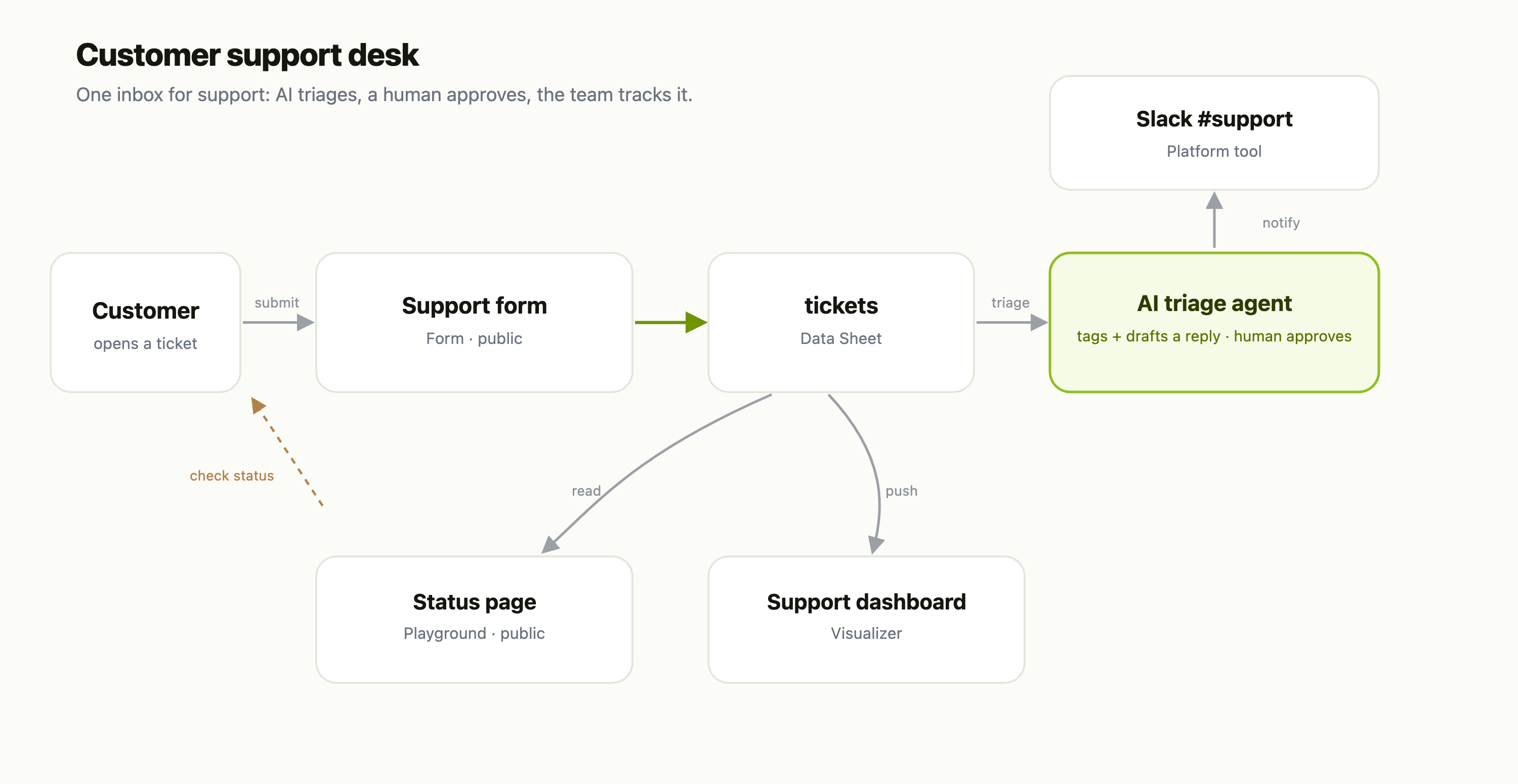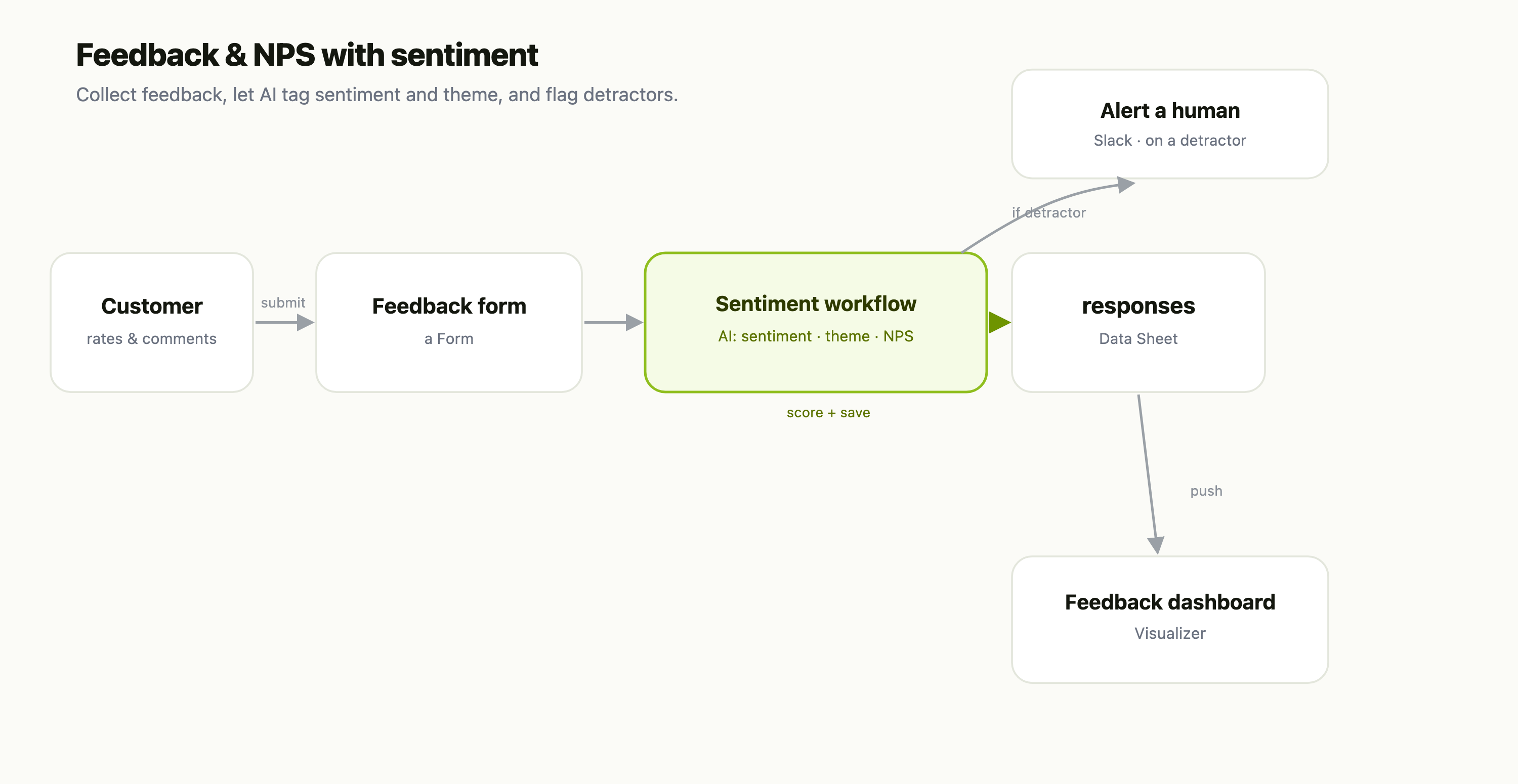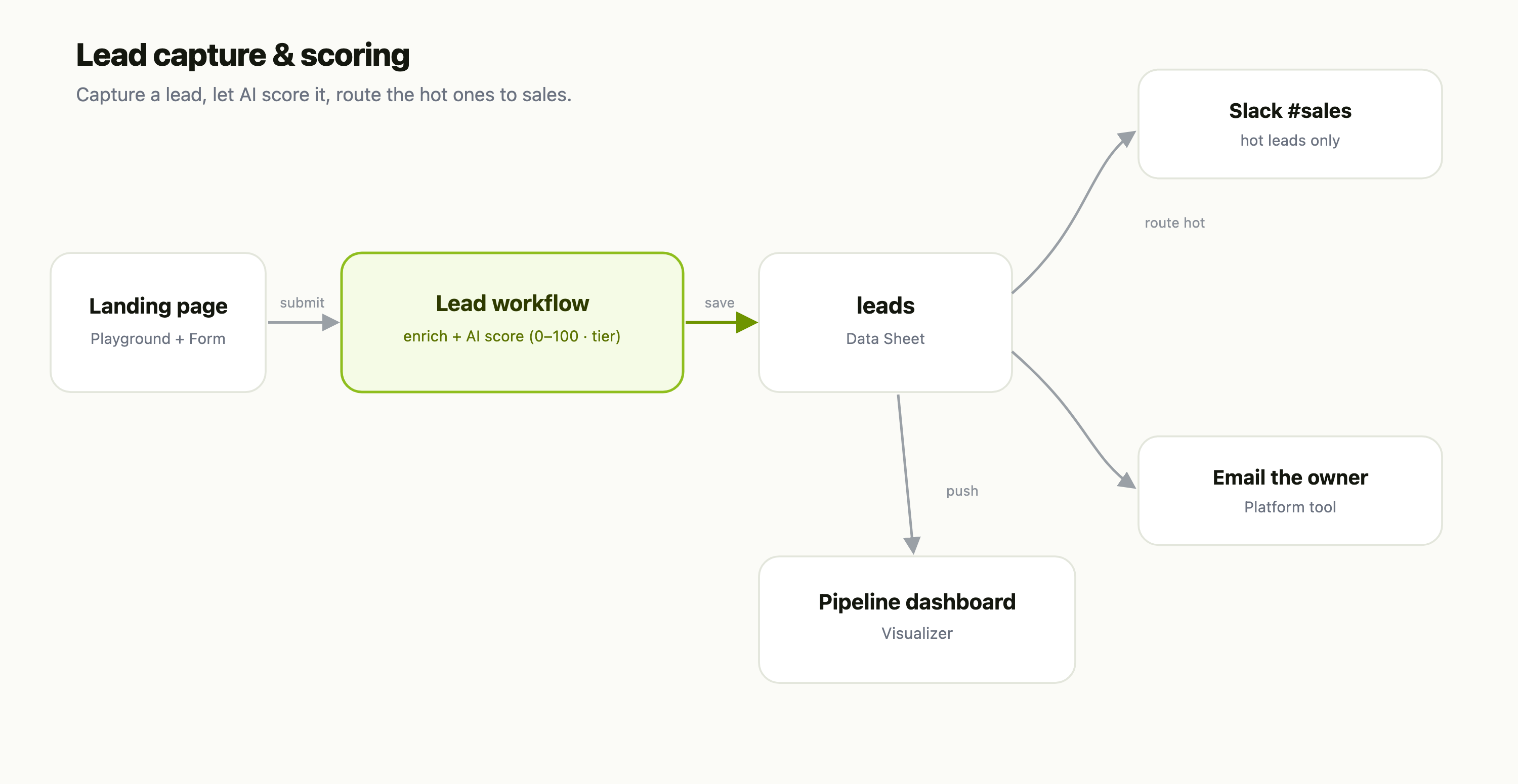
This is a recipe — each part is its own FlowFn feature, wired together into a grounded help bot:
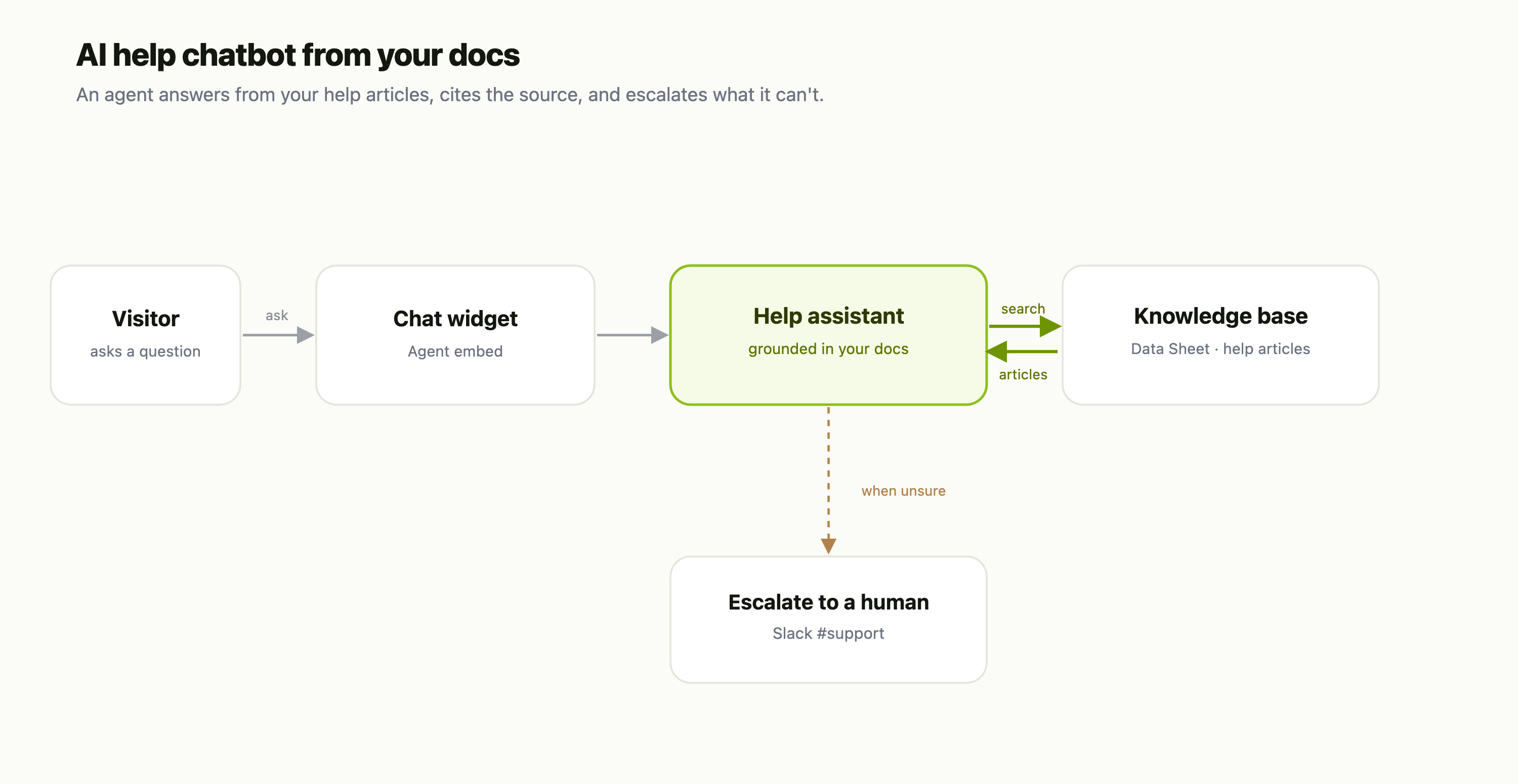
| Piece | FlowFn feature |
|---|---|
| Your help articles | a Data Sheet |
| The assistant | an Agent grounded in those docs |
| Answering | the agent's AI + its attached knowledge |
| Escalation | a Slack Platform Tool |
| Where it lives | the Agent embed on your site |
Let's build it.
Step 1 — Put your docs where the agent can read them
Create a Data Sheet for your help articles — one row per doc, with a title, category, URL, and the content. This is your knowledge base, and keeping it as rows means you can add, edit, and re-categorize articles anytime without touching the agent.
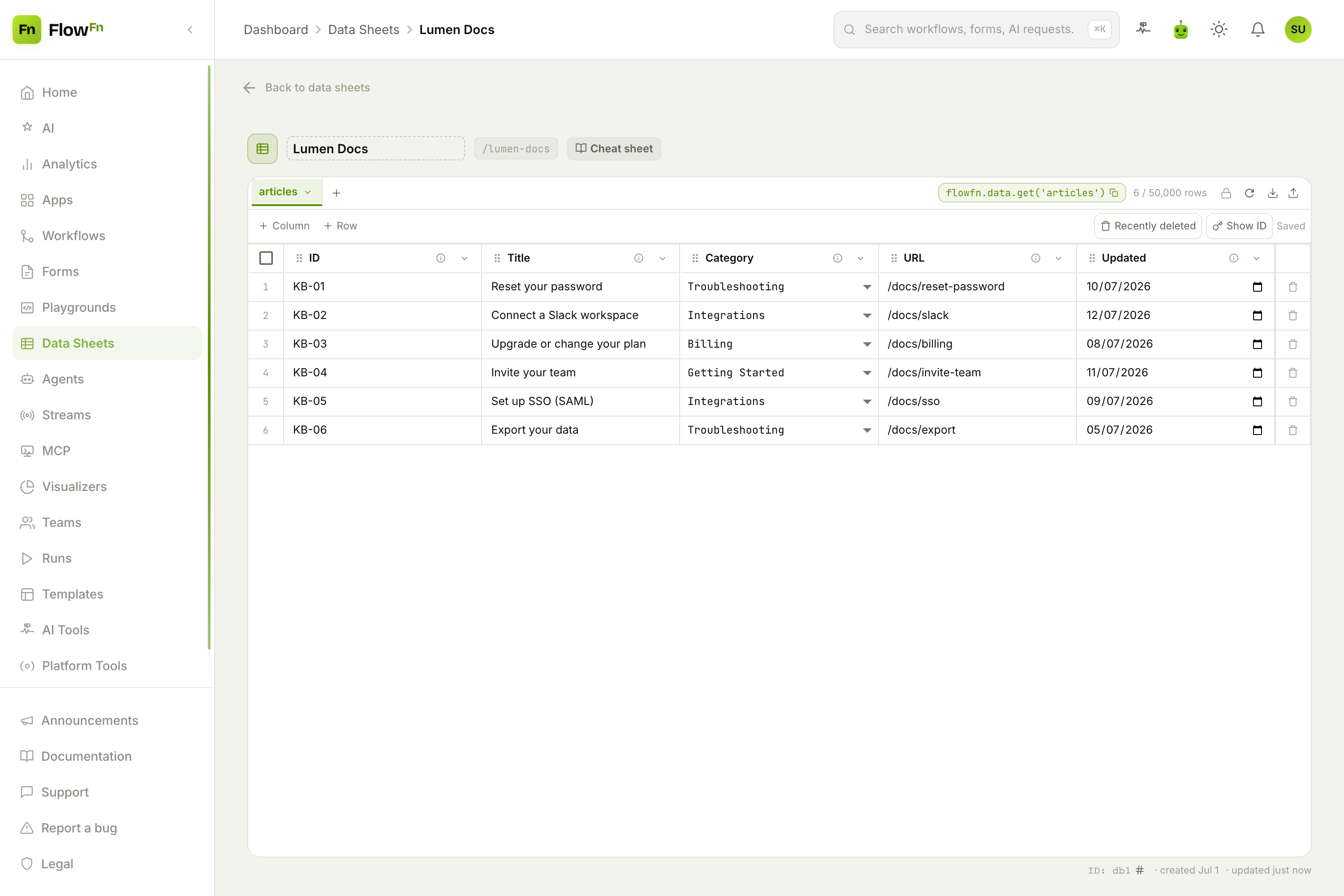
(You can also upload PDFs and markdown as the agent's Knowledge files — a Data Sheet is the tidiest option when your docs are short and you want to keep editing them.)
Step 2 — Point an agent at your docs
Create an Agent, attach the articles sheet as a read-only knowledge source, and give it one clear instruction: answer only from the help articles, cite the doc you used, and if the docs don't cover it, say so and offer a human. That grounding rule is the whole difference between a useful assistant and a confident liar — the agent stays inside your content instead of inventing answers.
Step 3 — Test it before anyone sees it
The Test tab runs the real agent — same instructions, same tools, same knowledge — so you can check its answers before you publish:
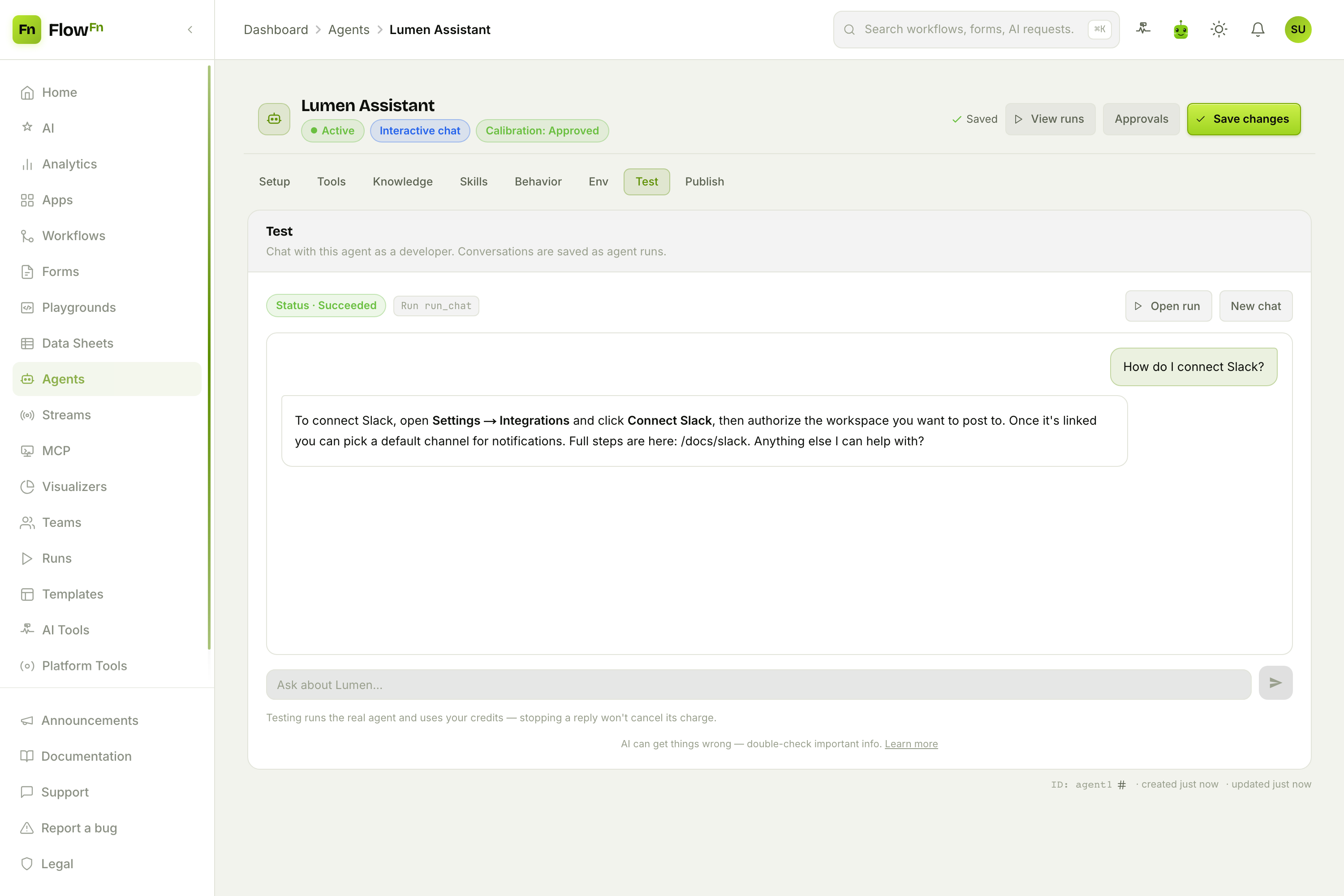
Ask it the questions your support inbox actually gets. Notice it links the source article (/docs/slack) — a grounded bot shows its work, which builds trust and gives the visitor somewhere to go next. Tune the instructions until the answers are right, then move on.
Step 4 — Escalate what it can't answer
Add a Slack Platform Tool and one rule: when the docs don't cover the question, post it to #support and tell the visitor a human will follow up. Now the bot handles the long tail of repetitive questions on its own, and the genuinely new ones land in front of your team — with the visitor's question already written down.
Step 5 — Embed it
Drop the Agent embed snippet on your site (or share its hosted page) and the assistant is live. Every question it answers is a ticket your team never sees; every question it escalates is one worth a human's time.
Why this beats a canned chatbot
- It's grounded in your docs, not the whole internet. The agent answers from your articles and links them — no hallucinated policies, no made-up prices.
- Editing docs updates the bot. Change an article in the sheet and the next answer reflects it. There's no re-training step.
- It knows when to tap out. The escalation rule means "I don't know" becomes a routed ticket, not a dead end.
Wrap-up
An AI help bot is a knowledge-base Data Sheet → an agent grounded in it → an escalation rule → an embed. The docs supply the truth, the agent does the reading and phrasing, and Slack catches whatever falls through — all without a model to train or a vector store to run.
Start with your ten most-asked questions as ten rows and a strict "answer only from these" instruction. Test it against your real inbox, add the escalation, and embed it. Let your docs answer the tickets they already contain.